Edit budget
To edit a budget:
-
Open the application menu and click on Budgets.
-
Select the budget year.
-
Select the company to which the budget corresponds.
-
Select a budget.
-
If you want the budget to be your Default Budget, click on the star next to the Modify button.
-
Click on "Modify".
-
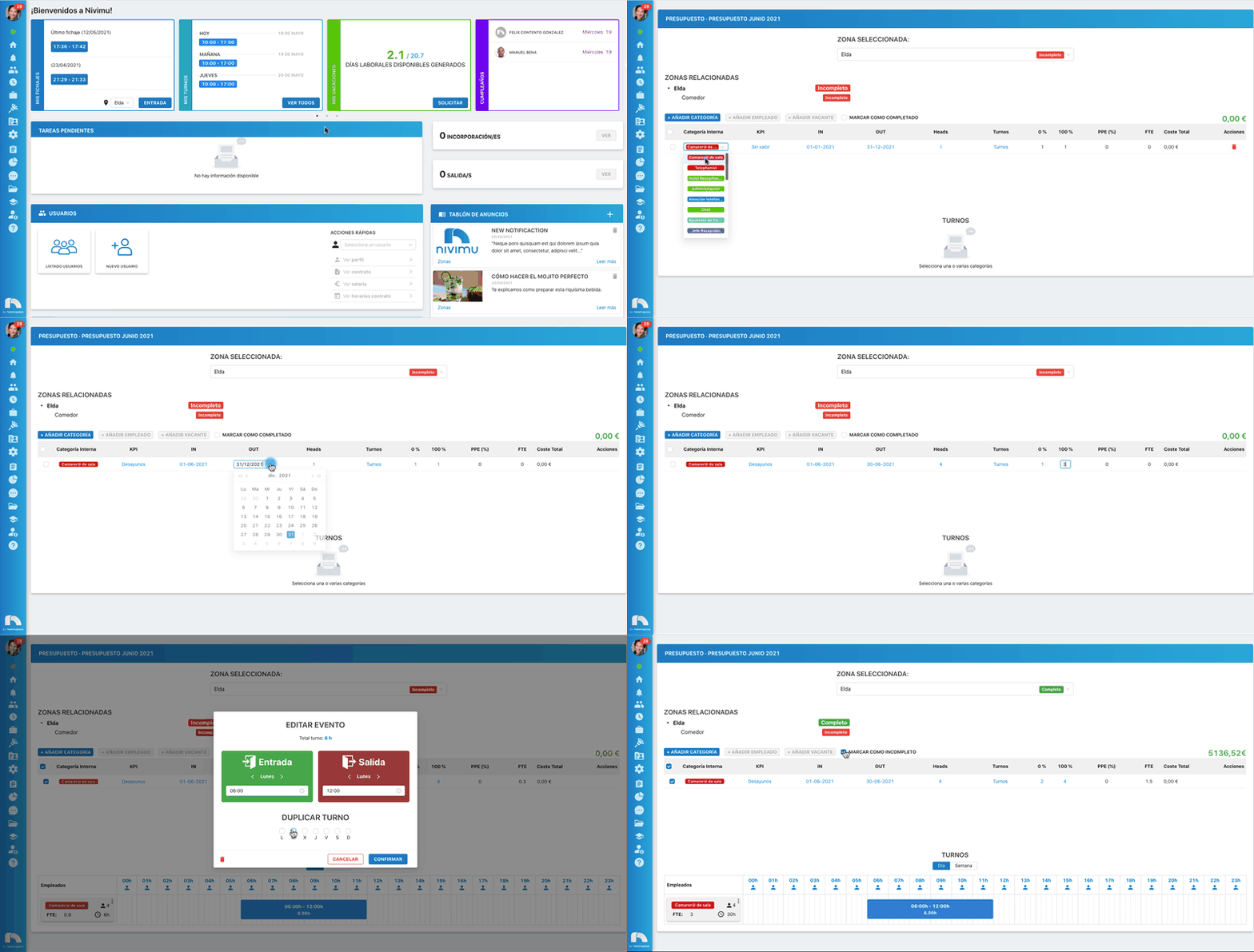
Next, select the zone you want to edit.
-
In "Related Zones" you will see the status of the direct child zones of the one you are editing. The status can be "Complete" or "Incomplete".
-
Click on + Add Category, Add Employee or Add Vacancy to add a new budget line.
-
Once the Internal Category is added, a line will be created with the rest of the data that we must fill in:
- In KPI, select the type of KPI.
- In IN, select the start date of the budget.
- In OUT, select the end date of the budget.
- In Heads, determine the people needed to cover the shifts.
- When clicking on Shifts, the template will be displayed to edit the schedules of said shifts for the assigned Heads.
- In 0% you must indicate the minimum number of people needed to cover the shift.
- In 100% you must indicate the maximum number of people needed to cover the shift.
- In PPE(%) the percentage of eventual staff is shown.
- In FTE the full-time equivalent (40h) is shown.
- In Total Cost the cost of the budget line is shown.
- In Actions you can delete the line you want.
-
As you fill in the data in Estimated Costs, the total cost data of the budget will be updated.
-
When you have all the data filled in, click on "Mark as completed" to validate the budget. The status will change from Incomplete to Complete.