First Sign-In
Sign in for the first time
If this is your first time accessing the app, follow these steps:
- Open your company portal from Google Chrome on any device.
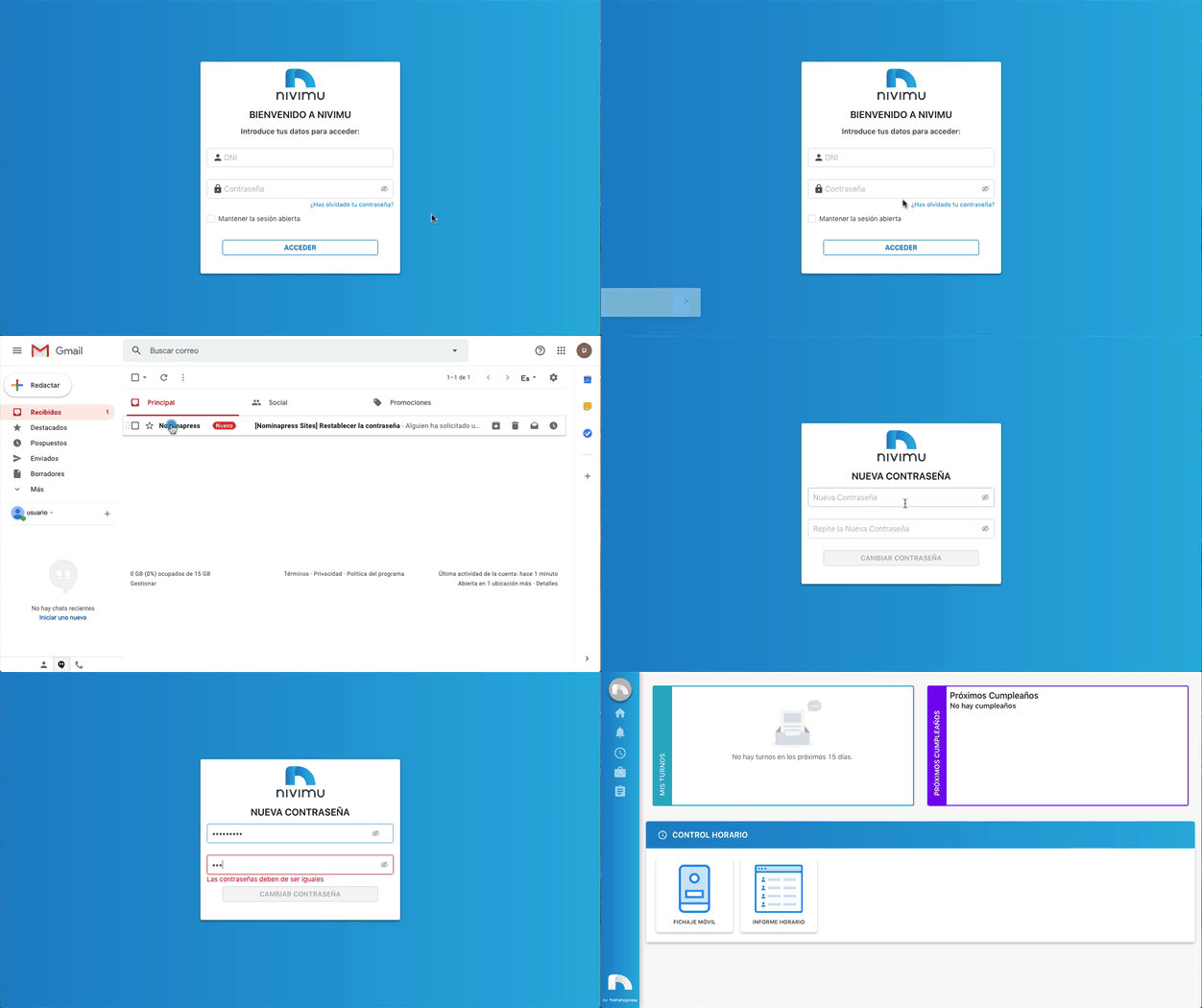
- Because it's your first login, you don't yet have a password and need to create one.
- Click Forgot your password?
- In the new window, enter your DNI/NIE and click Send. You'll automatically receive an email at the address linked to your account.
- Open the email and click the personalized link.
- When the app opens, enter your new password and click Change password.
- Back on the login page, enter your credentials: DNI/NIE and Password.
- If you want to stay signed in so you don't have to re-enter the password each time, check Keep me signed in.
-
Sign in with your username and password.
-
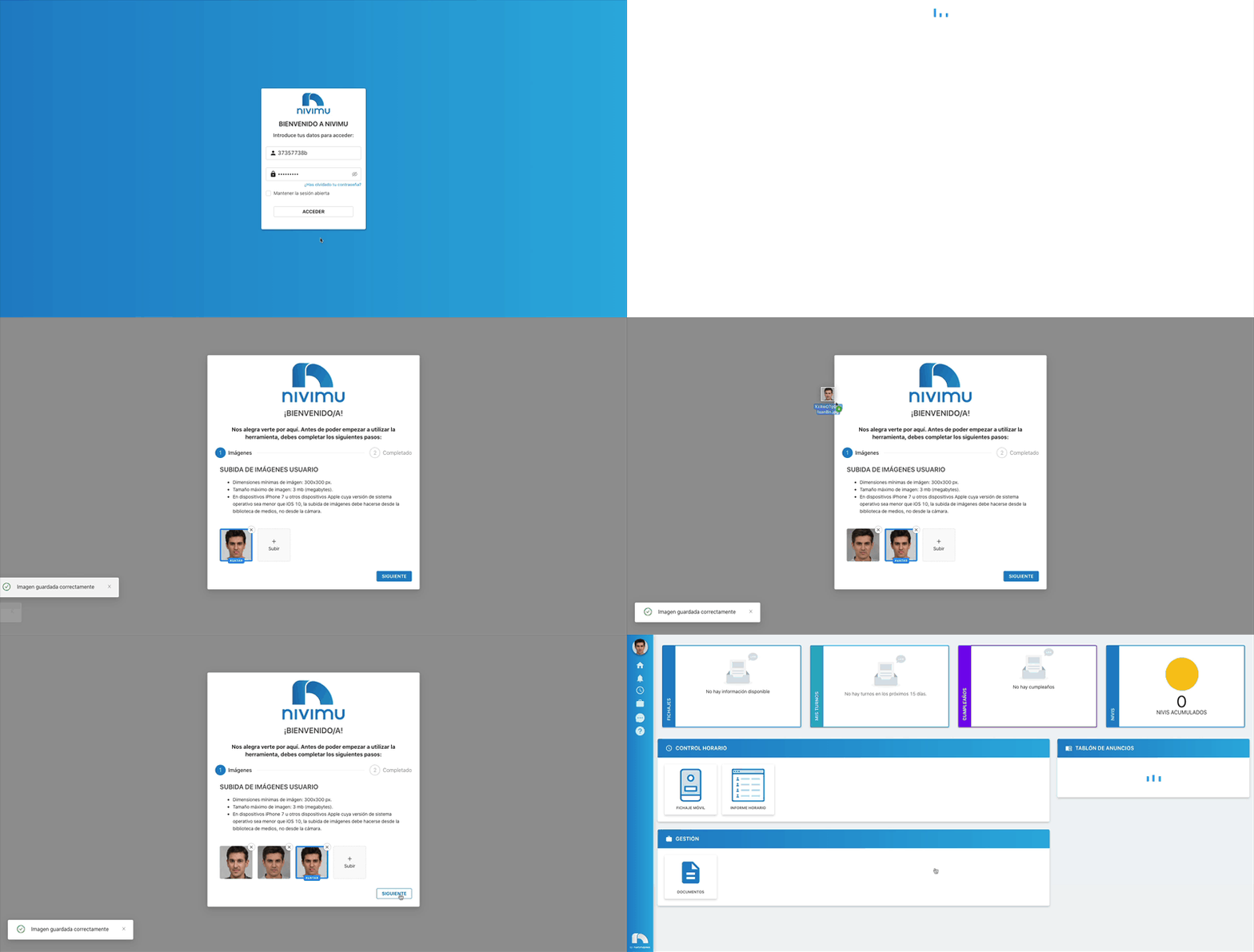
After signing in, an onboarding wizard appears with these steps:
Consent
You'll see a welcome screen where you must read and accept the privacy and service policy and allow the app to send notifications.
Images
After accepting, upload at least 3 images for facial recognition during clock-in (if your company uses it). See the tutorial at the end of this page.
Done
Finally, click Start to access the app.
Note
If you didn't receive the password email, check your spam folder.
Reduce photo size
Several options:
- In your phone camera settings, lower the photo quality to low or medium.
- Take a screenshot of the photo while it's on screen (crop the borders you don't need).
- Send it via WhatsApp to another contact (or to yourself) and download the photo afterward.
- Use Photoshop and choose "Save for Web".
- Use an app or site to shrink images, e.g., http://webresizer.com/resizer/