Install the App
Install on desktop
You can install the app on any computer without using the browser each time:
-
First install Google Chrome.
-
Open your company portal in Chrome.
-
In the address bar, click Install Nivimu.
-
Click Install and the app will open on your computer.
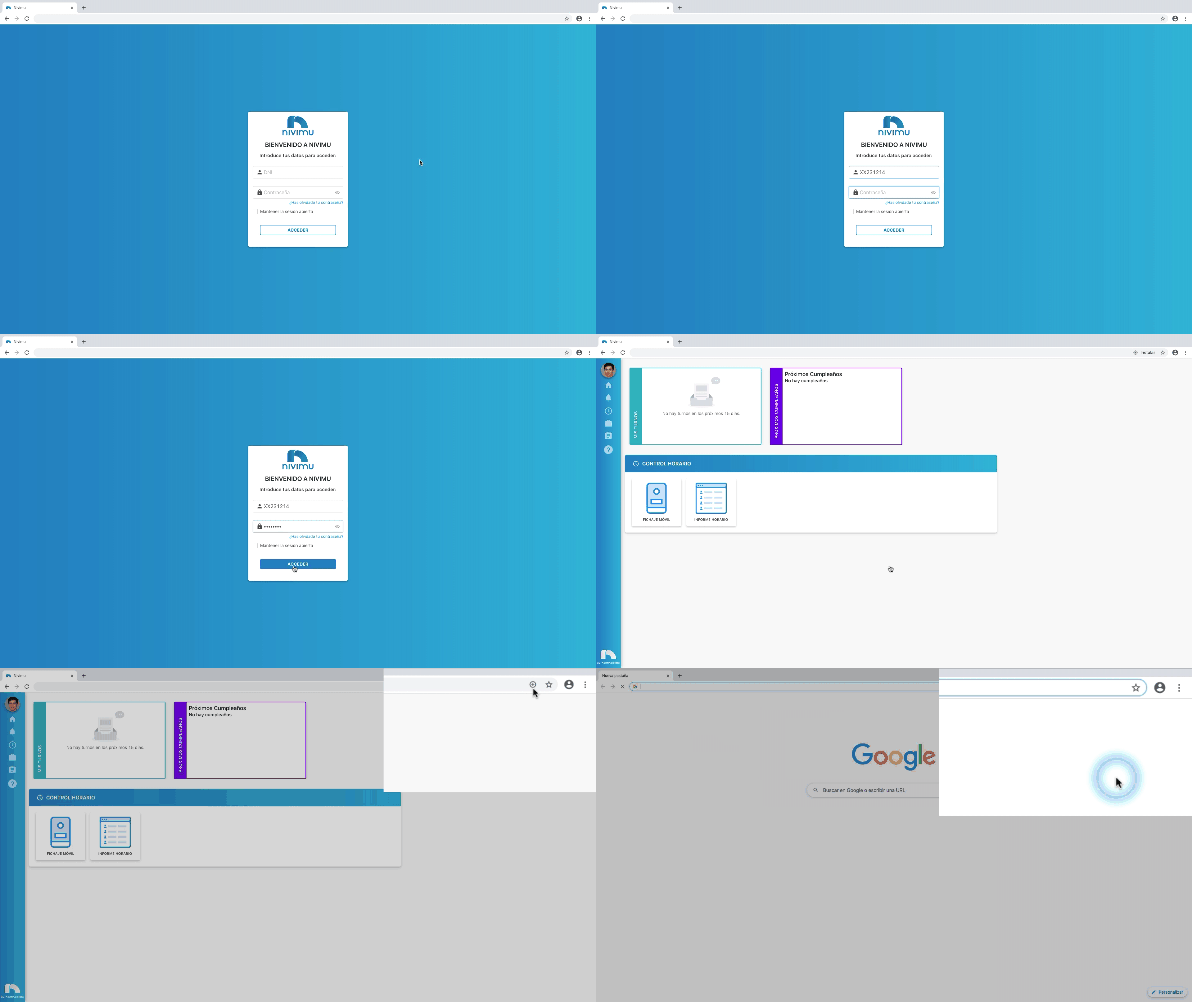
On macOS, Finder may open showing the file location. You can move that file to any folder for easier access.
Install on mobile or tablet
You can also install the app on any phone or tablet so it appears in your app list.
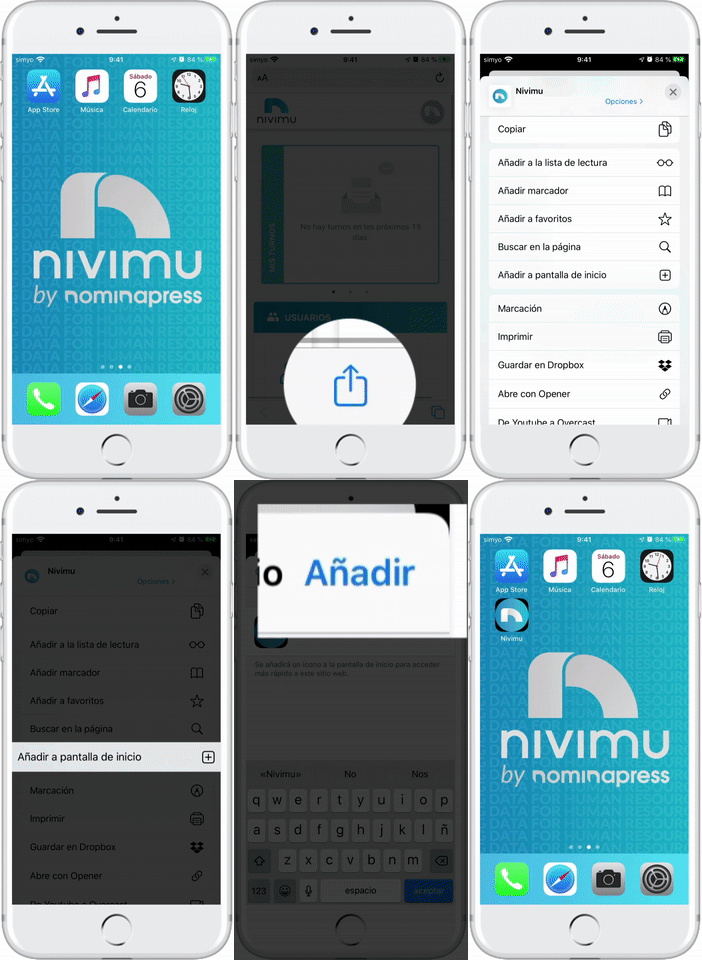
iPhone or iPad
- Open your company portal in Safari.
- Sign in with your credentials.
- Tap the share icon.
- Tap Add to Home Screen.
- Tap Add.
Android
-
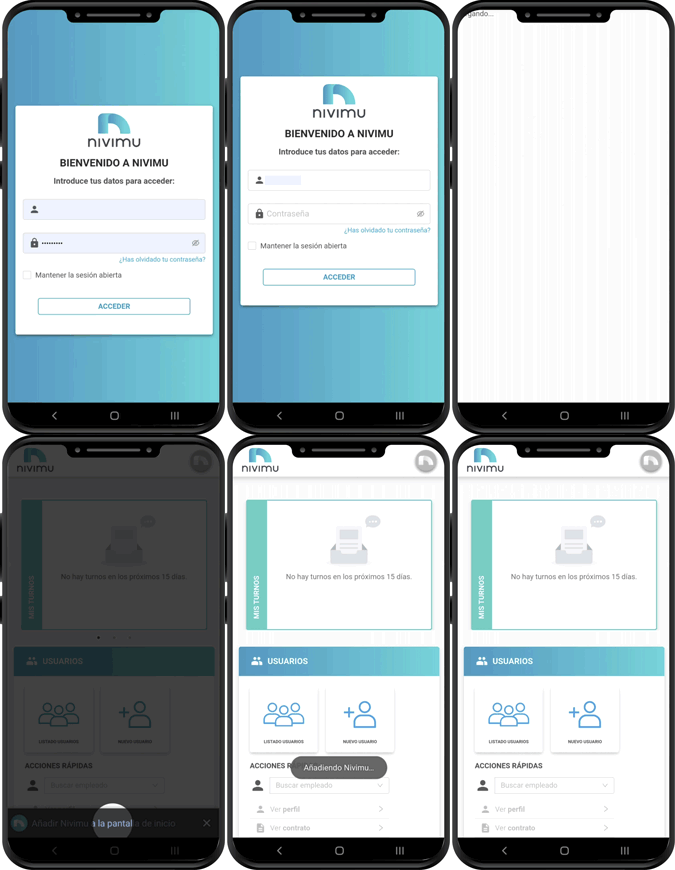
Open your company portal in Chrome.
-
Sign in with your credentials.
-
Refresh the page (pull to refresh) or open the menu (⋮) and tap reload.
-
After refresh, a prompt should appear at the bottom. If not, refresh again.
-
Tap Add Nivimu to Home screen.
-
In the new screen, tap Add.
-
Close Chrome and open your app drawer. The app icon should be there.
🔒 PWA guide on Android — Kiosk mode
Configure an Android tablet (e.g., Samsung One UI) in Kiosk Mode so Nivimu stays fixed and workers cannot exit it.
Goal
Install the Nivimu PWA and lock the device to that app using the native Pin app feature.
1️⃣ Prep (recommended)
- Wi-Fi:
Settings→Connections→Wi-Fi→ Connect. - Update Chrome: Play Store → search “Chrome” → Update.
- Security PIN (required):
Settings→Lock screen/Security→ set a PIN/Pattern.
2️⃣ Install the PWA
- Open Chrome and go to your company portal.
- Tap the options menu (⋮) top right.
- Choose Install app or Add to Home screen.
- Confirm and tap Install/Add.
- ✅ Verify the Nivimu icon is on Home or app drawer.
3️⃣ Enable “Pin app”
- Go to
Settings. - Open
Security & privacy. - Tap
More security settings. - Enable Pin app (or App pinning).
- Turn on Ask for PIN/Pattern to unpin.
4️⃣ Lock the tablet (activate kiosk)
- Open the Nivimu app from its icon.
- Tap Recent apps (
■or|||). - Tap the app icon on the preview card.
- Choose Pin this app.
- ✅ The tablet is now locked to Nivimu.
5️⃣ Exit kiosk (admins)
- Press Recent apps + Back together.
- The tablet locks and asks for the PIN/Pattern you set.
If using gestures, swipe up from the bottom and hold to unpin; it will prompt for the PIN.
6️⃣ Extra tweaks
- Rotation: disable auto-rotate to fix orientation.
- Screen timeout:
Settings→Display→Screen timeout→ set to max/never. - Notifications:
Settings→Notifications→ disable Chrome/other noisy apps.
🛠️ Tech checklist
- PIN configured
- PWA installed
- App pinning enabled (PIN required to unpin)
- App pinned from Recents
- Test: exit requires PIN