Activate Facial Recognition
To activate employees' facial recognition, it is necessary for the administrator to validate the images that users have uploaded to their profile. Once the validation process is passed, employees can start clocking through facial recognition.
Validation
To begin the image validation process for the facial recognition functionality:
-
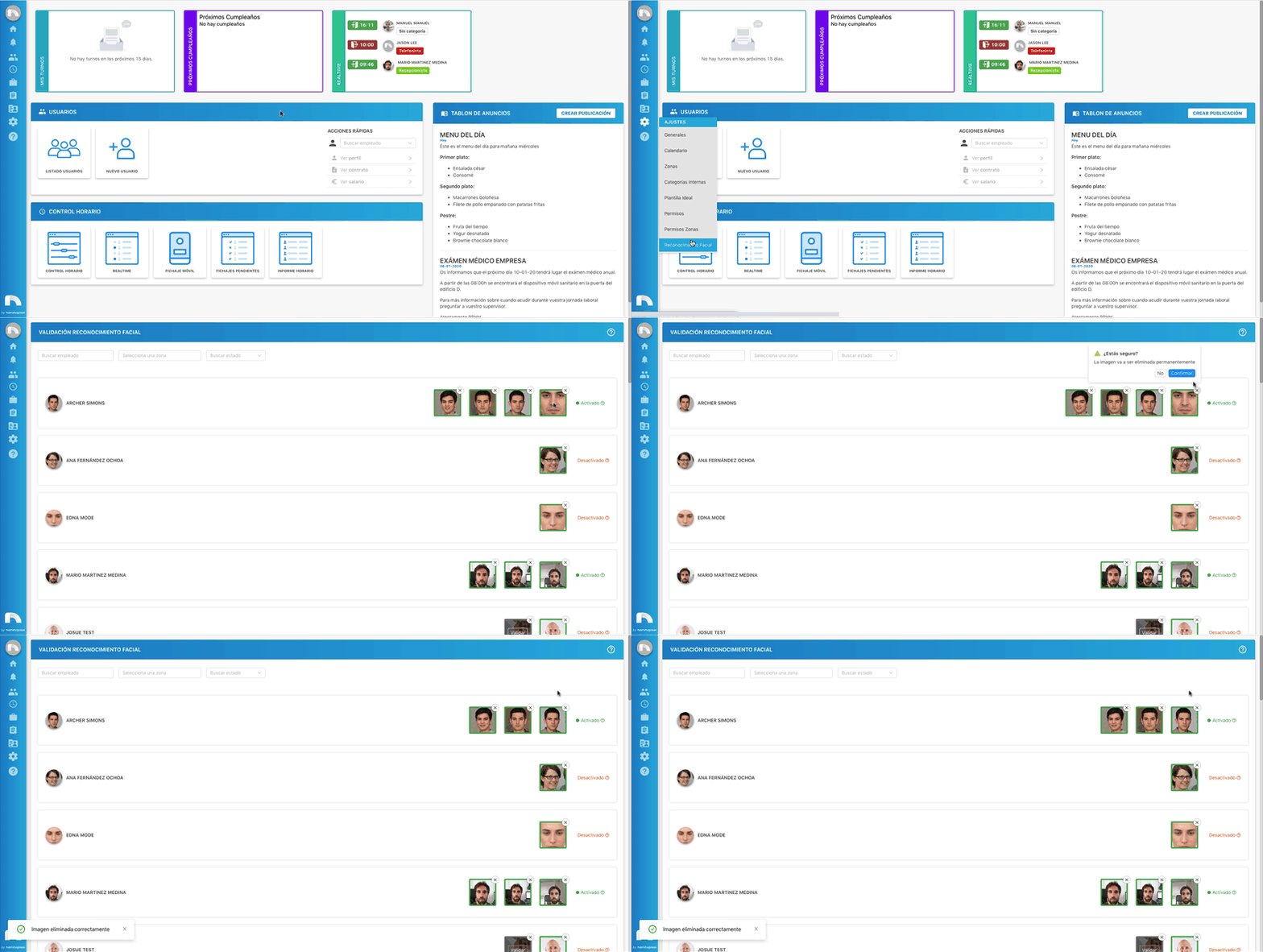
Open the application menu and in the Settings section click on Facial Recognition
-
A table will appear with all users who have uploaded a photo.
-
Search for the desired user for validation.
-
Click on the Validate button that is above the photo. Repeat this process on all photos the user has uploaded.
-
If the image is valid, it will appear in green.

-
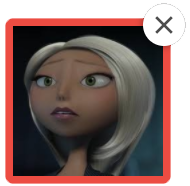
On the other hand, if it is not valid it will appear in red. In that case it is necessary to delete the photo and ask the user to upload a different one.
-
Once at least 3 images have been correctly validated, the facial recognition functionality will be activated for that user.

Users must upload at least 3 images for facial recognition to work. Photos should be ID type for facial recognition to work perfectly. Do not use photos from afar, profile photos, etc. It is recommended to upload photos without masks, and varied: different hairstyles, with/without beard, with/without makeup, with/without glasses, etc. If the user wears prescription glasses, there must be one photo without glasses.
This process may take up to 24h after validation.
Delete images
It may happen that when a user uploads an image to the profile for facial recognition it does not pass the validation process. For this it will be necessary to delete it and upload another one.
To delete an image:
- Open the application menu and in the Settings section click on Facial Recognition
- A table will appear with all users who have uploaded a photo.
- Search for the user whose image needs to be deleted.
- Then, click on the X that appears in the upper right corner.
- At that moment a confirmation message will appear. If you really want to delete the image click on Confirm.