Mobile clocking
Mobile Clocking
If you are outside the office, but within your working hours and need to clock in, you can do it through any mobile device in the Mobile Clocking section; although only those users who have those permissions assigned can do it. To clock from mobile:
-
Log in to your account by entering your access data and click on Access.
-
If you want to remember your data so you don't have to enter them every time you access your account, click on the Keep session open box.

-
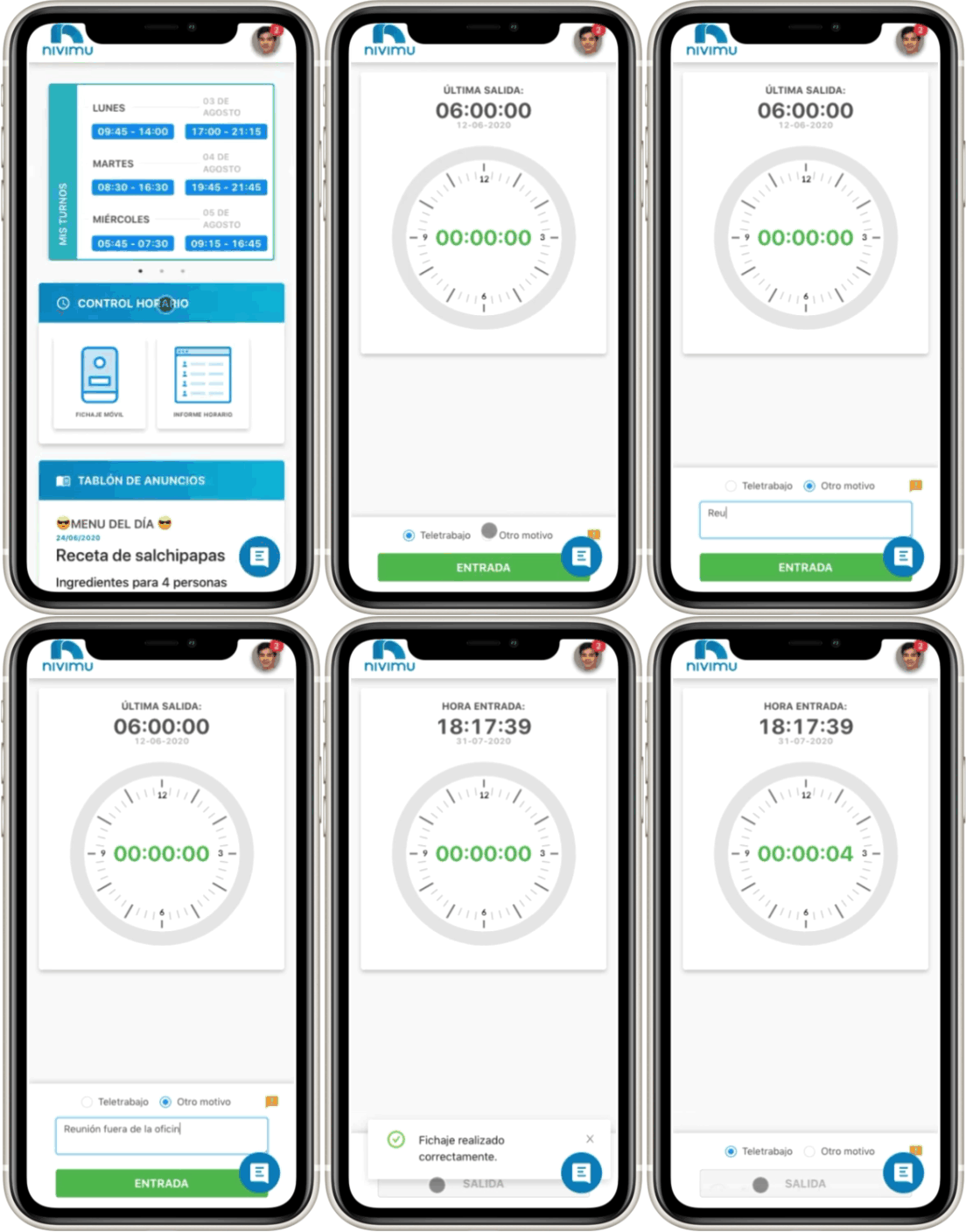
Open the application menu and in the Clockings section click on Mobile Clocking.
-
In this section you will see if your last clocking is entry or exit.
-
In Request Reason you must write the reason for the mobile clocking; for example, telework, client visit, etc.
-
Once the reason is filled in, click on Clock. A confirmation message will appear, indicating that the clocking has been successfully performed.
If you have problems logging in click on Have you forgotten your password? and follow the steps to reset it. Remember that you must have access to the email associated with the account.
Telework
From NIVIMU we want to facilitate the management of time control for our clients and we have enabled from our Mobile Clocking module a dropdown menu in which you can directly select the Telework option.
All those employees who perform a clocking outside the office, it will not be necessary to write the reason, they just have to select the corresponding option. Those who clock from Mobile Clocking for another reason that is not telework, must select Other Reason and write, as before, why they perform the clocking in this way.
To perform a mobile clocking for telework:
-
Log in to your account by entering your access data and click on Access.
-
If you want to remember your data so you don't have to enter them every time you access your account, click on the Keep session open box.
-
Open the application menu and in the Clockings section click on Mobile Clocking.
-
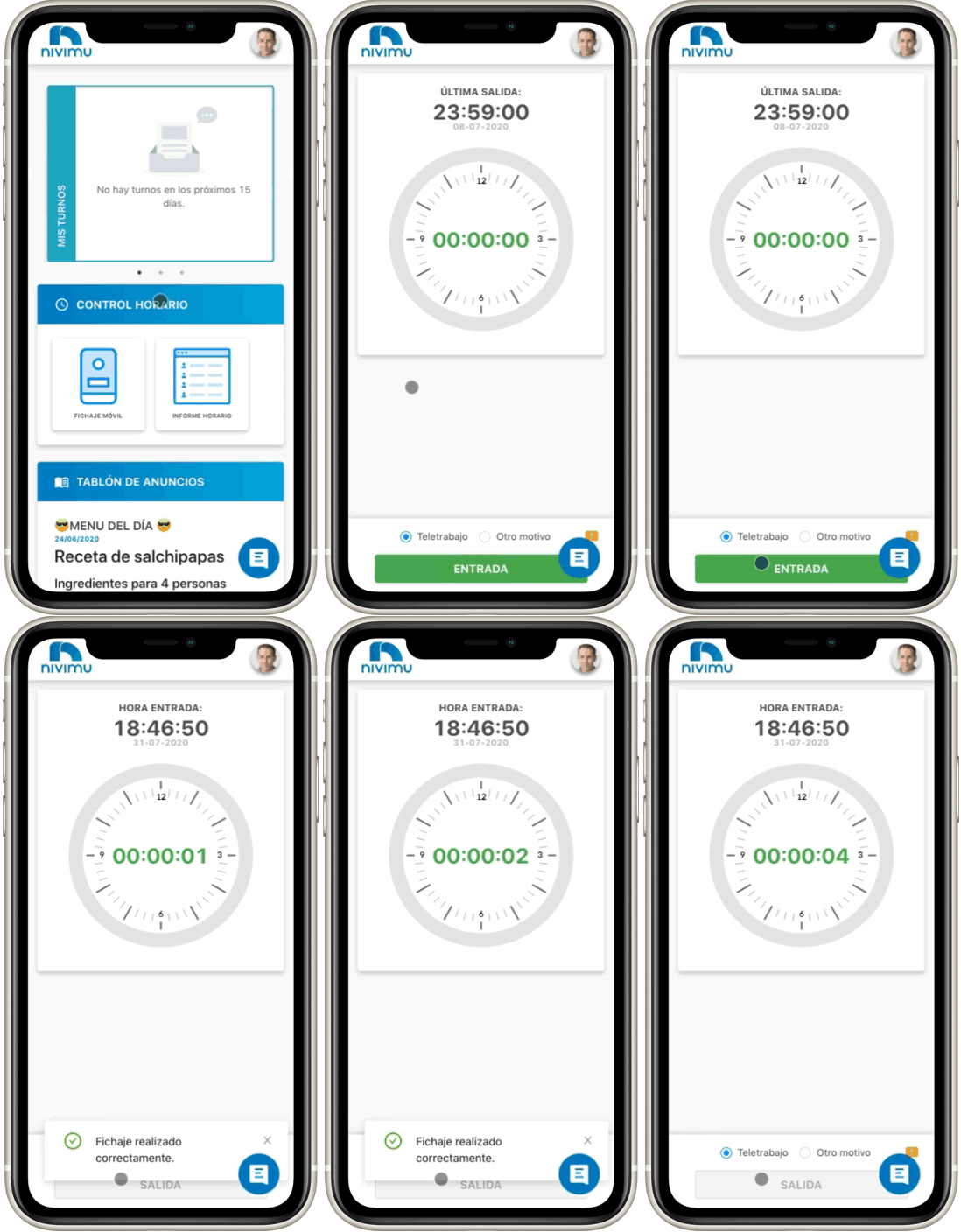
In this section you will see if your last clocking is entry or exit according to the data that appear on the screen.
- Entry: when entry appears in green, it will mean that your next clocking will be entry.
- Exit: when exit appears in orange, it will mean that your next clocking will be exit.
-
In Request Reason Telework will appear preselected. If you want to change it click on the dropdown menu and select Other Reason.
-
Once Telework is selected, click on Clock. A confirmation message will appear indicating that the clocking has been successfully performed.
Mobile Clocking with geolocation
The mobile clocking restriction by geolocation allows limiting the geographical area in which a worker is allowed to clock to a circular radius with coordinates as the central point. This restriction must be configured per center.
- If the IP from which the clocking occurs is in the list of allowed IPs, clocking is allowed
- If it is not, it proceeds to check the geolocation radius. If the user is inside, it will allow them to clock even if their IP is not in the list.
- We can establish an IP range
If the user tries to clock with Mobile Clocking from the application on their phone, and is outside the designated radius, they will not be able to clock. An error message will be displayed with the distance they are from the coordinates, compared to the limit distance of the radius.
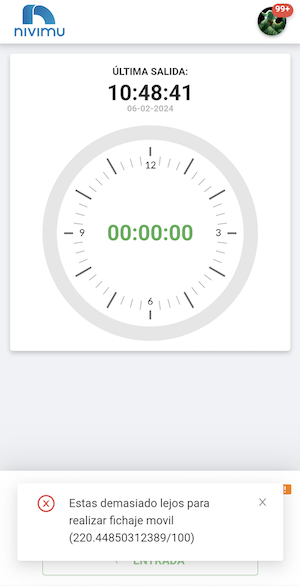
The user is 220 meters from the central point, but the radius is limited to 100 meters, therefore they cannot clock.
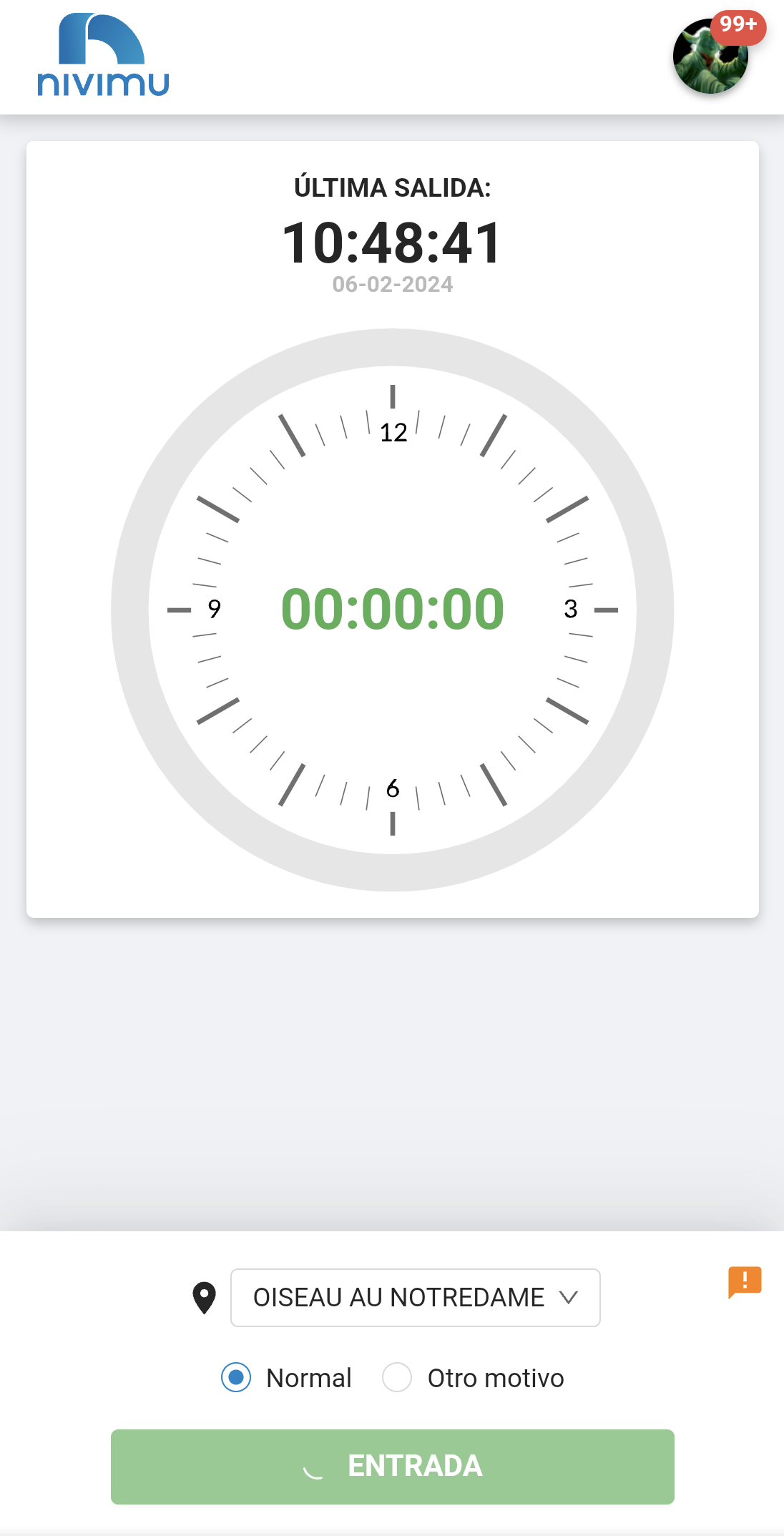
The system will continue trying periodically until the user enters within the radius, at which time the clocking is registered.
 |  |
|---|
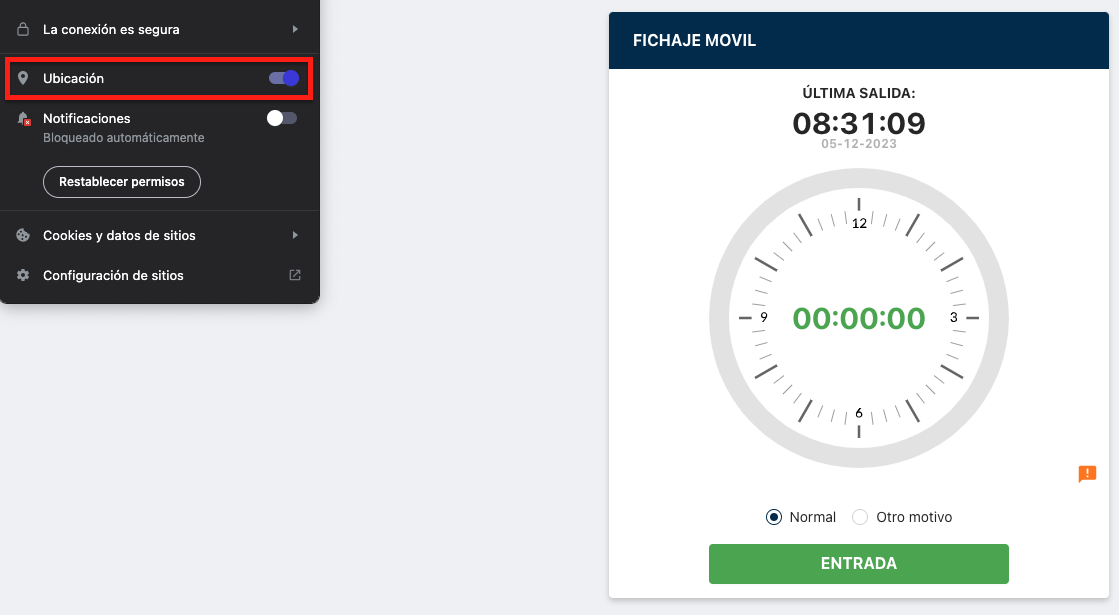
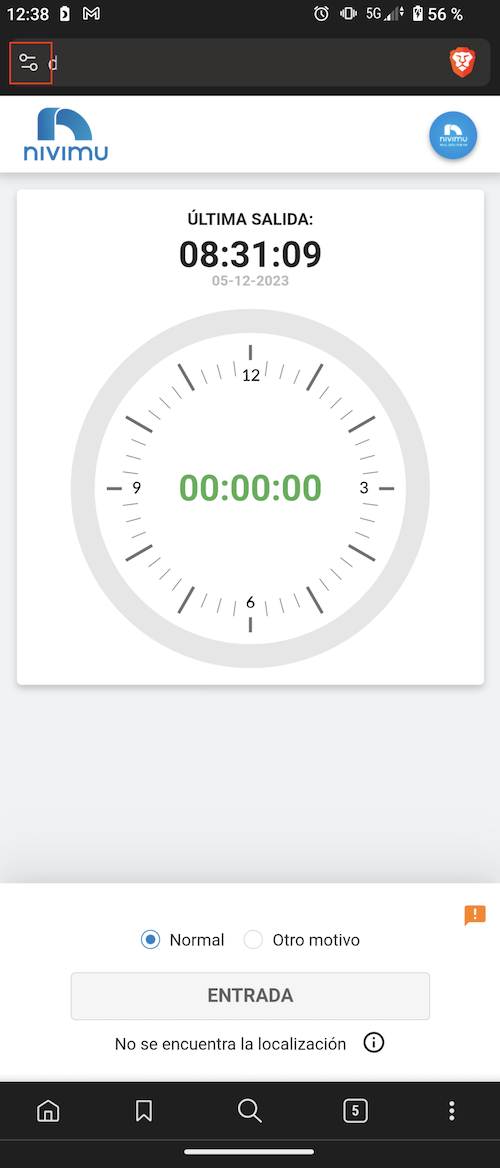
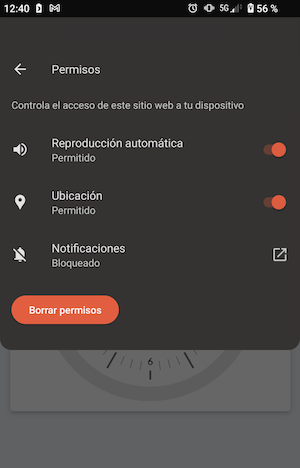
If geolocation fails with the error "Location not found"
The location permission has not been enabled.