Shift exchange
If for any reason, an employee needs to exchange a shift with another worker they can do it through Shift Exchange.
Create a shift exchange request:
-
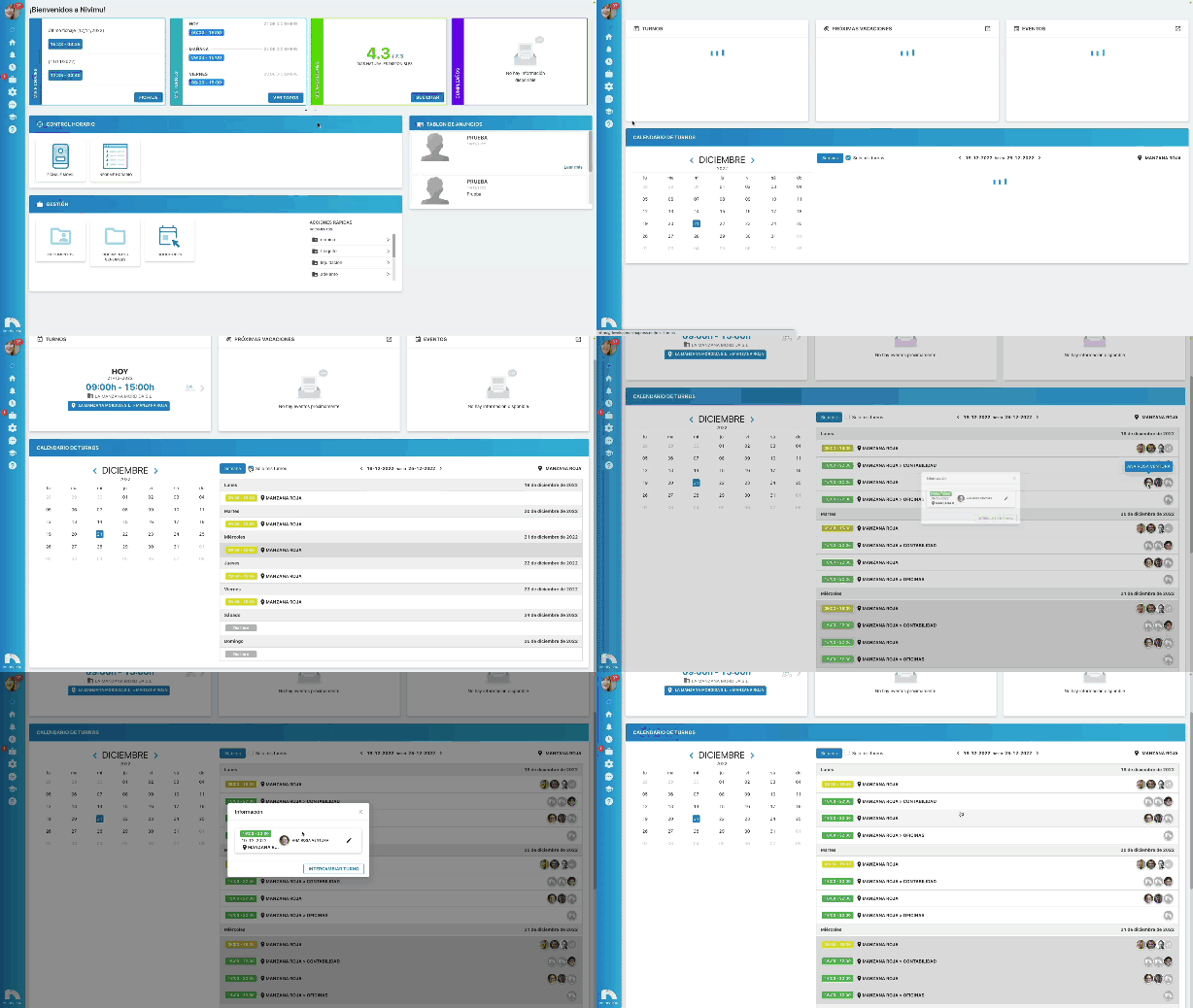
Open the application menu and in the Time Control section click on My Shifts.
-
In Shift Calendar, select the day you want to exchange.
-
Click on the day line you want to exchange the shift.
-
Once you have clicked a screen will appear where you will see the shift exchange information.
-
Click on Exchange Shift and a view will be displayed with the available options for the exchange.
-
In Requested select the date or period of dates to request the shift exchange.
-
In Search user you can search for the user with whom to make the exchange.
-
You can group by Full Day those shifts in which split shifts are exchanged.
-
You also have the possibility to select directly from the list the day and the person who is available.
-
In Observations you can add the reason for the shift exchange.
-
Click on Confirm to save the changes.
Validate shift exchange
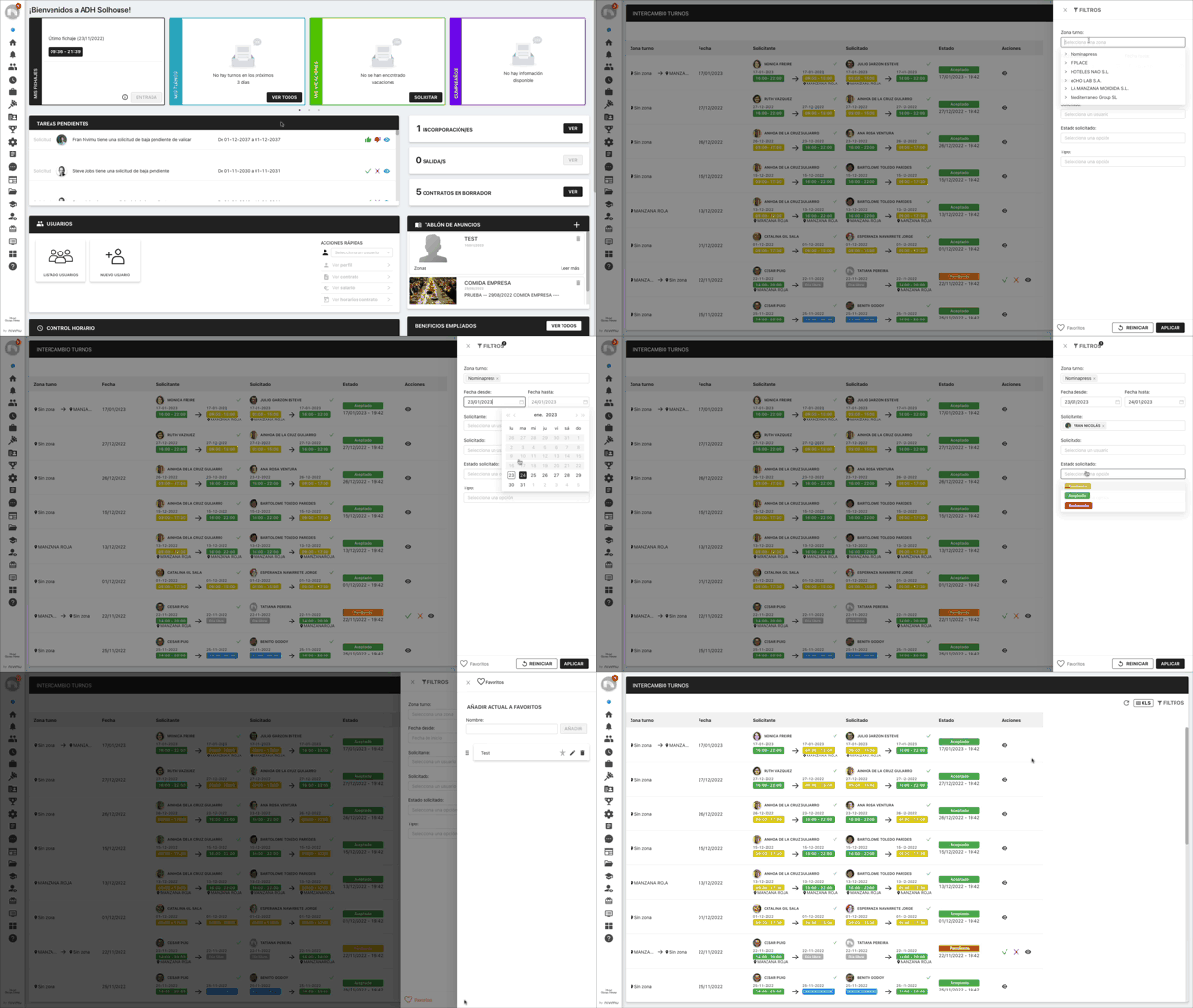
- Open the application menu and in the Time Control section click on Shift Exchange.
- You will see a list with all shift exchange requests.
- In Shift Zone, you will see the zones involved in the shift exchange.
- In Date, you will see the request date of the exchange.
- In Requester, the person requesting the exchange will appear, as well as the date and hours requested for the exchange.
- In Requested, the person to whom the exchange is requested will appear, as well as the date and hours requested for the exchange.
- In Status, the status of the request will appear (Accepted, Pending), as well as the date of Acceptance or Denial of the request.
- In Actions you can Validate the request by clicking on the green button or reject it by clicking on the red button, as well as view the Shift Exchange Information, by clicking on the eye icon.

Filter content
- Open the application menu and in the Time Control section click on Shift Exchange.
- Click on Filters.
- You can filter by: Shift Zone, Date, Requester, Requested, Requested Status and Type.
- By clicking on the Favorites icon, you can save the filter selection you want.
- If you want to remove the selected filters click on the Reset button.
- Finally, click on the "Apply" button.