Filter content
Employee status
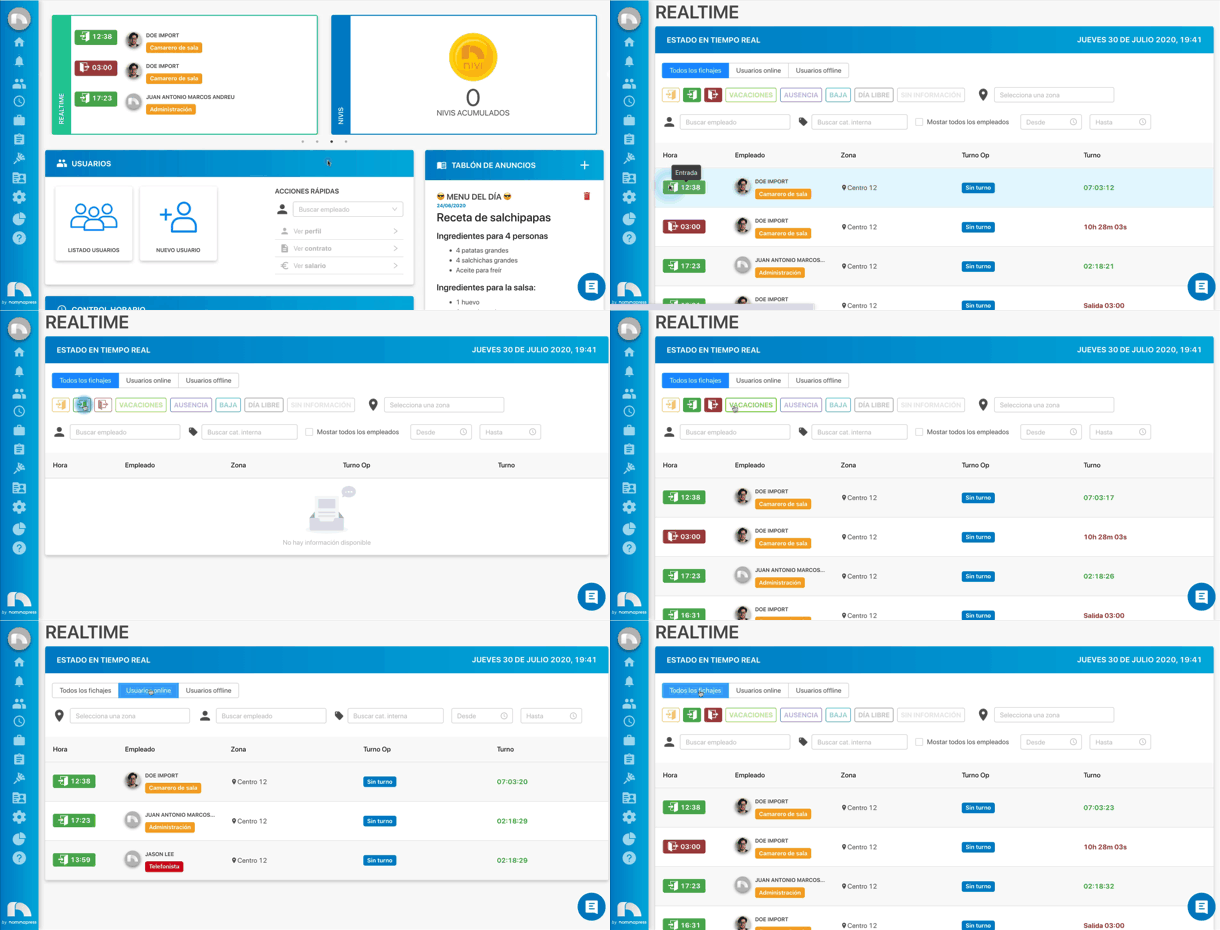
- All: is the default view when you access Realtime. It shows both employees who are working and those who are not.
- Online users: if you select online users you will see only those people who have clocked in and are already working.
- Offline users: if you click here you will see only users who have clocked out and are no longer working.
Clocking type
- Going to enter:
 employees who are about to enter their jobs.
 - Entry:
 employees who are working at that moment.
 - Exit:
 employees who have already left their job.
Absence type
- Vacations: all employees who are currently on vacation.
- Absences: all employees who are not working because they have requested an absence.
- Sick leaves: all those employees who are on sick leave.
- Free days: all employees who have requested a free day.
- No information: all employees who do not have an assigned shift and therefore do not have an entry or exit time.
General filters
-
Zone: in the Select a zone field you can filter by the different zones of your company.

-
Employee: in the Search employee field you can search for the employee whose shift we want to filter.

-
Internal category: in the Search Int. Cat. field you can filter by the internal categories assigned to employees.

If you check the Show all employees box you can see at a glance the status of all employees at once, both the time, the zone they are working in, the operational shift they have assigned and the exit time.

Time interval
You can also filter by a time interval, for example to see the morning shift or the night shift. To do this you just have to enter the shift start in the From field and the shift end in the To field.
