Requests
From General Settings you can configure the different types of absence requests to adapt to your company's needs.
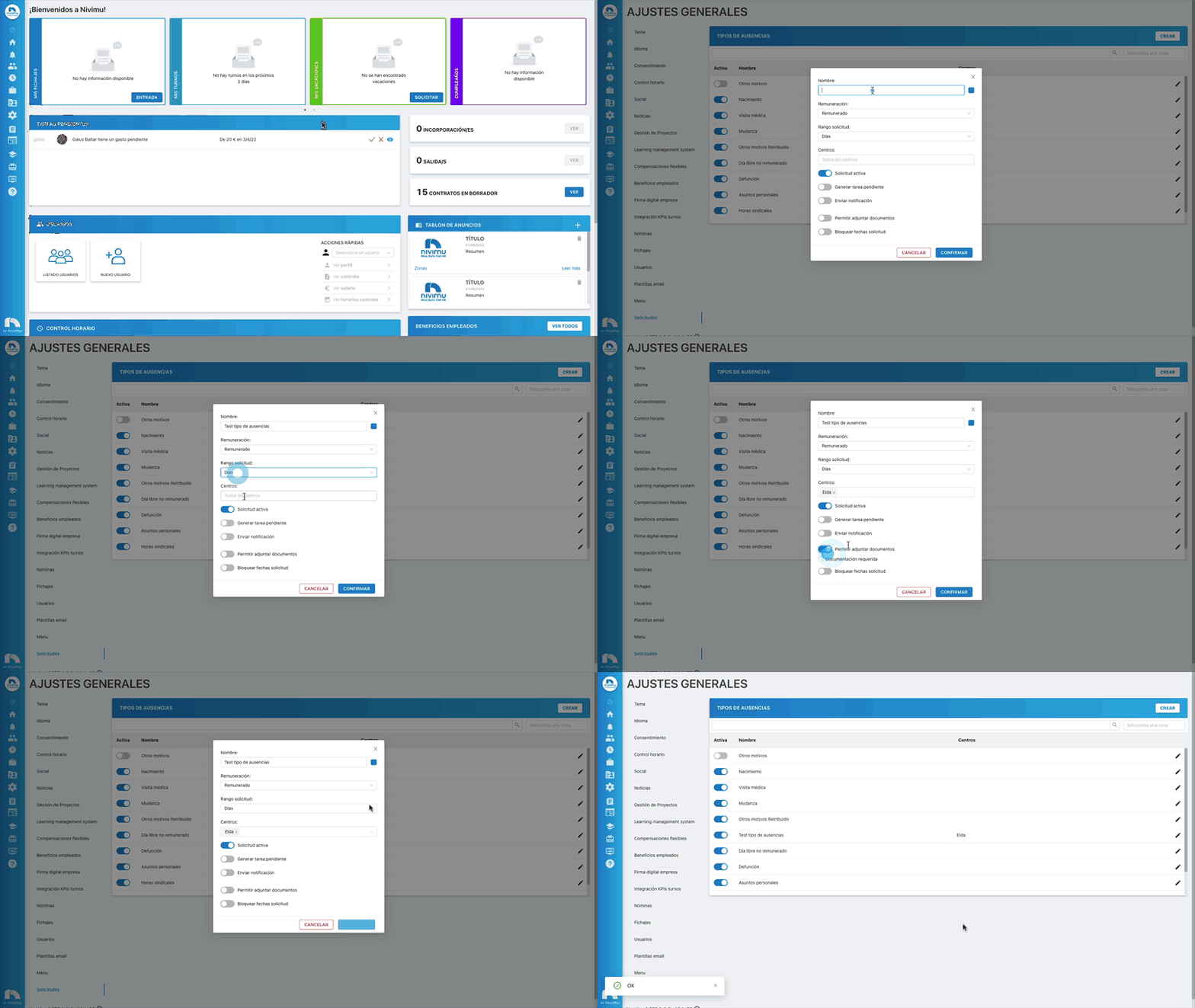
To access the Requests settings:
- Open the application menu.
- In the Settings section click on General and then on Requests.
- In Absence Types: click on the Create button.
- In Name: write the name of the absence request.
- If you click on the color square, you can assign a Color to each type of absence.
- Remuneration: select if this type of absence is paid or not.
- Request range: select if this request can be requested in a range of hours or days.
- Centers: assign the centers where this type of absence will be available.
- Request: activate you can activate and deactivate this type of absence request.
- Show only to administrators: so that the request management goes directly to administrators.
- Generate pending task: you can select if this type of absence request will generate a pending task for its validation/approval.
- Send notification: will send a new notification when a request of this type is created.
- Request limit: based on the request range we will establish a limit of hours/days per month/year. The employee will not be able to make this type of requests outside that range.
- Allow attaching documents: you will activate the option to attach documents to this request. You can also select if the attached document is required by selecting the "Required documentation" checkbox.
- Block request dates: you can add the period of dates in which this type of request CANNOT be generated.
- Finally, click on Confirm.
º