Email Templates
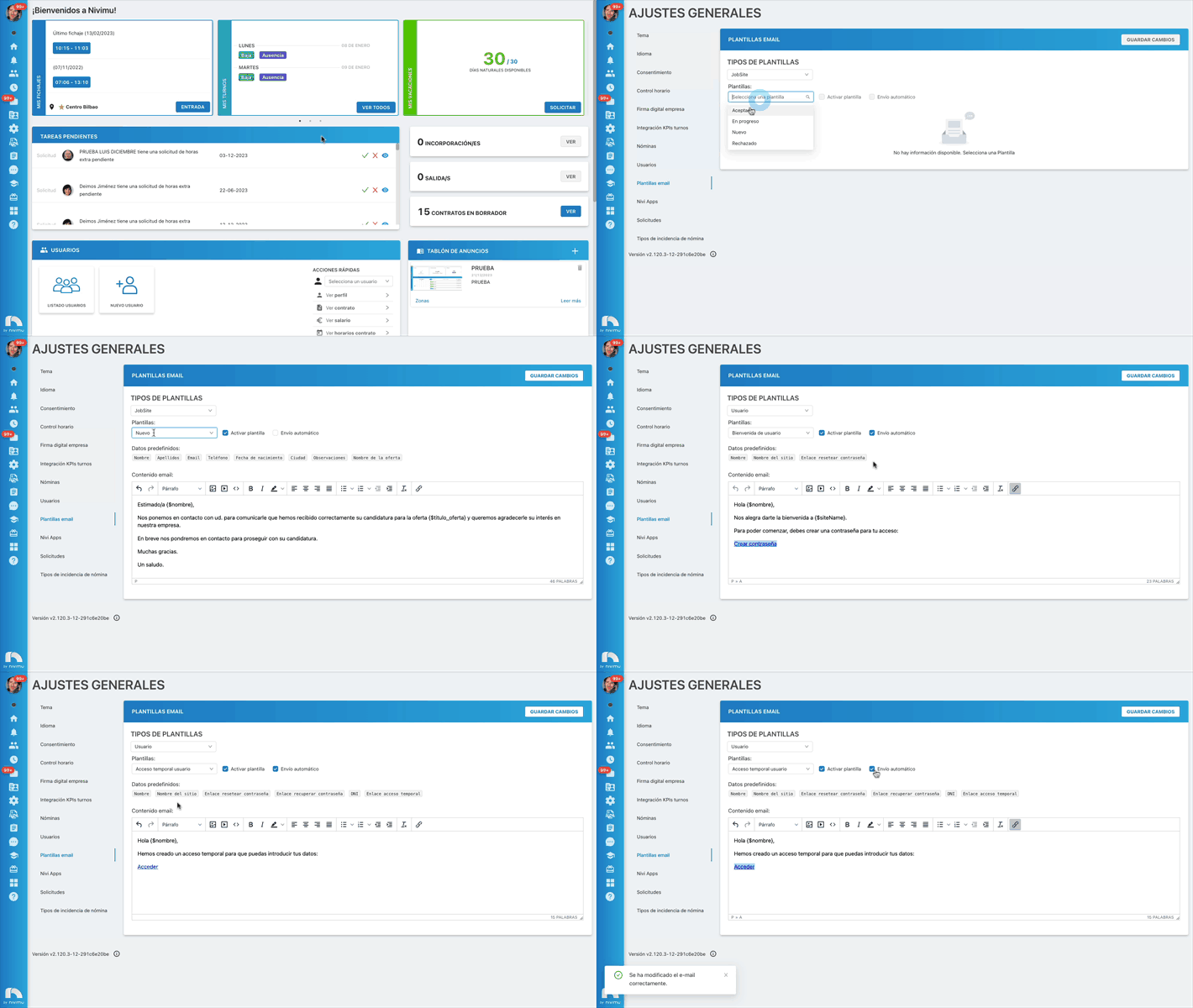
Through the Email Templates settings you can create the templates for the emails that will be sent to employees for the first time (new user) or to candidates when they register for an offer or when their status changes (Jobsite Module). You can also manage the automatic sending of emails. To access the Email Templates settings:
- Open the application menu.
- In the Settings section click on General and then on Email Templates.
- In Email Templates select the template type (Jobsite, user).
- If you have contracted the Jobsite module continue reading from point 5, otherwise you can skip to point 6.
- You will have different templates related to the status of the offer that a candidate has registered for. You can modify them to your liking to adapt the email that is sent to the employee in case of being accepted, rejected, to notify that it is in progress or new to notify the candidate that the registration has been received correctly.
- For User templates we have three options: user welcome for new registrations on the platform, password recovery for when an employee clicks on "Forgot your password?" and temporary user access, the latter related to registrations via Nivitasks, when sending the link to complete the information data, what is detailed in this section will be sent.
- Select Activate template if you want the template to be active.
- Select Automatic sending if you want, by default, emails to be sent automatically when the candidate's status is changed or a new user registration is created. If this checkbox is not selected, you will have to confirm the email sending when changing the status manually or when creating a user.
- In Predefined data you will find the available data to use in the email content. If you click on each of the data, the corresponding code will automatically be copied to the clipboard so you can paste it in the message body.
- In Email content: we edit the message body with the text and predefined data we want to send.
- Finally, click on Save changes.