Pages Permissions
PAGES
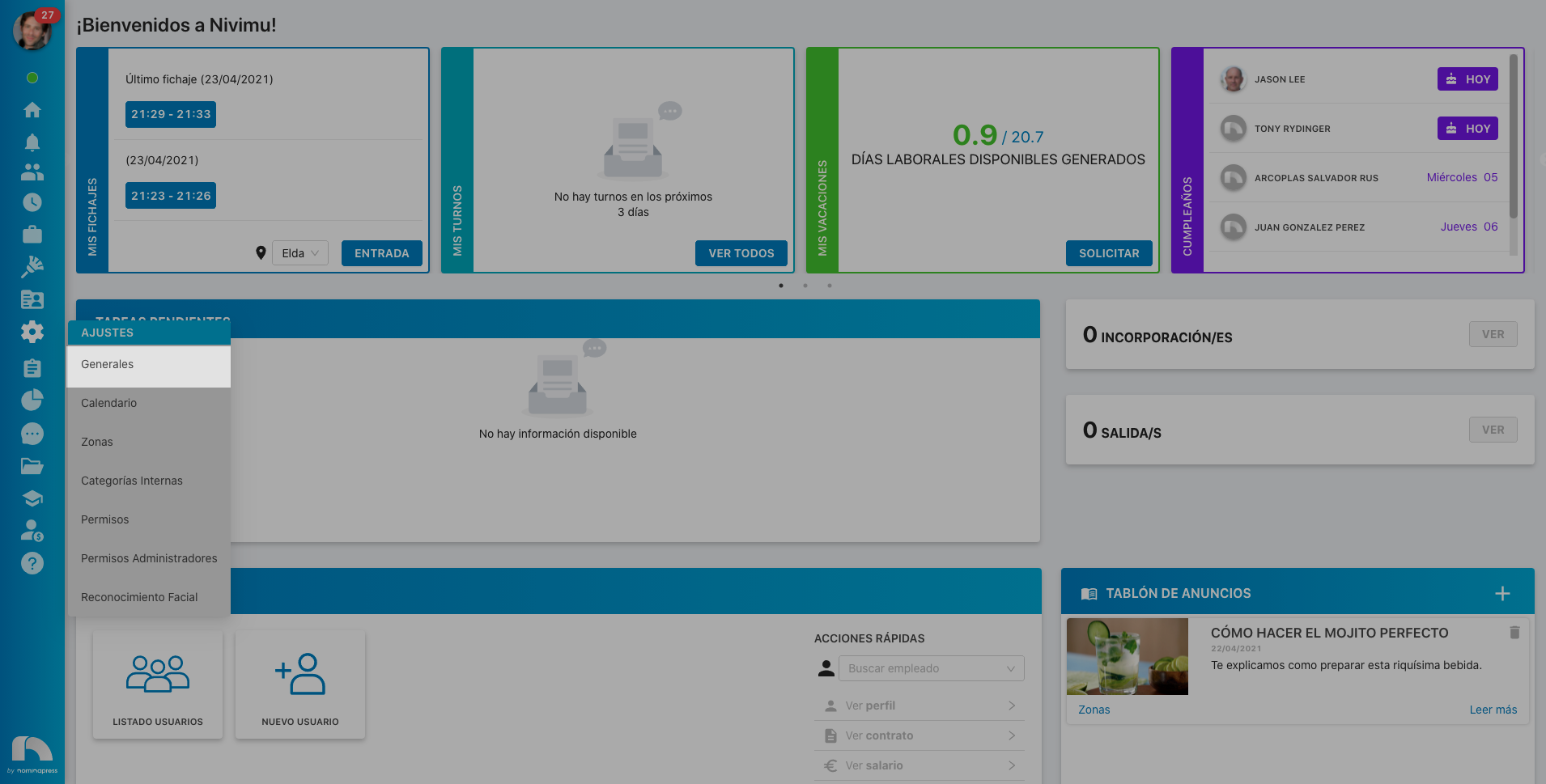
2. Settings: If you activate this permission, in the View option, general settings appear. In the Edit option, it is enabled that the user can also make and save changes.
9. Calendar Settings: If you activate this permission, both in the View option and in the Edit option, the option for the user to view calendar settings is enabled. To be able to edit, they must have the holiday settings and vacation settings permissions activated in the Edit option (they are found in the calendar settings section).

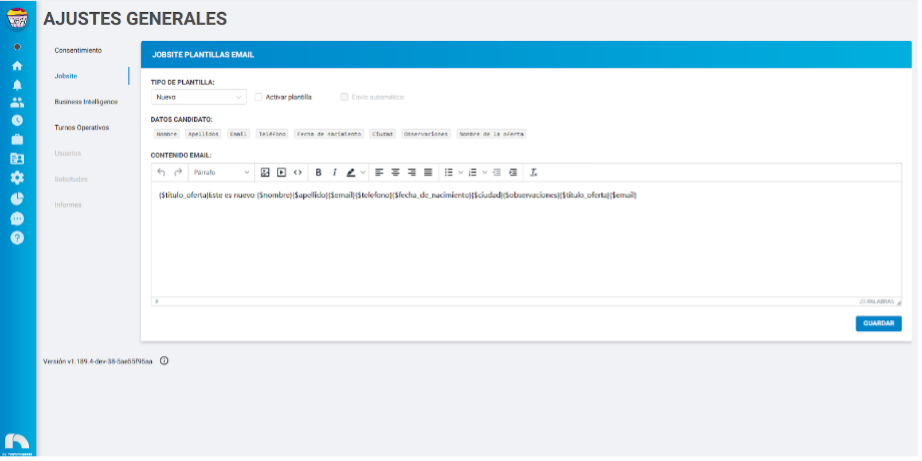
103. Jobsite Settings: If you activate this permission, both in the View option and in the Edit option, the option for the user to view jobsite settings is enabled. This permission is associated with permission #102 Jobsite Email Templates, therefore, to be able to edit, both must be activated.
203. Operational budget cost button:
This permission is currently not available
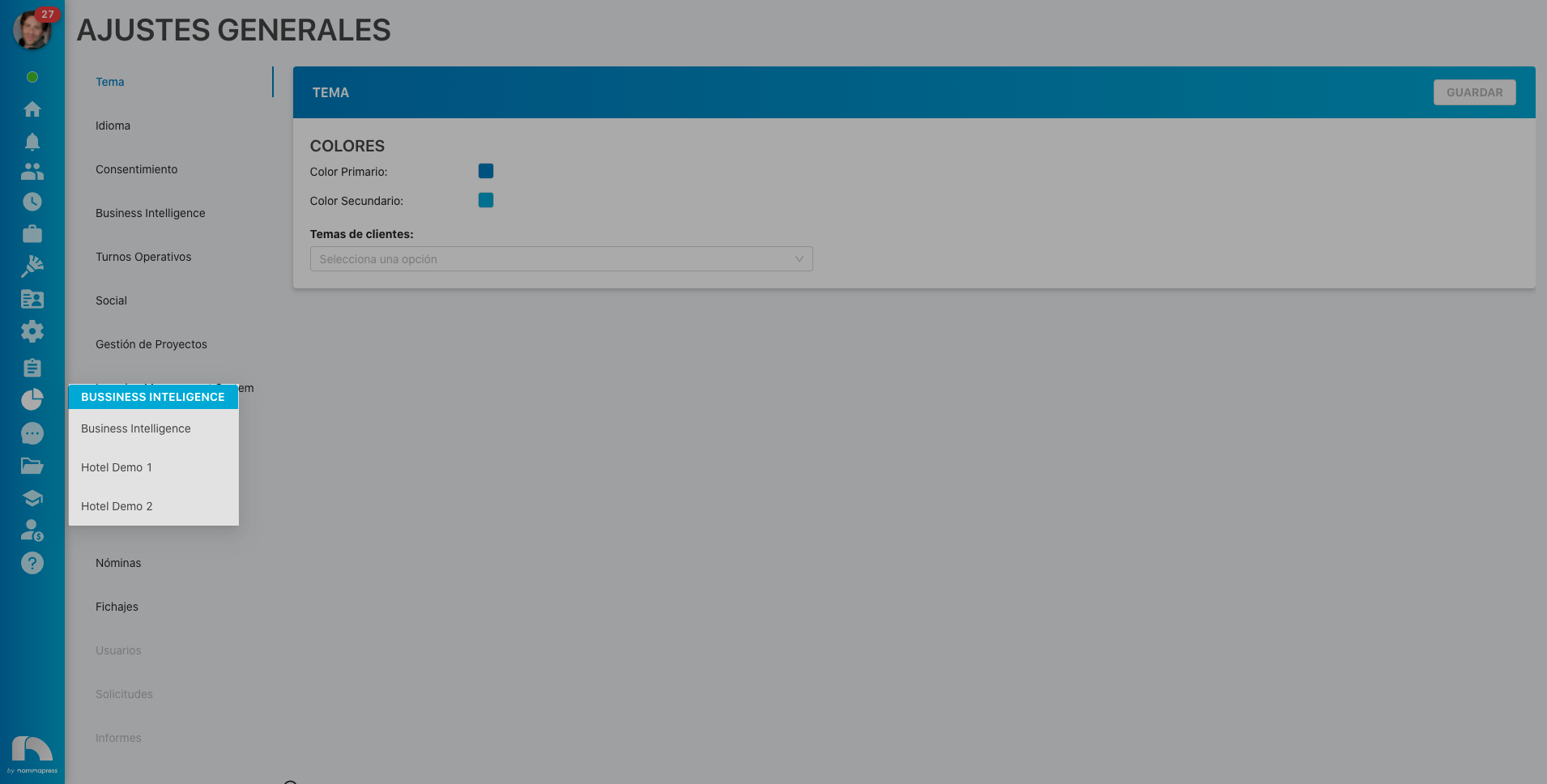
12. Business Intelligence: If you activate this permission, both in the View option and in the Edit option, the option for the user to view the Business Intelligence module is enabled.
101. Candidates: If you activate this permission, both in the View option and in the Edit option, the option for the user to view the Jobsite Candidates screen and make changes to it is enabled.

211. Budget categories: If you activate this permission, in the View option, budget categories are seen. In the Edit option, it is enabled that the user can also edit them.

75. Cleenrs: If you activate this permission, both in the View option and in the Edit option, the option to view the Cleenrs module screen is enabled.

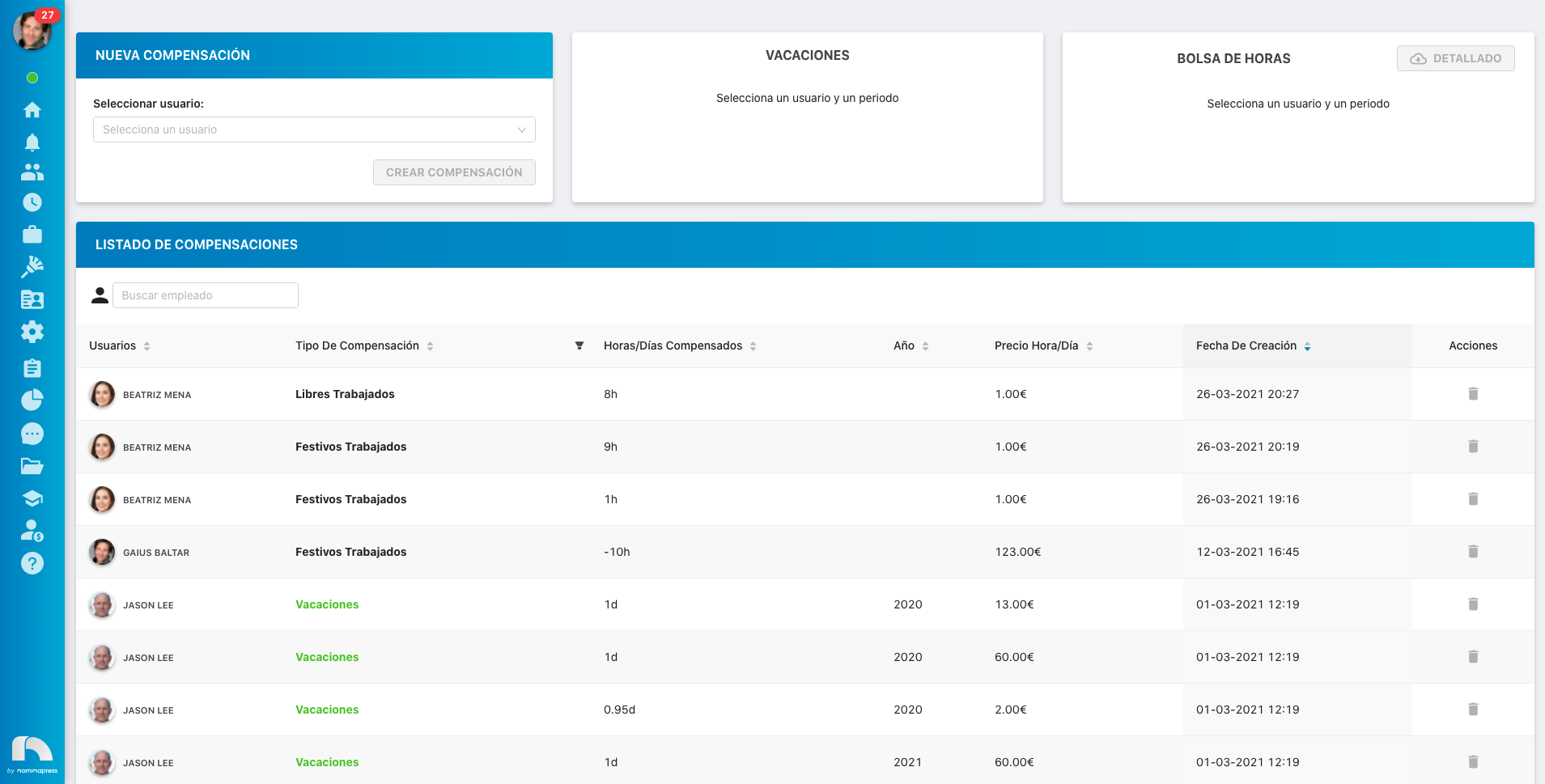
208. Flexible compensations: If you activate this permission, both in the View option and in the Edit option, the option to view the "Flexible Compensations" screen is enabled (Not operational yet).
41. Time Control: If you activate this permission, both in the View option and in the Edit option, the time control option is enabled for the user "Control (tablet)".
46. Admin Dashboard:
This permission is currently not available
45. User Dashboard:
This permission is currently not available
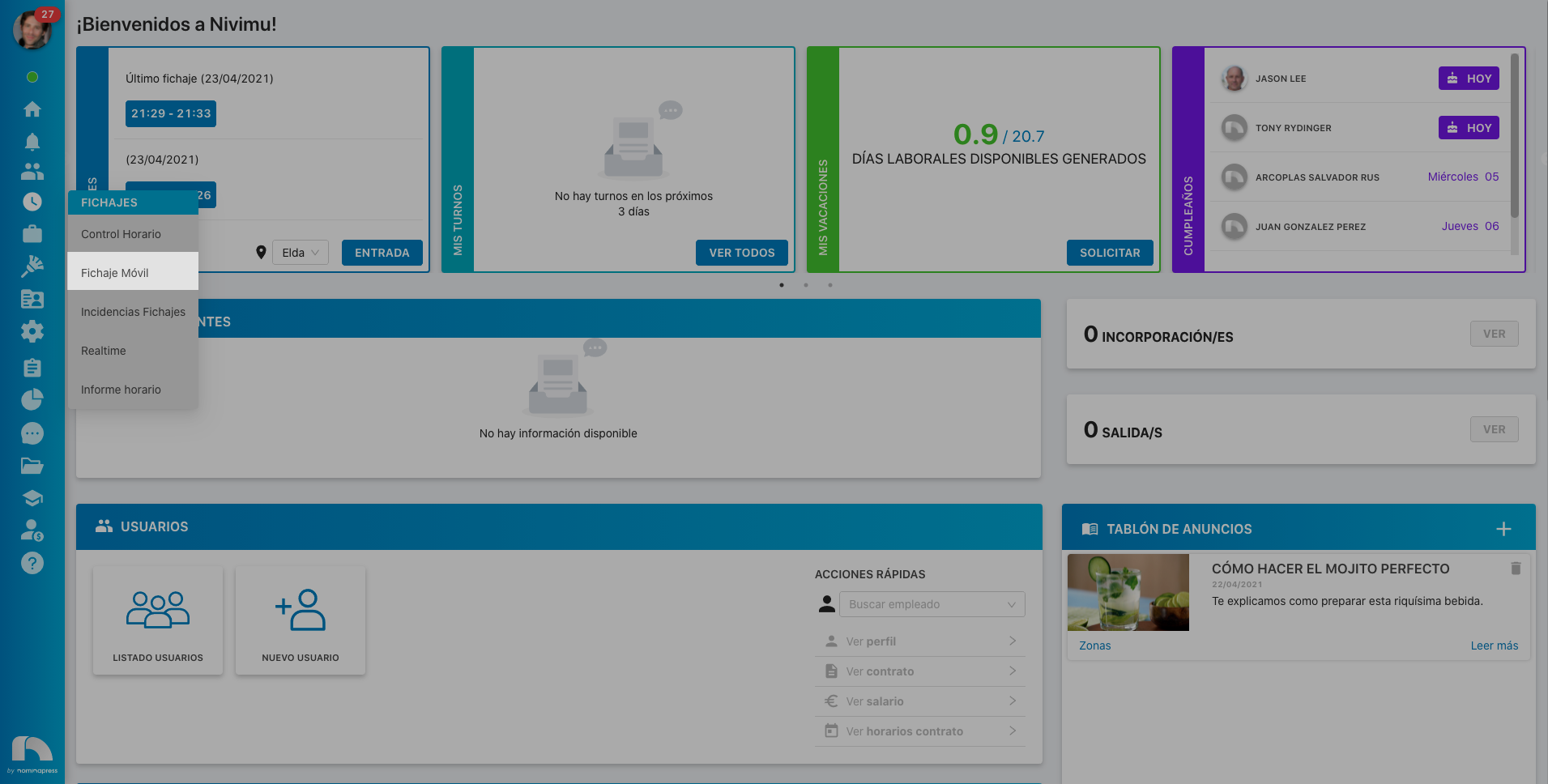
31. Mobile Clocking: If you activate this permission, both in the View option and in the Edit option, the option to use mobile clocking is enabled.
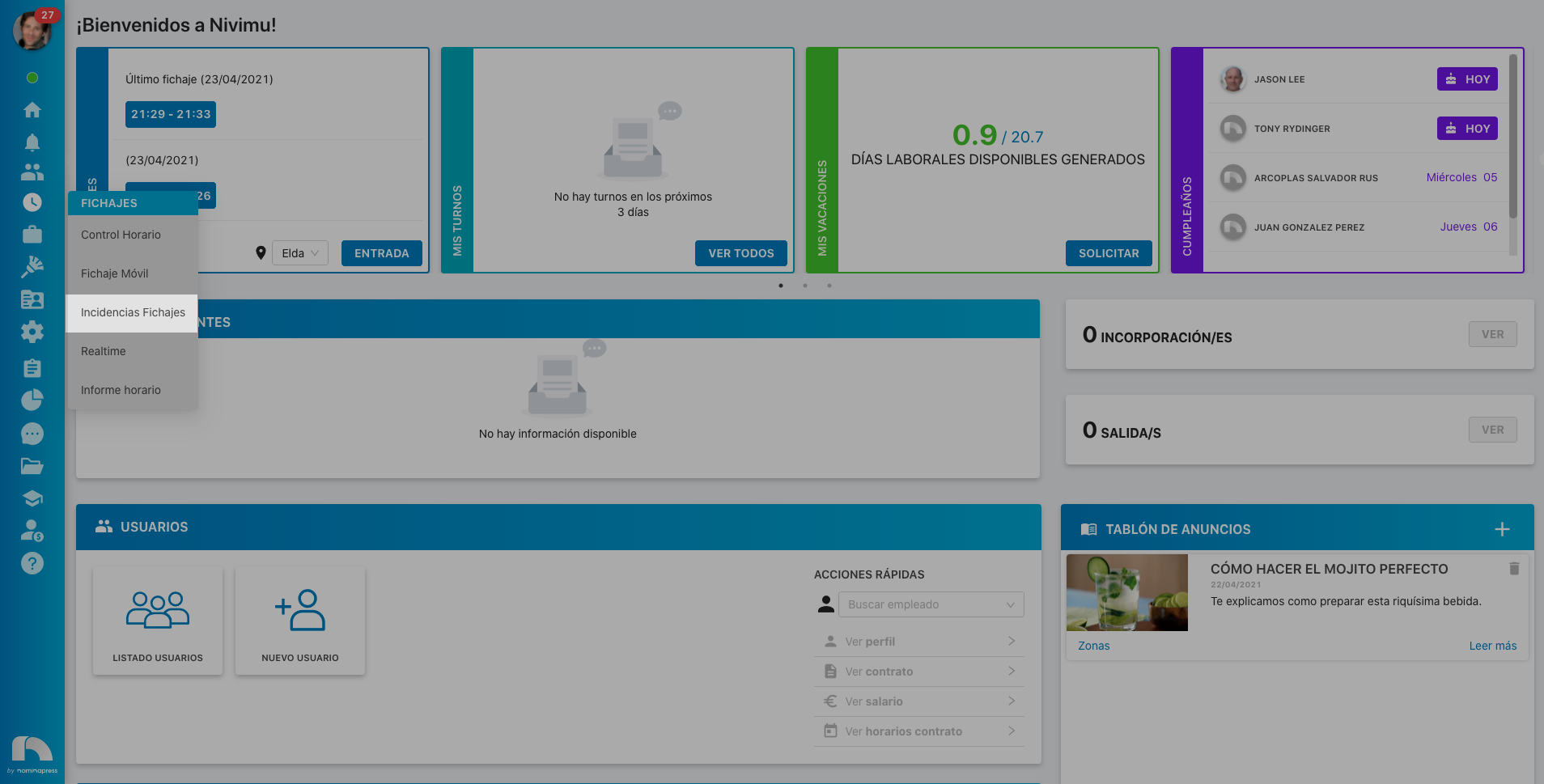
32. Pending Clockings: If you activate this permission, in the View option, clocking incidents appear. In the Edit option, it is enabled that the user can also modify those clockings.
178. Expenses: If you activate this permission, both in the View option and in the Edit option, the option to view the expenses screen is enabled. It is necessary to keep in mind that to be able to edit, the corresponding permissions in the Expenses section must be activated.
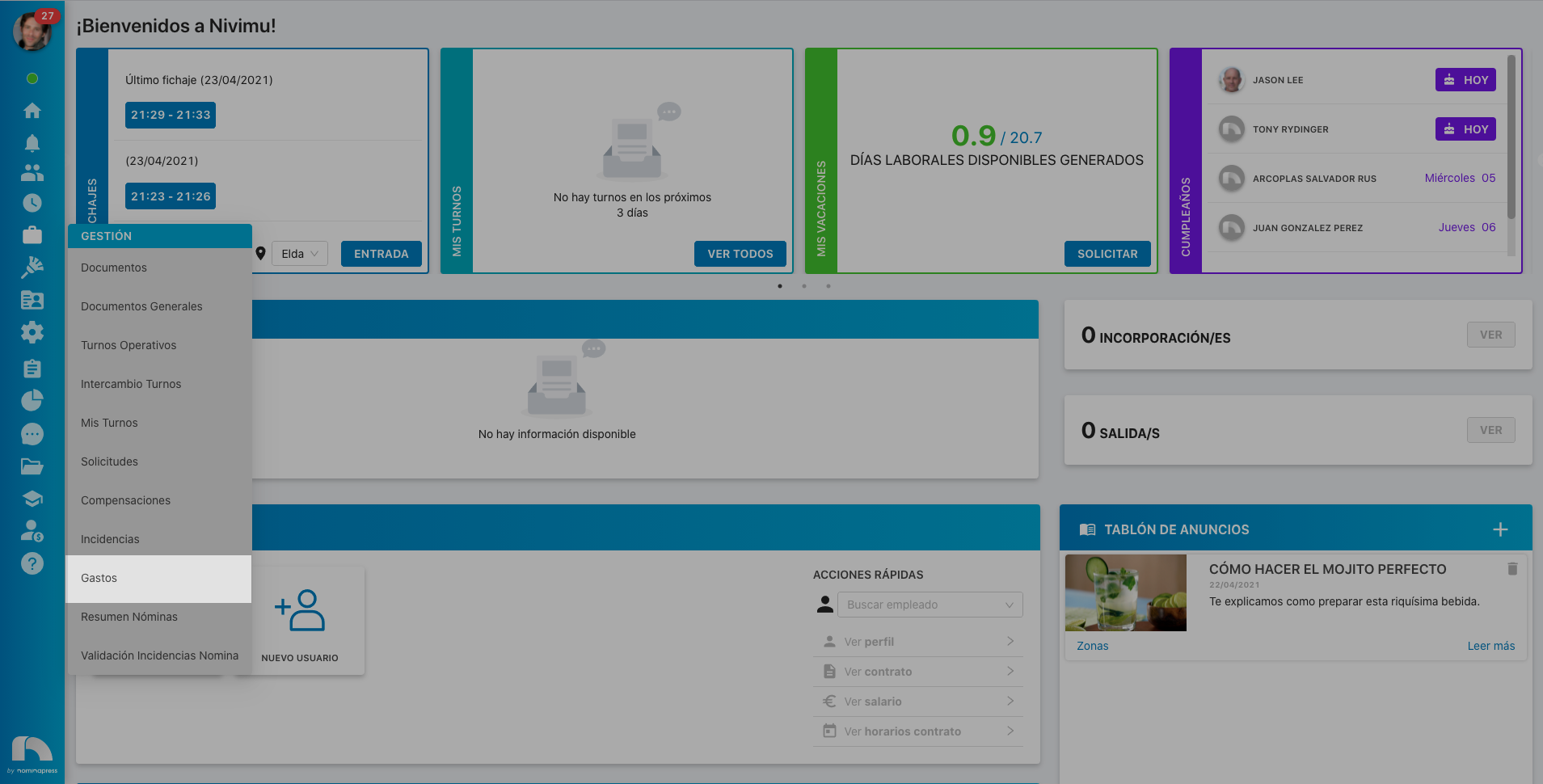
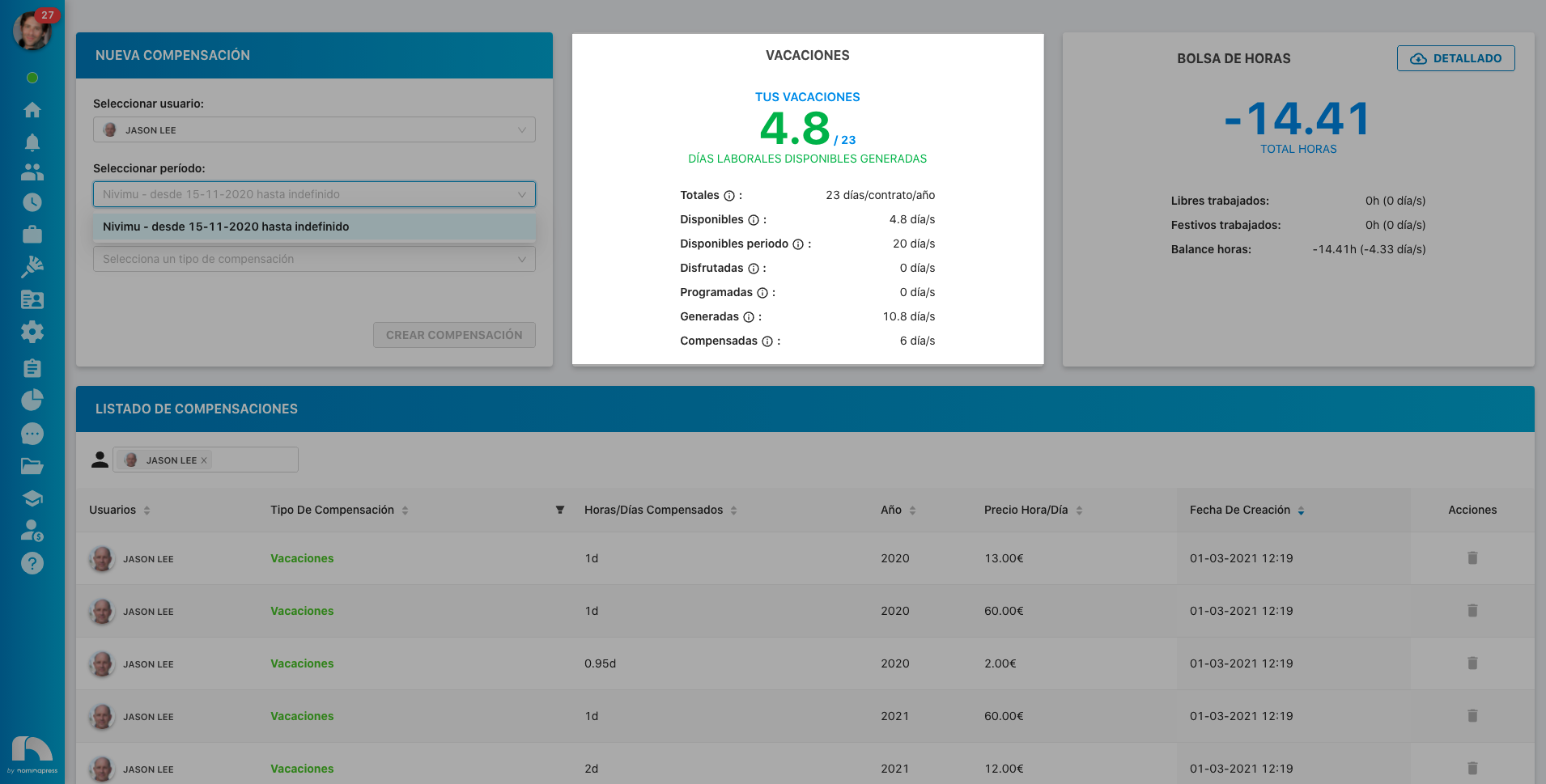
127. Management / Compensations: If you activate this permission, both in the View option and in the Edit option, the option to view the compensations screen is enabled. It is necessary to keep in mind that to be able to edit, the corresponding permissions in the Compensations section must be activated.
205. Project management: If you activate this permission, both in the View option and in the Edit option, the option to access the projects module is enabled.

30. Management actions:
This permission is currently not available
33. Management Calendar: This permission is currently not available :::
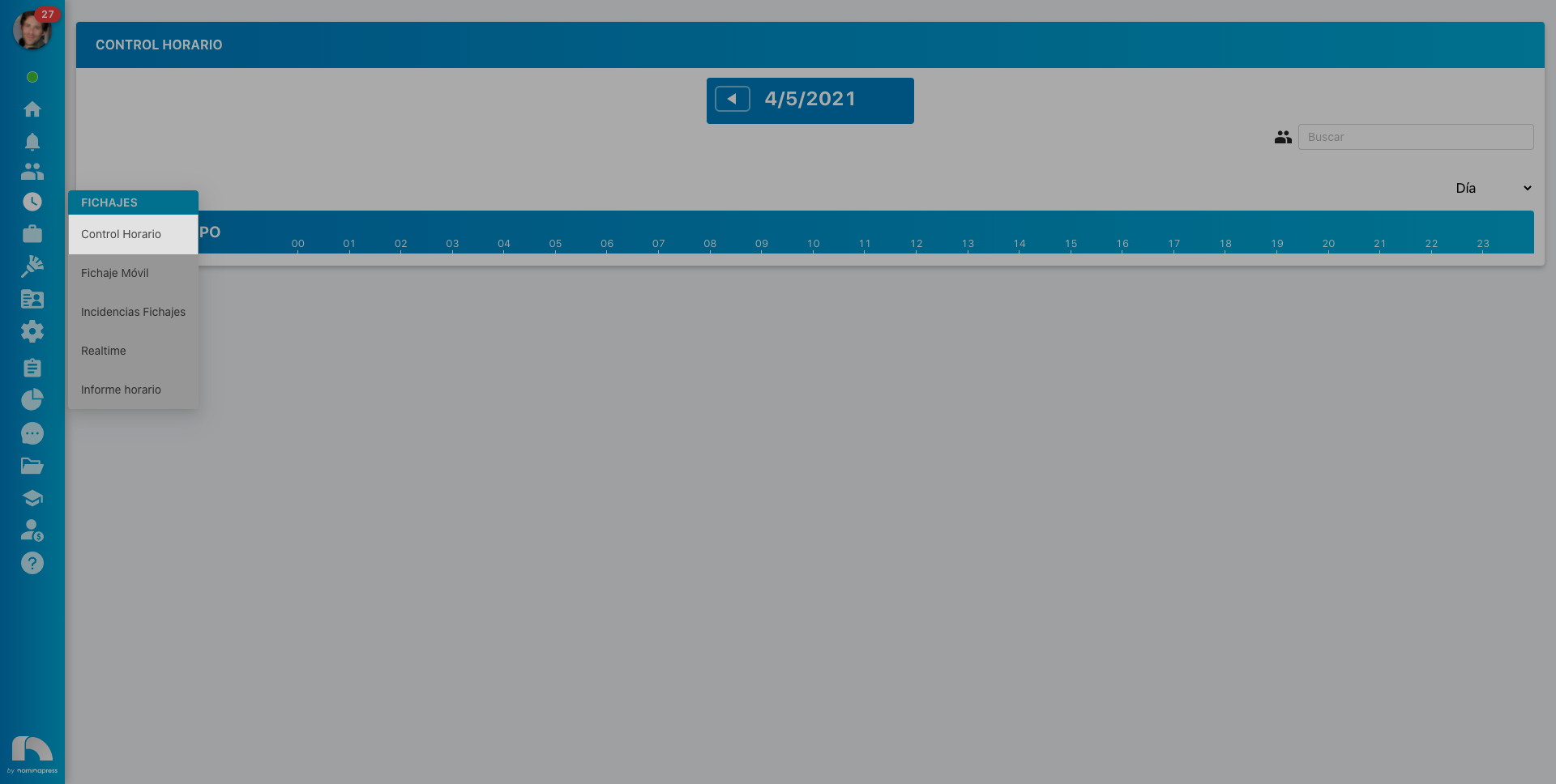
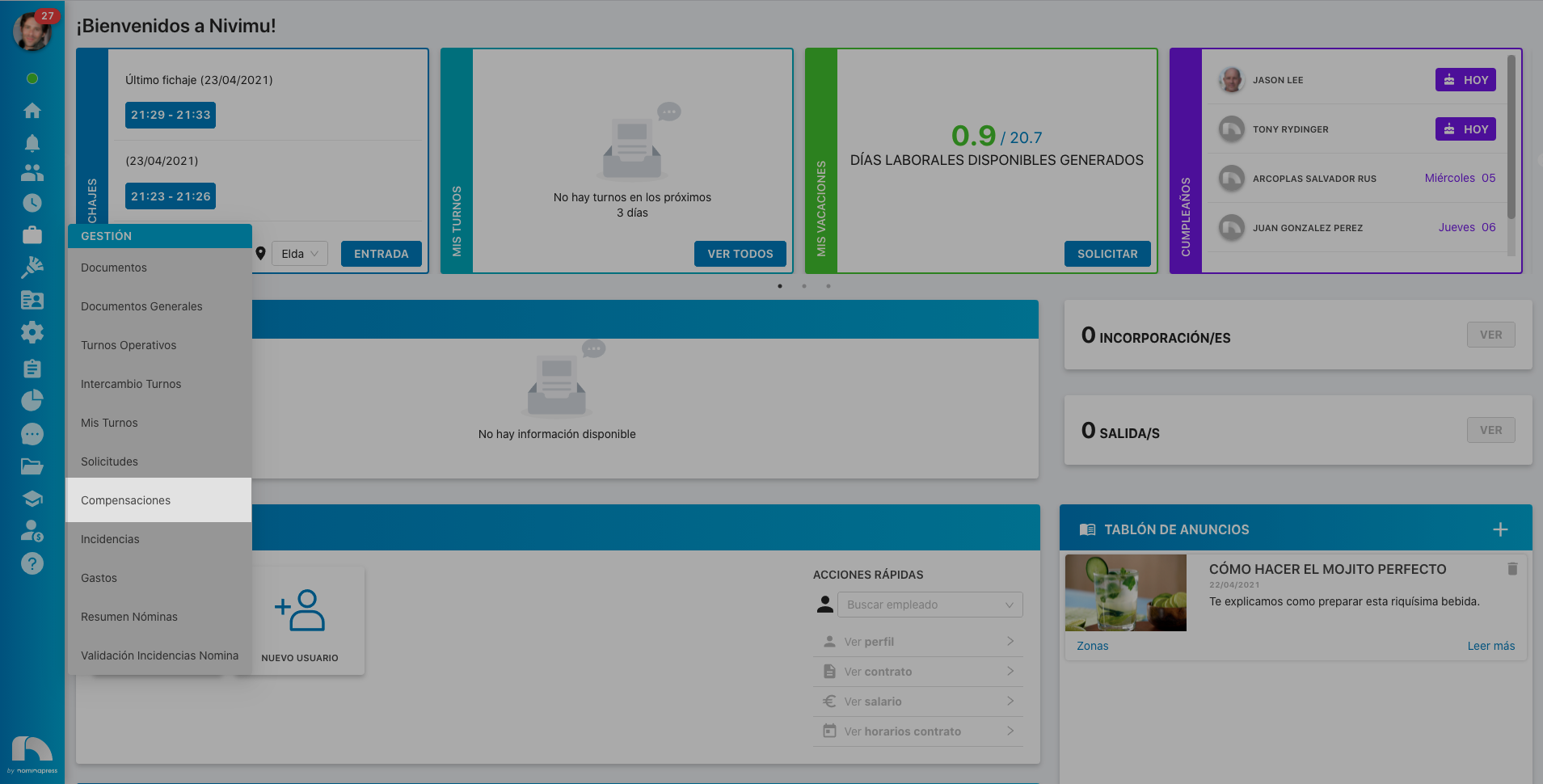
40. Management Time Control: If you activate this permission, in the View option, the option to view clockings from the time control screen is enabled. In the Edit option, it is enabled in addition to being able to make changes in time control (modify clockings, close shifts).
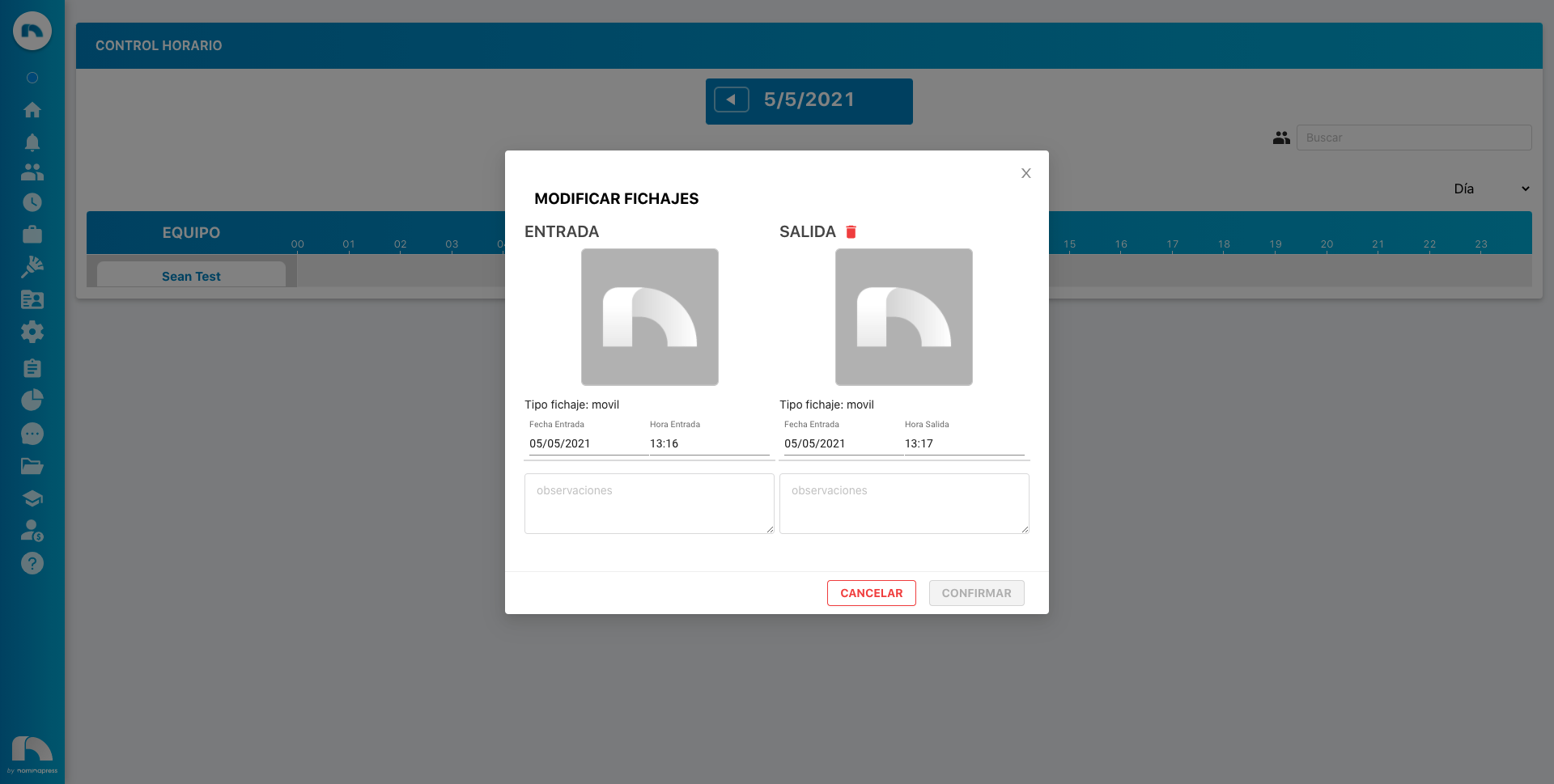
34. Management Positions: If you activate this permission, both in the View option and in the Edit option, the option to manage positions is enabled, but it is necessary to keep in mind that this permission is associated with permissions #89 and #172 (employee position).
35. Management Shifts:
This permission is currently not available
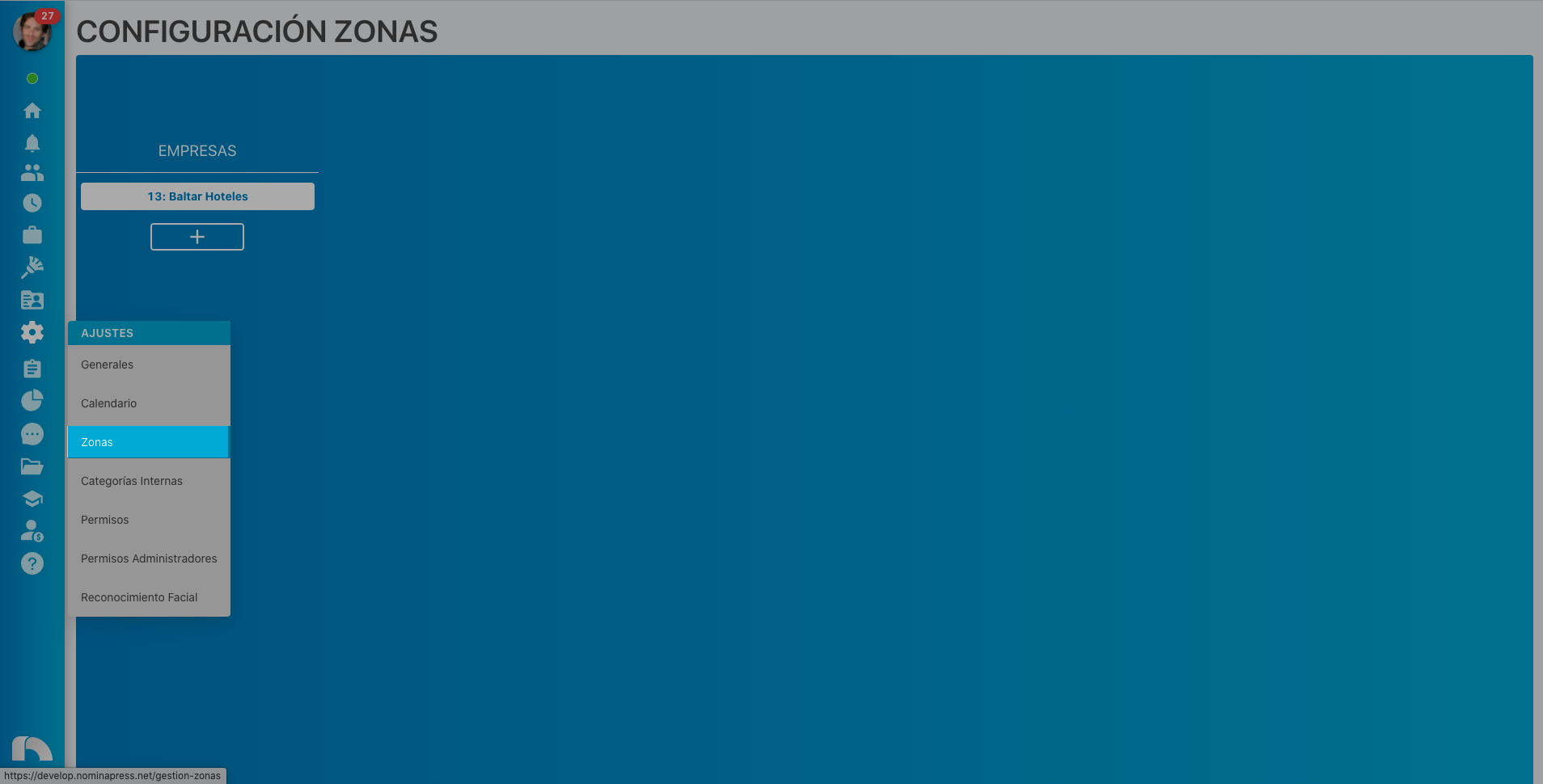
42. Management Zones: If you activate this permission, in the View option, zone settings appear. In the Edit option, it is enabled that the user can also modify the zones.
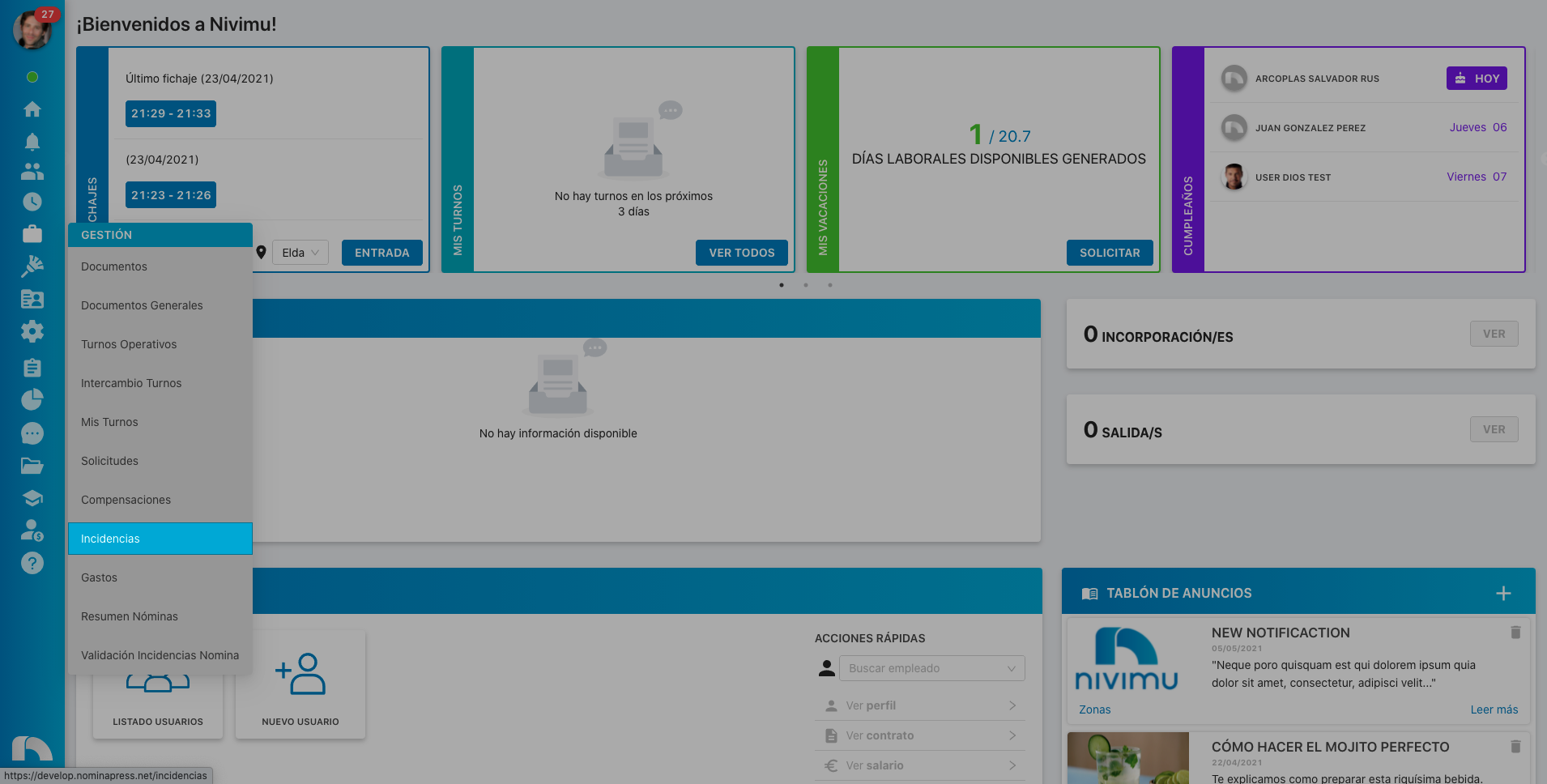
70. Incidents: If you activate this permission, both in the View option and in the Edit option, the option to view the incidents screen as well as manage them is enabled.
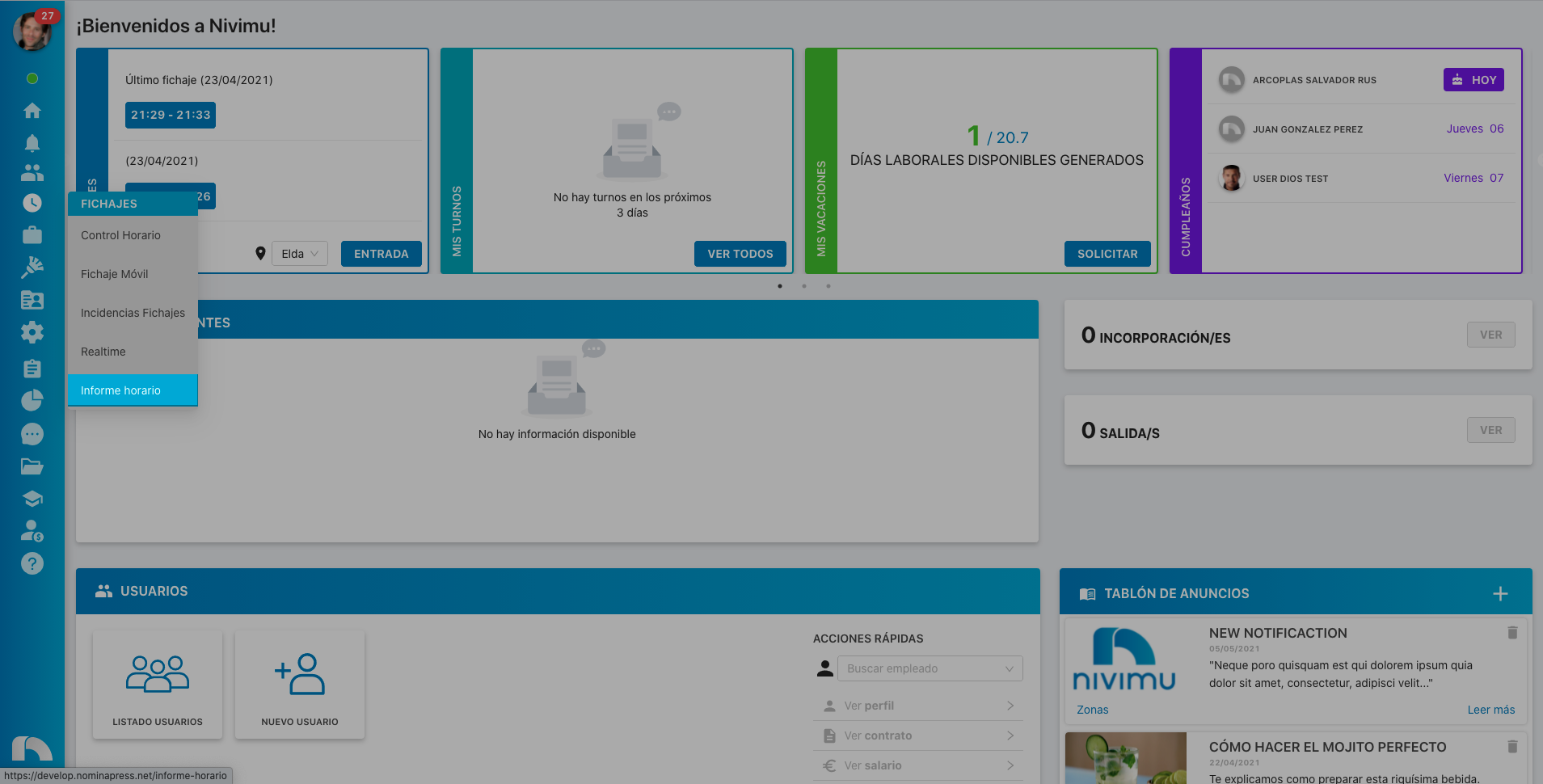
39. Time Report: If you activate this permission, both in the View option and in the Edit option, the option to view the time report screen and clockings from Time Control is enabled.
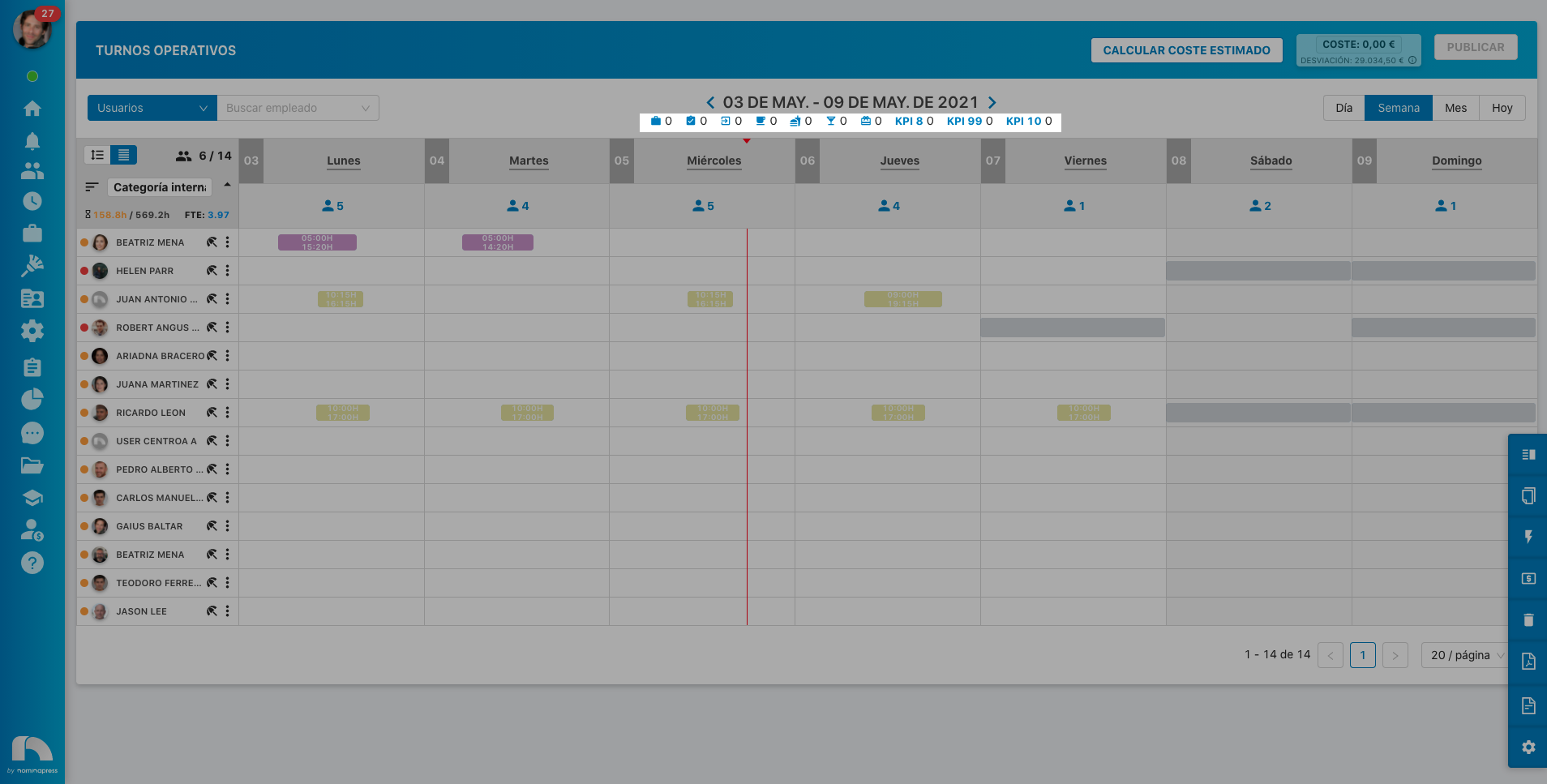
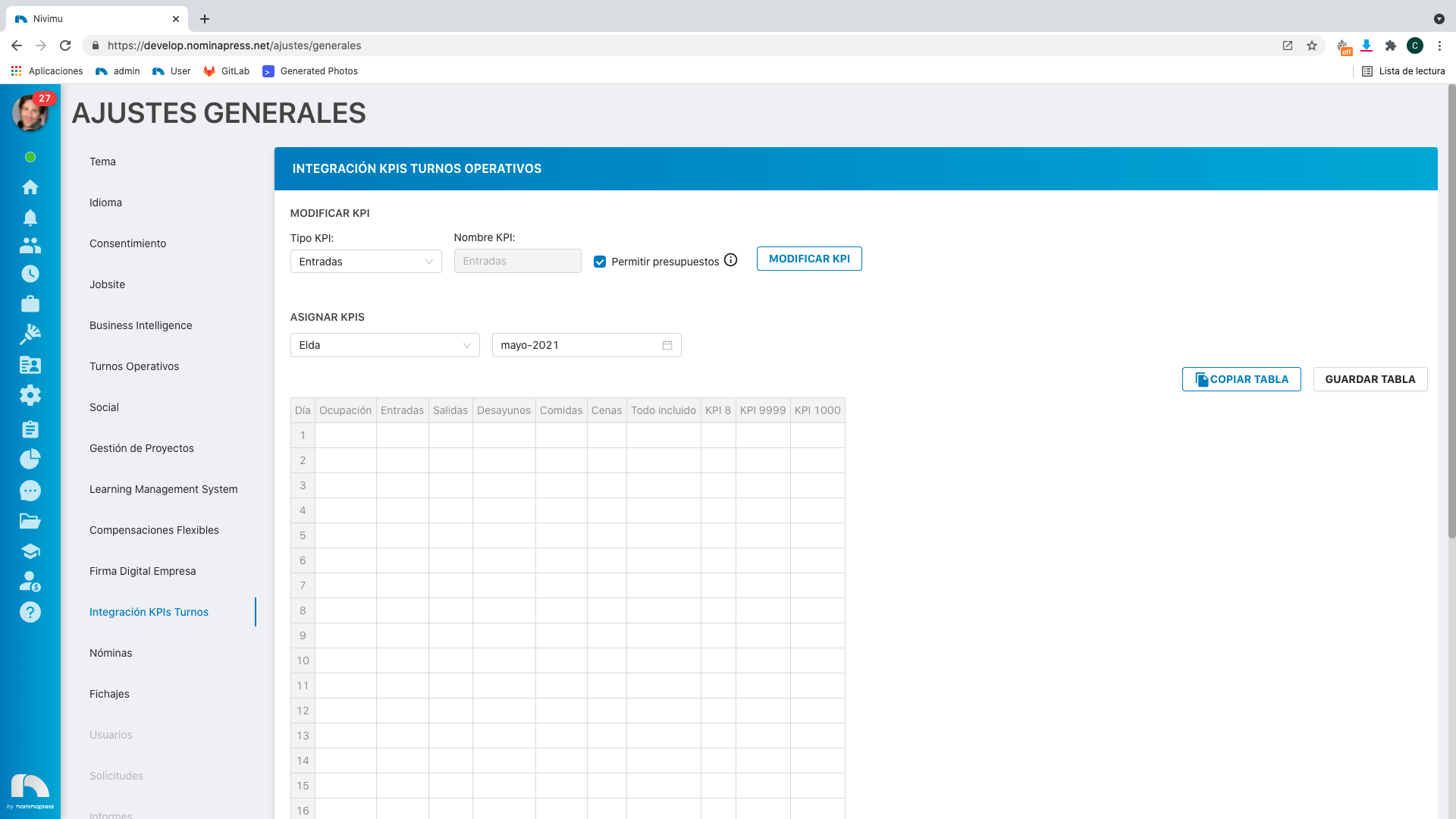
198. KPIs: If you activate this permission, in the View option, KPIs appear. In the Edit option, it is enabled that the user can also modify them.
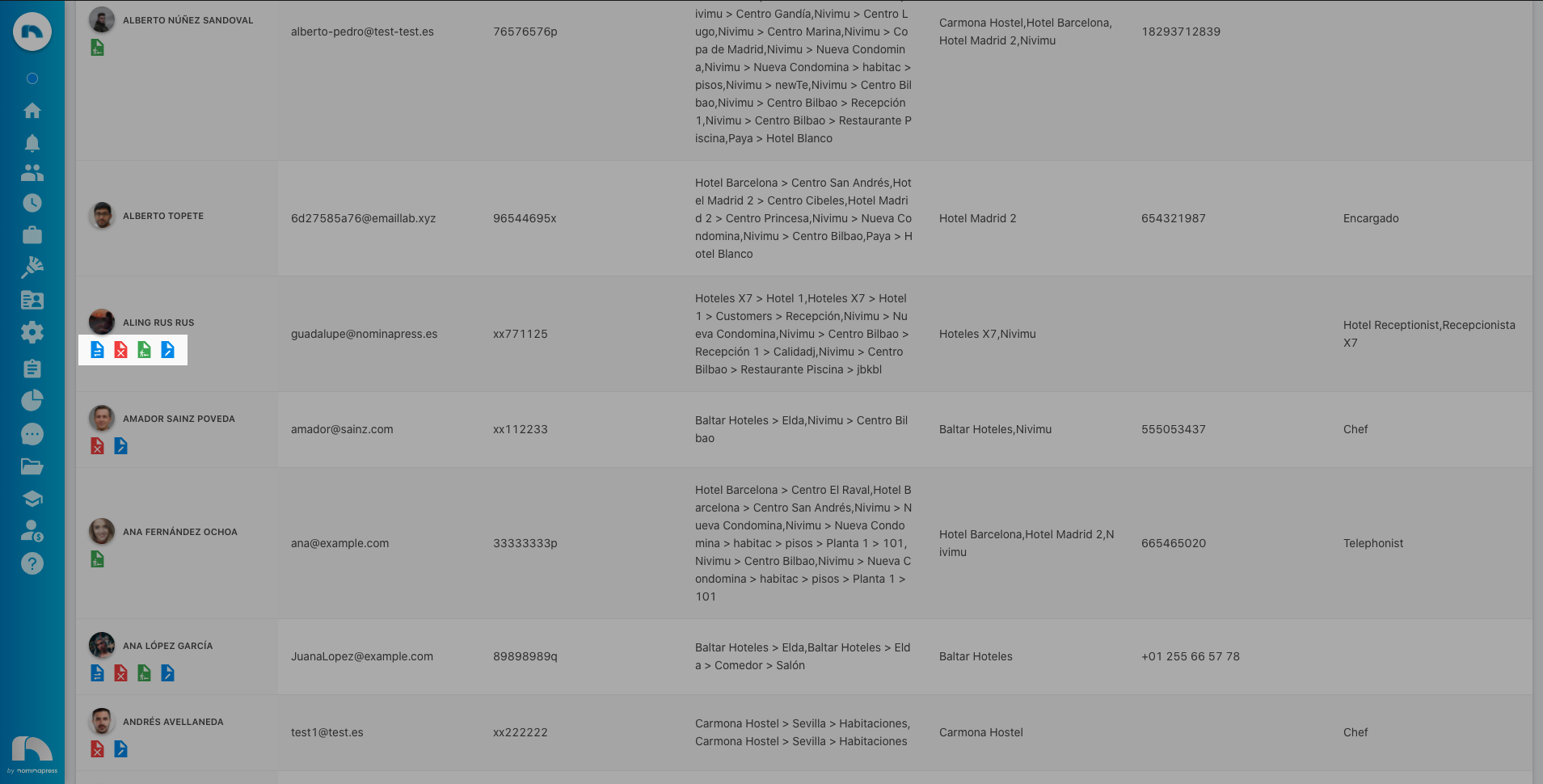
197. User List / Contract Actions: If you activate this permission, in the Edit option, the user has quick contract actions (terminate, rehire, modify, etc.) in the user list.
43. User List: If you activate this permission, both in the View option and in the Edit option, the option to view the user list screen is enabled.

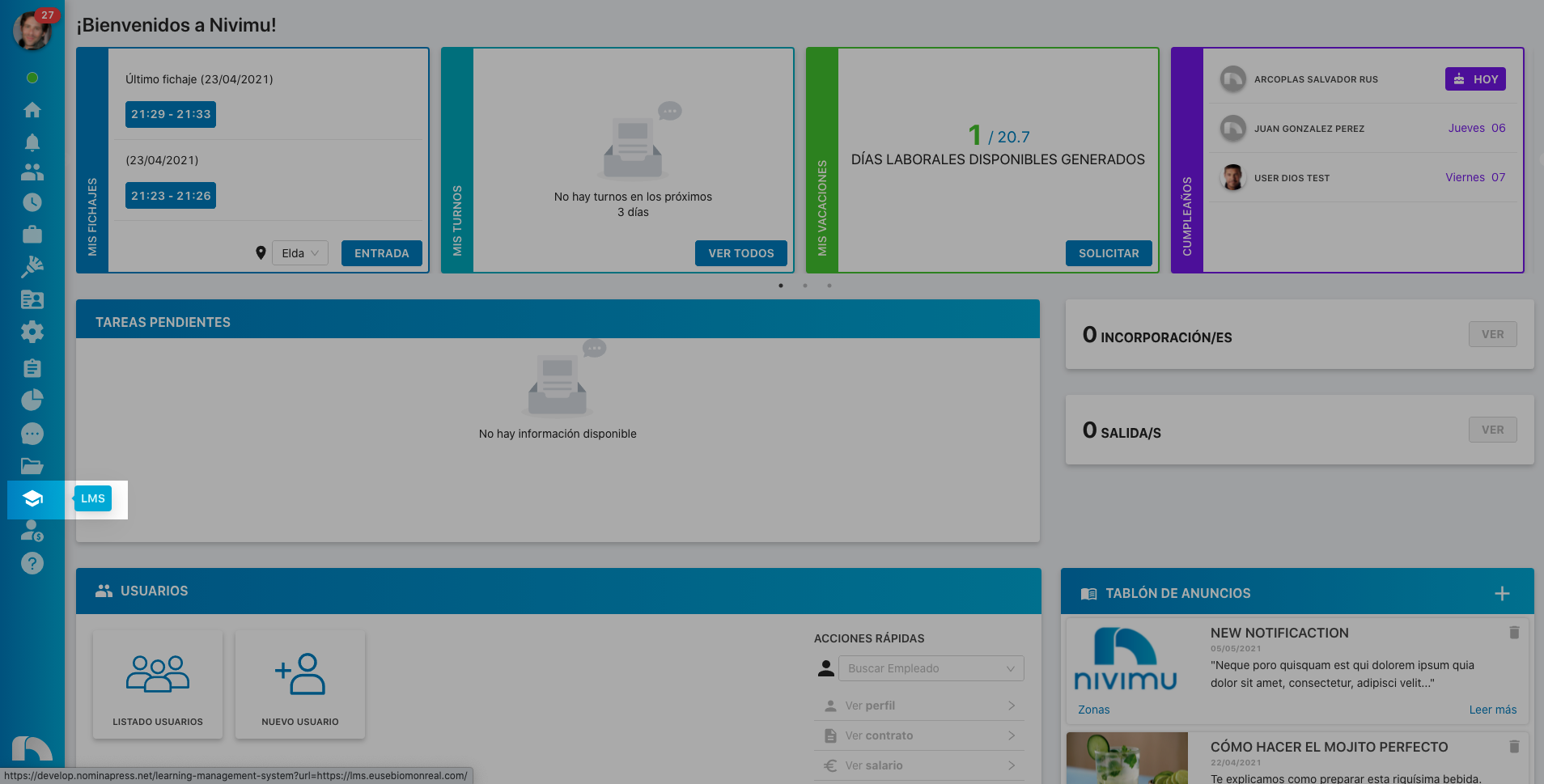
204. LMS: If you activate this permission, both in the View option and in the Edit option, the option to view the LMS module is enabled.
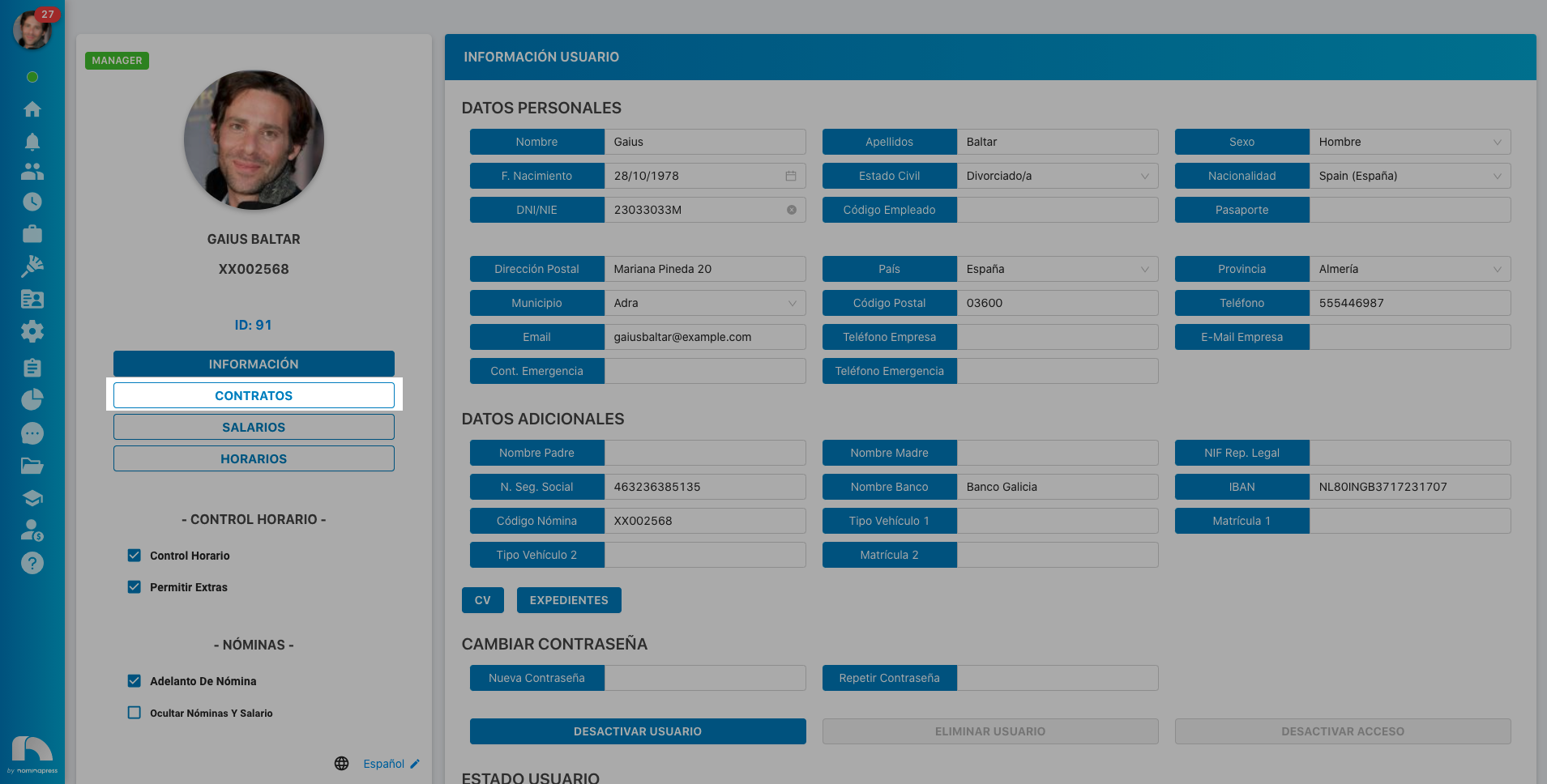
182. My profile / Contract: If you activate this permission, both in the View option and in the Edit option, the option for the user to see their contract data is enabled. It is necessary to keep in mind that this permission is associated with the permissions in the My profile / Contract section.
183. My profile / Schedules: If you activate this permission, in the View option, the schedules tab appears in the user's profile. In the Edit option, it is enabled that the user can also modify the schedule.

189. My profile / Information: If you activate this permission, both in the View option and in the Edit option, the option for the user to see their information tab is enabled. It is necessary to keep in mind that this permission is associated with the permissions in the My profile section.

184. My profile / Summary: - Remove/Hide Back - This page does not exist
This permission is currently not available
185. My profile / Salaries: If you activate this permission, in the View option, the salaries tab appears in the user's profile. In the Edit option, it is enabled that the user can also modify the salary.
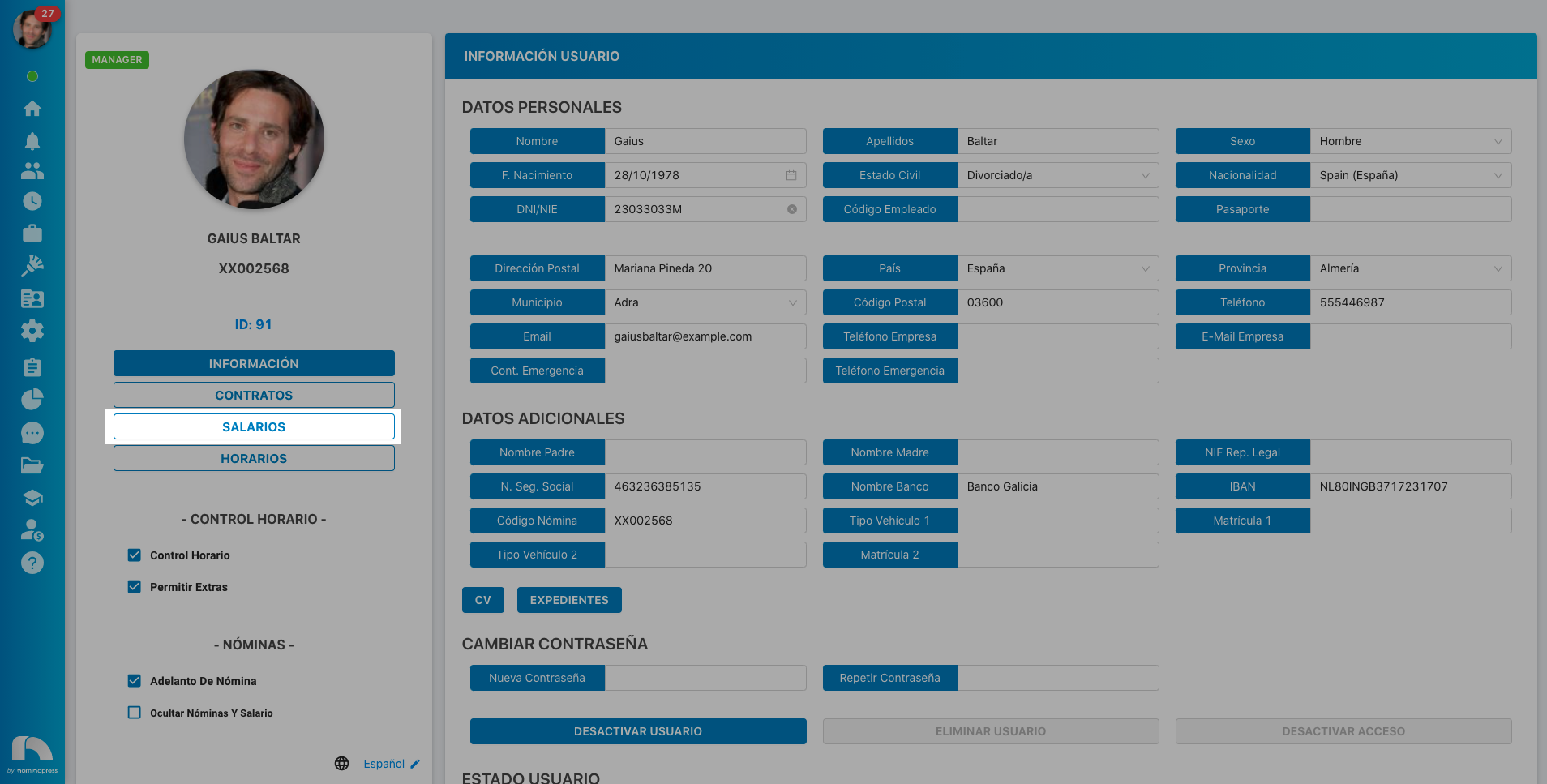
66. My Shifts: If you activate this permission, both in the View option and in the Edit option, the option for the user to see the My Shifts tab is enabled.
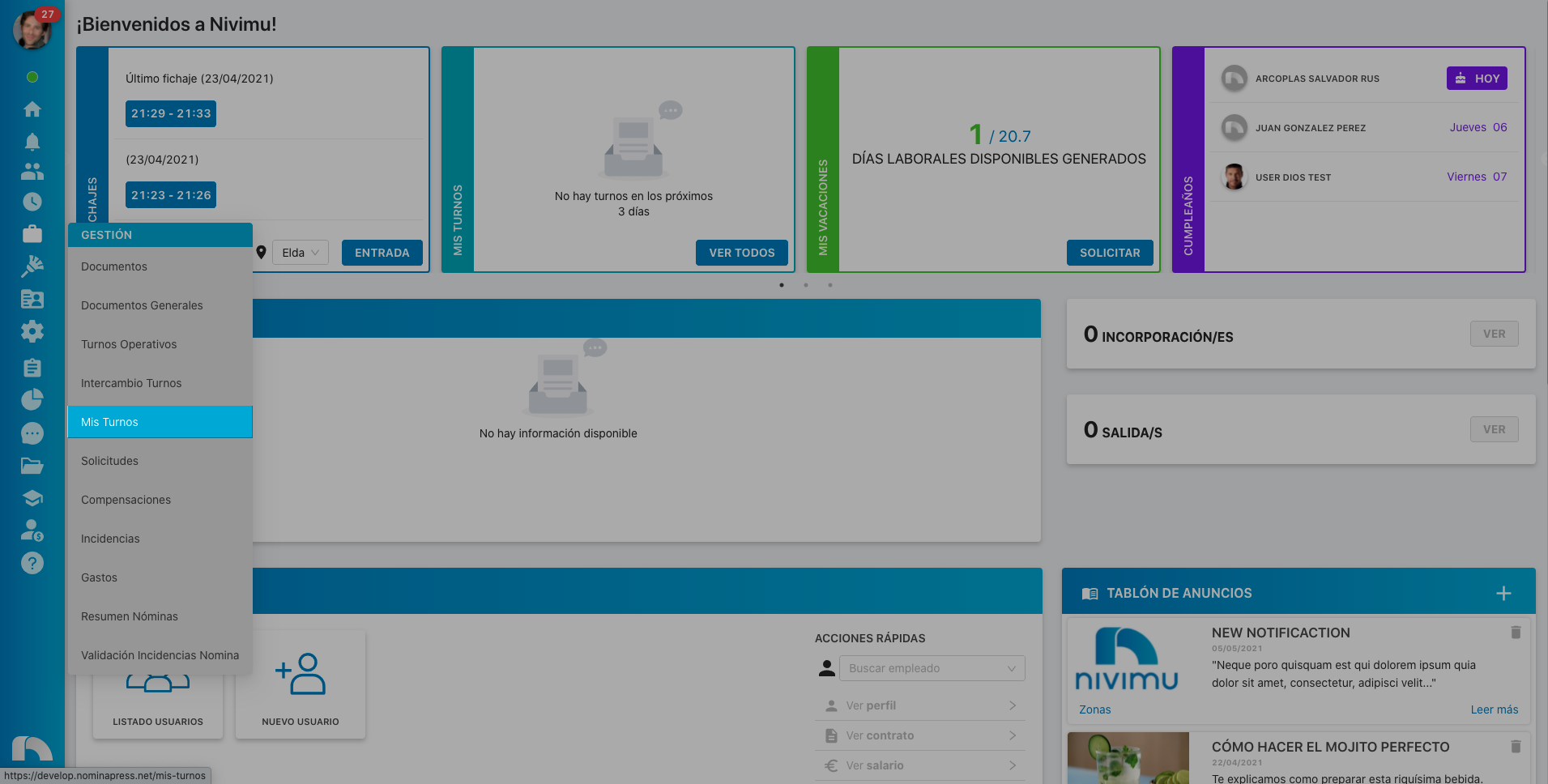
69. Notifications: If you activate this permission, in the View option, the user has access to the notifications tab and sees received notifications. In the Edit option, it is enabled that the user can also send notifications.
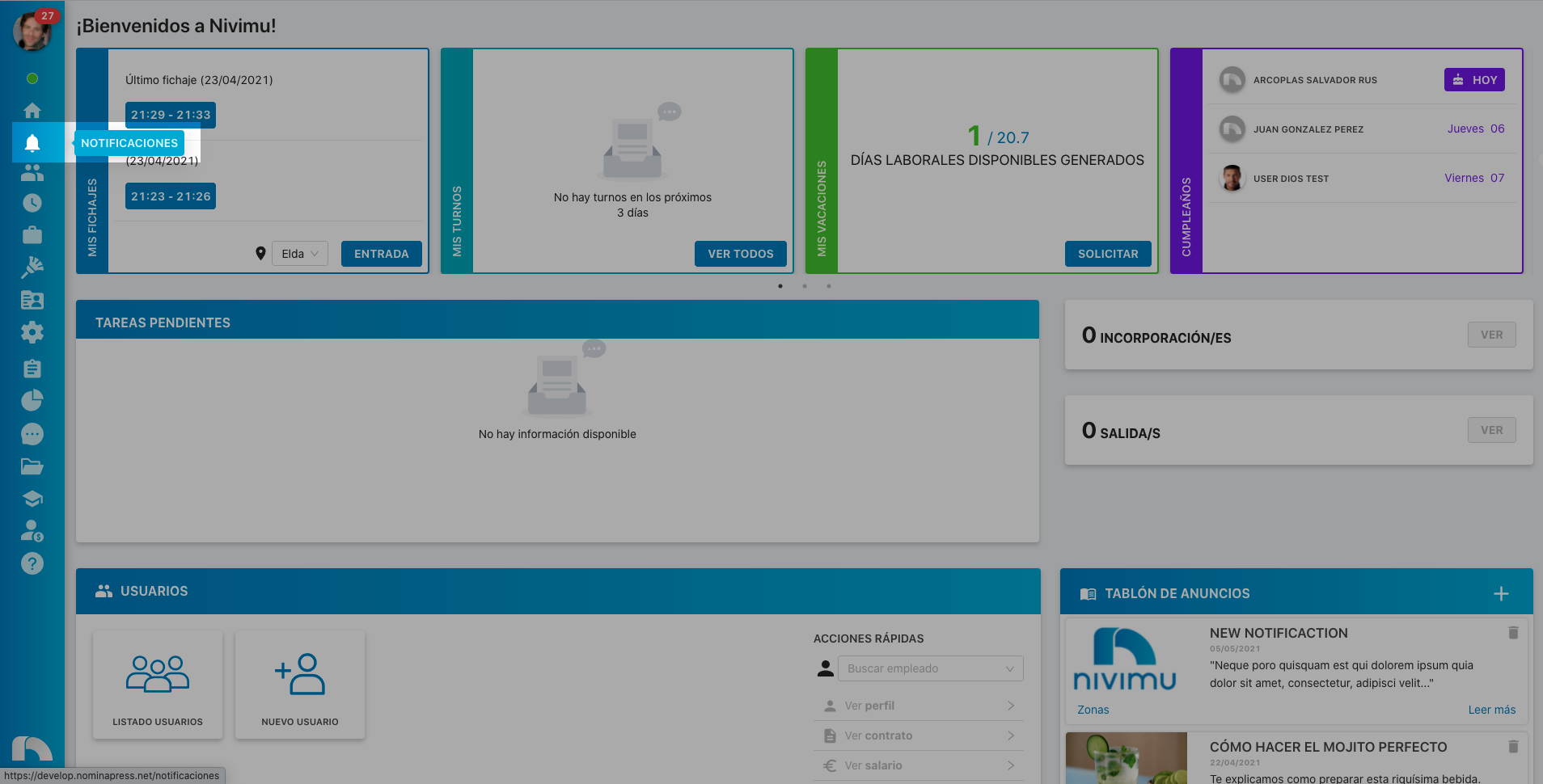
44. New User: If you activate this permission, in the View option, the new user screen appears. In the Edit option, it is enabled that the user can also create users.

63. Payrolls: If you activate this permission, in the View option, the documents and general documents screens appear. In the Edit option, it is enabled that the user can also upload and manage documents.
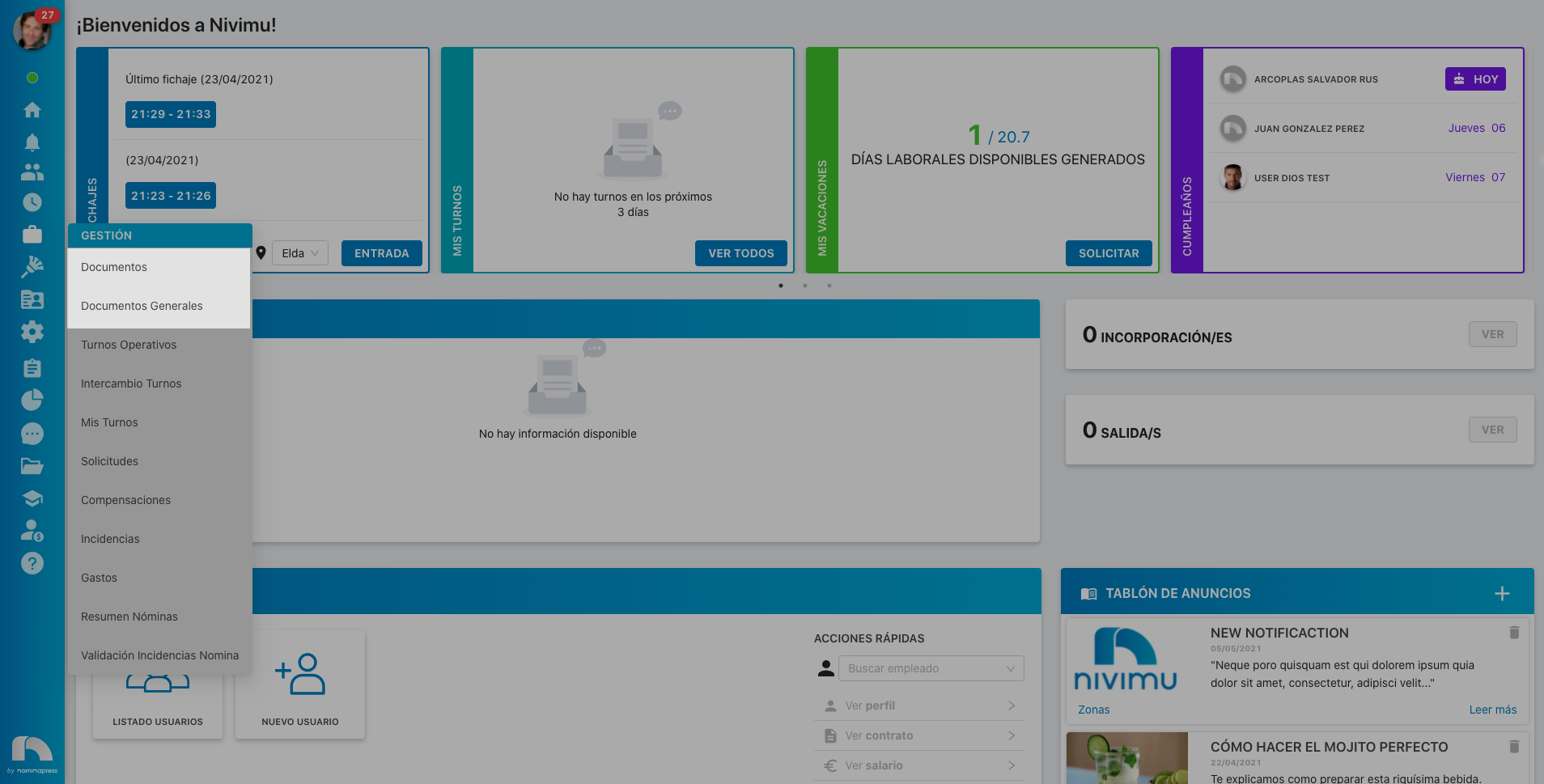
100. Offers: If you activate this permission, in the View option, the offers screen appears in the Jobsite. In the Edit option, it is enabled that the user can also create and edit offers.
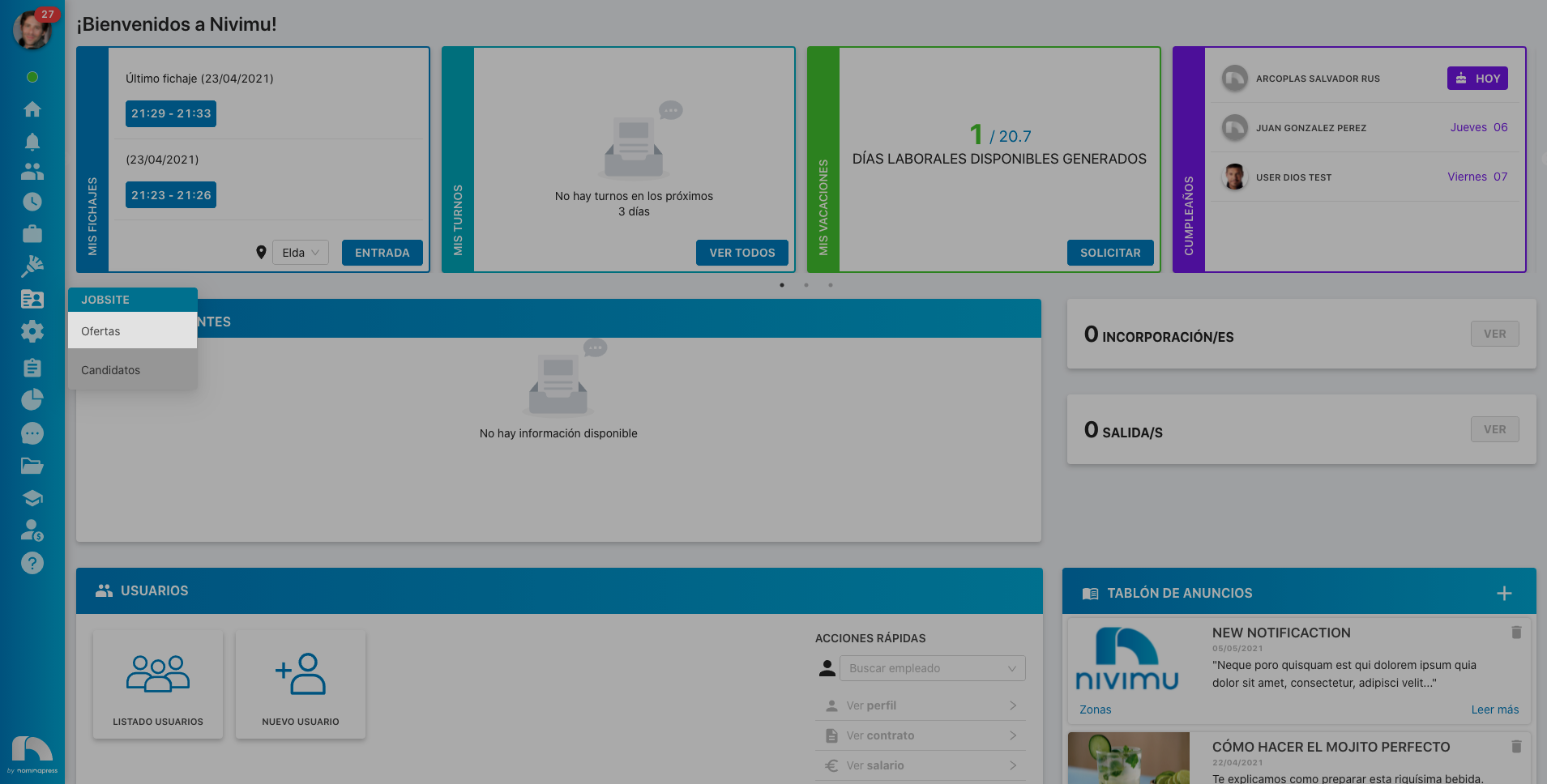
82. Organization Chart: If you activate this permission, both in the View option and in the Edit option, the option for the user to see the Organization Chart tab is enabled.
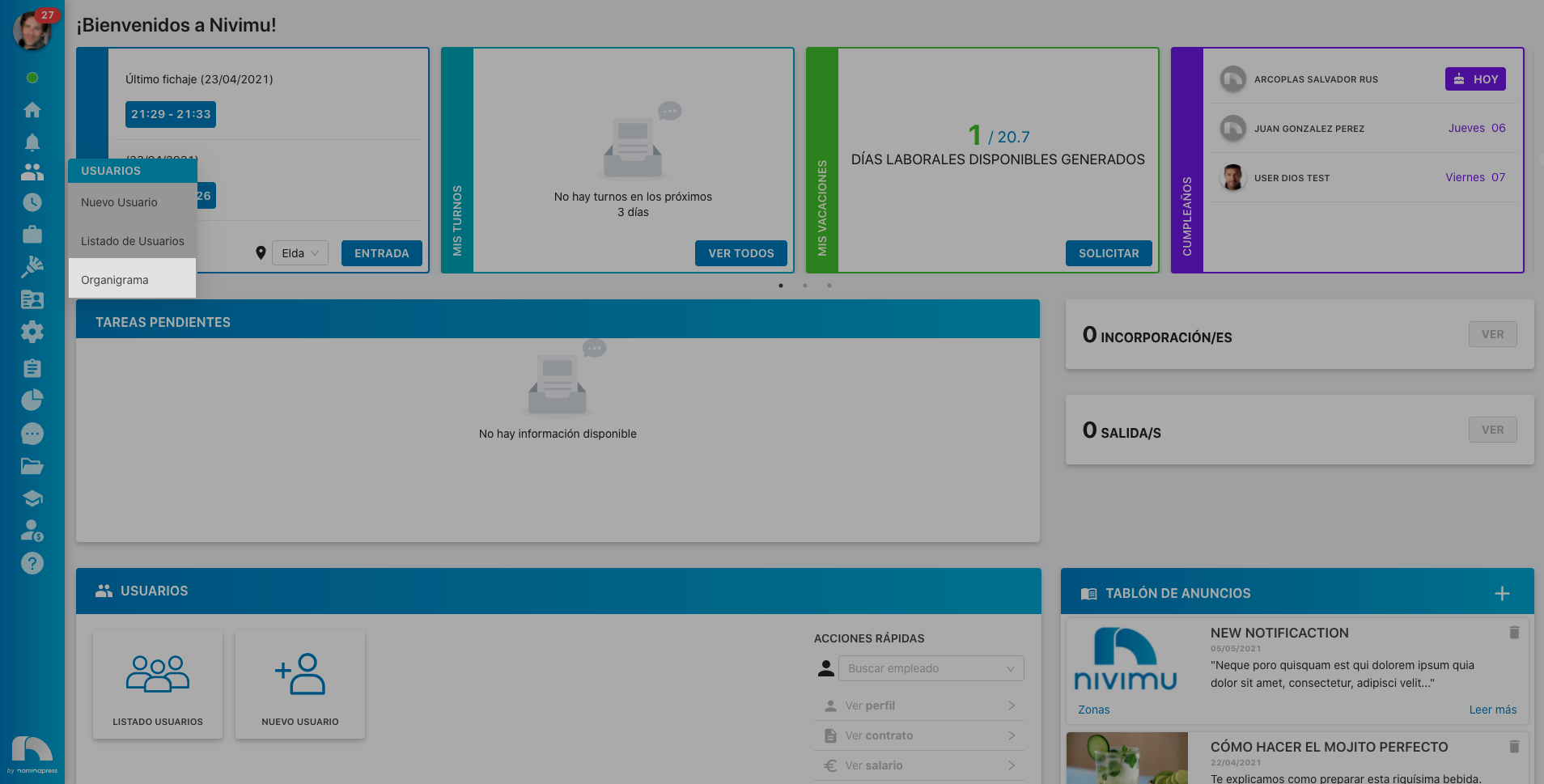
190. Profile / Password: If you activate this permission, in the Edit option, the option for the user to change the password of the users they see is enabled.
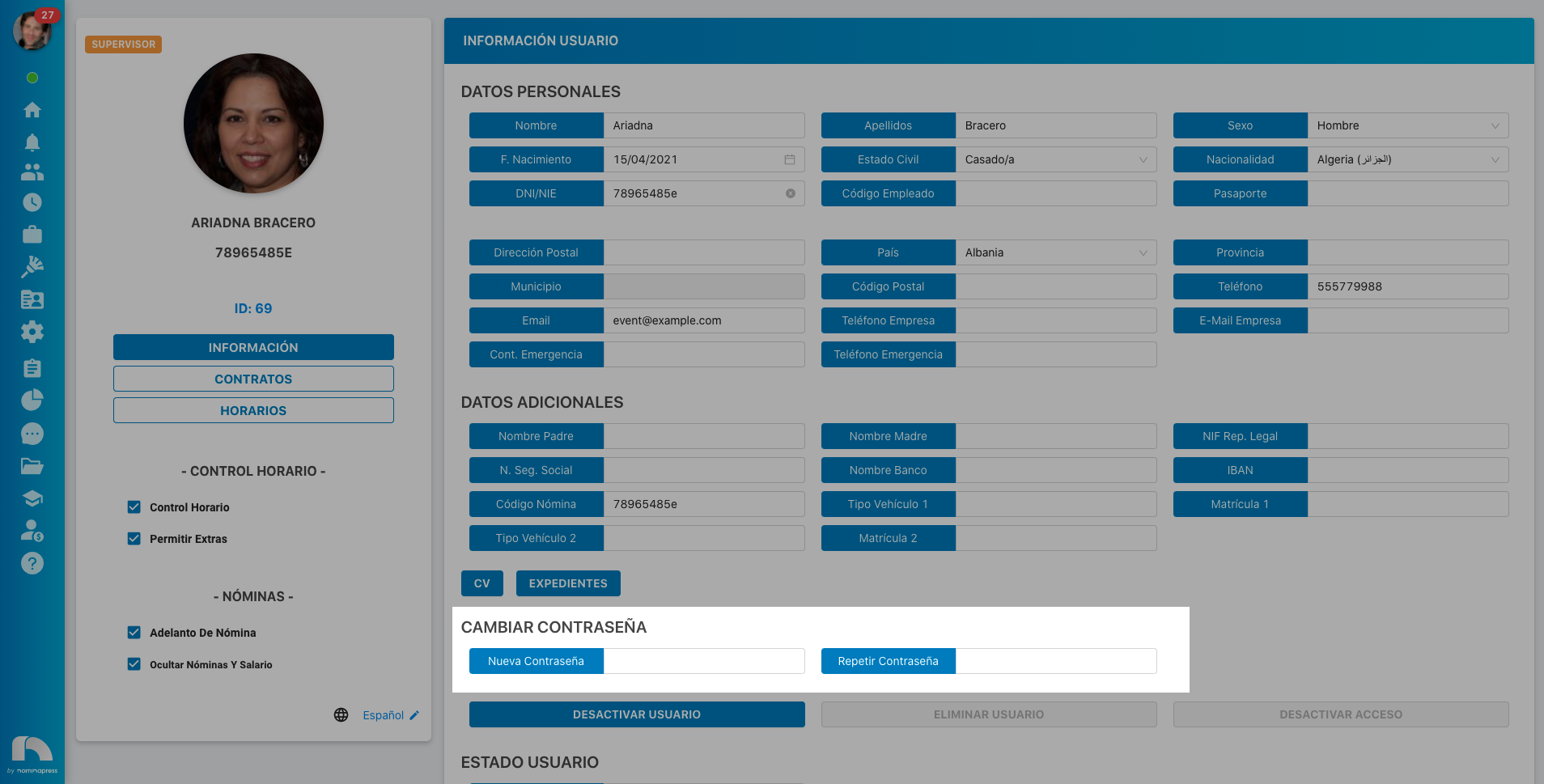
37. Profile / Contract: If you activate this permission, both in the View option and in the Edit option, the option for the user to see the contract data of the users they see is enabled. It is necessary to keep in mind that this permission is associated with the permissions in the Profile / Contract section.
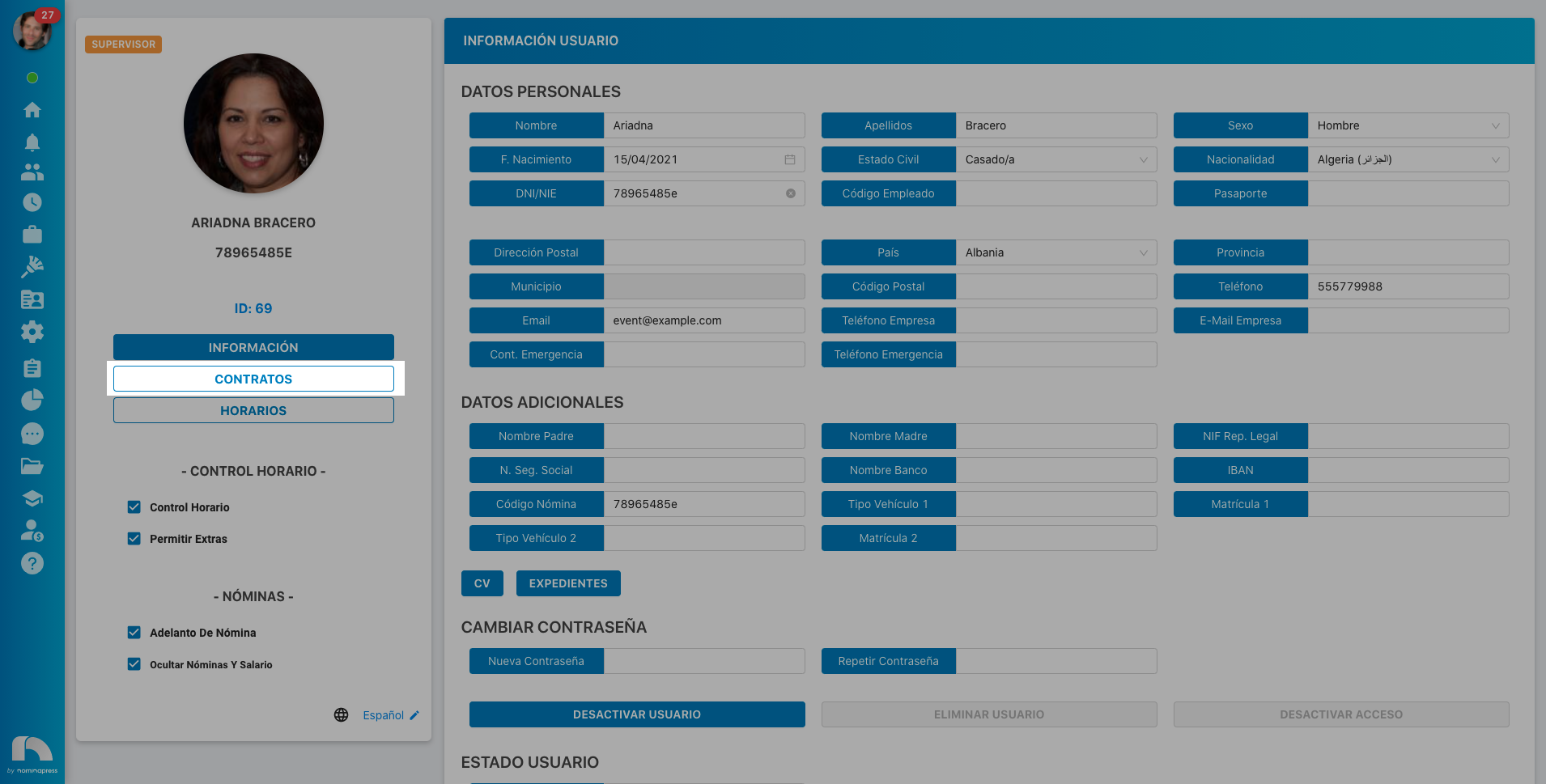
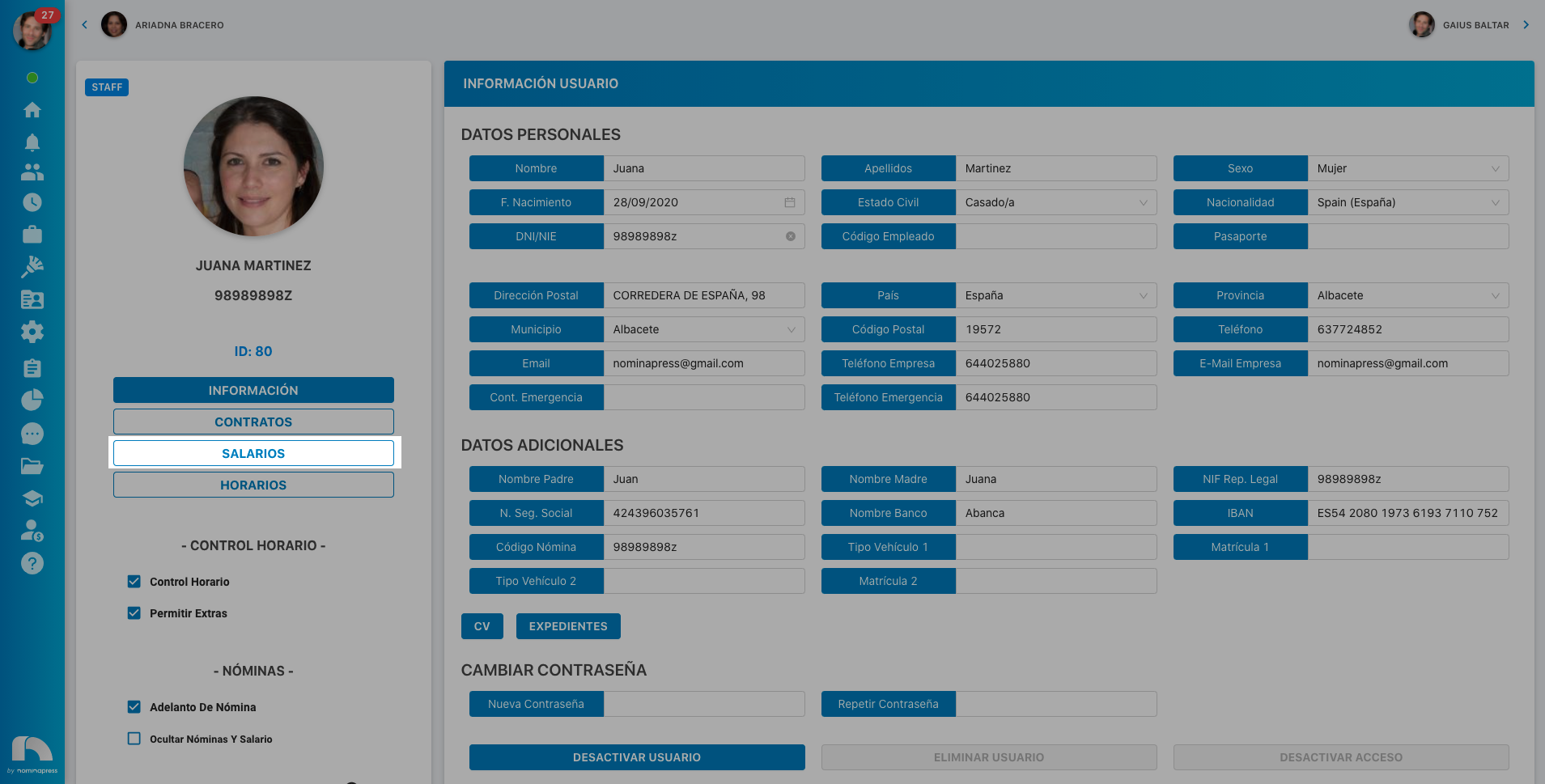
125. Profile / Schedule: If you activate this permission, in the View option, the schedules tab appears in the profiles of users they see. In the Edit option, it is enabled that the user can also modify the schedule.
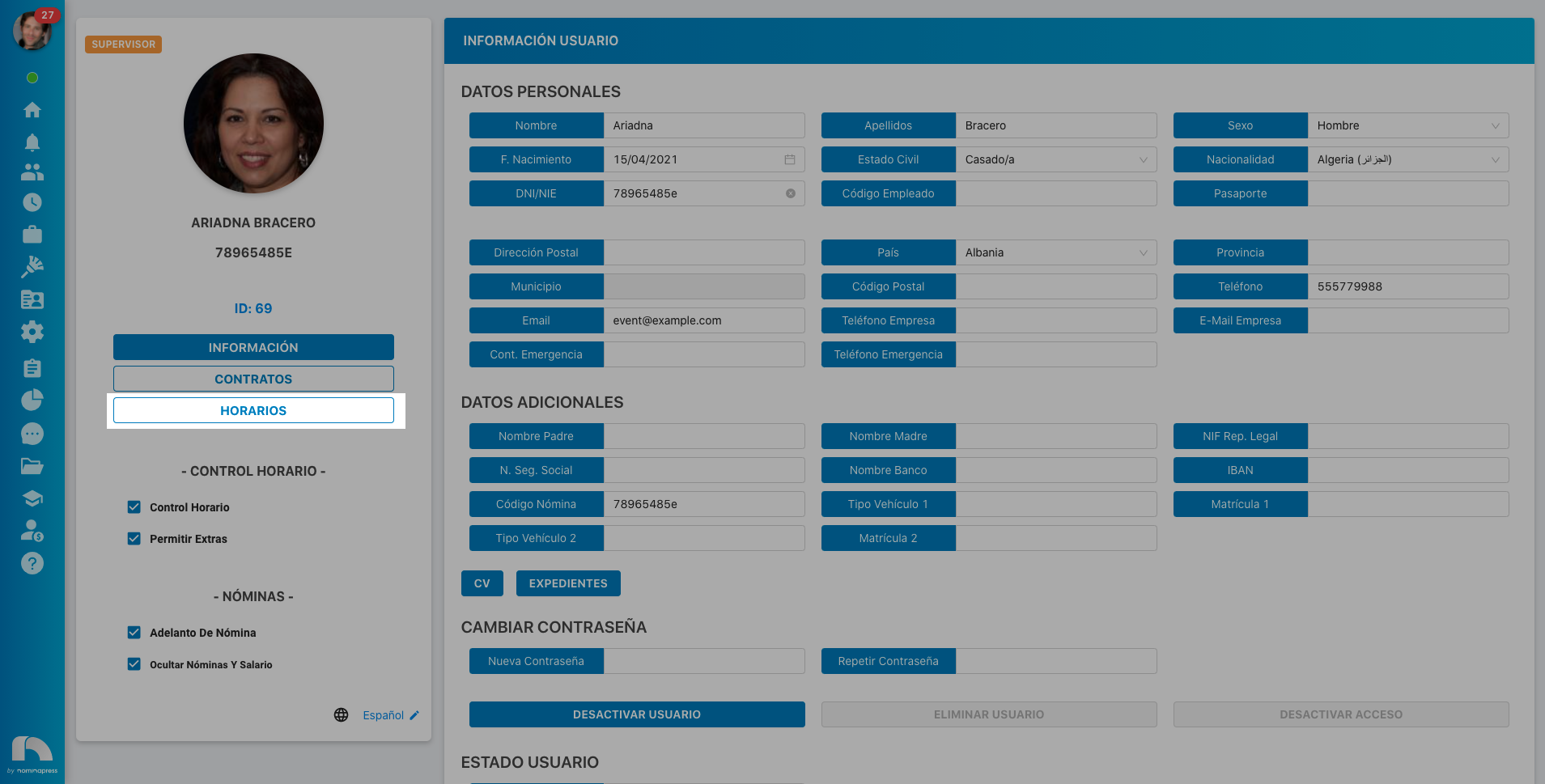
50. Profile / Information: If you activate this permission, both in the View option and in the Edit option, the option for the user to see their information tab is enabled. It is necessary to keep in mind that this permission is associated with the permissions in the Profile/User section.
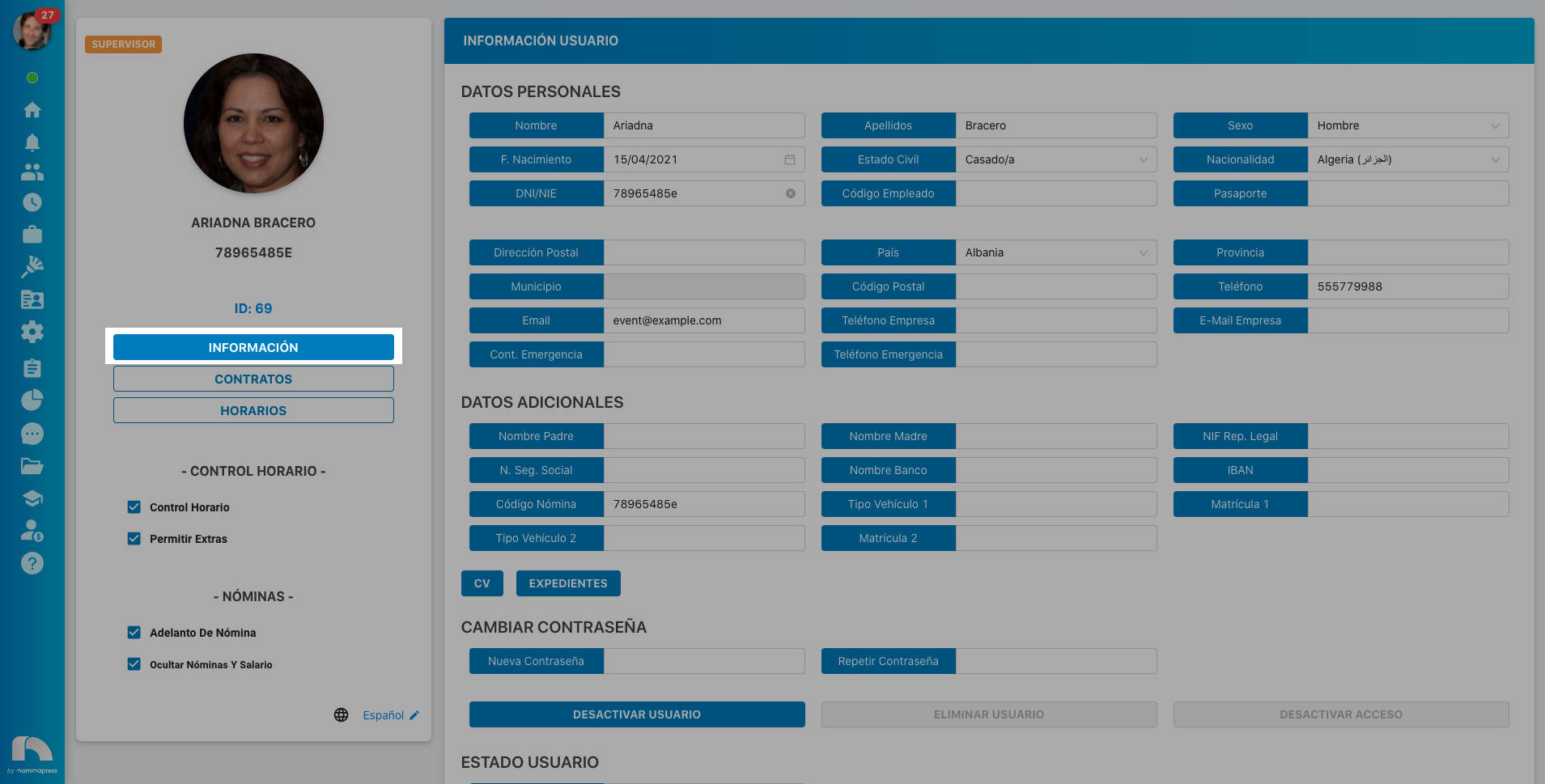
67. Profile / Summary: - Remove/Hide Back - This page does not exist
This permission is currently not available
61. Profile / Salary: If you activate this permission, in the View option, the salaries tab appears in the profiles of the users they see. In the Edit option, it is enabled that the user can also modify the salary.
28. Permissions: If you activate this permission, both in the View option and in the Edit option, the option for the user to see the permissions tab in Settings is enabled. It is necessary to keep in mind that this permission is associated with the permissions in the Permissions section.
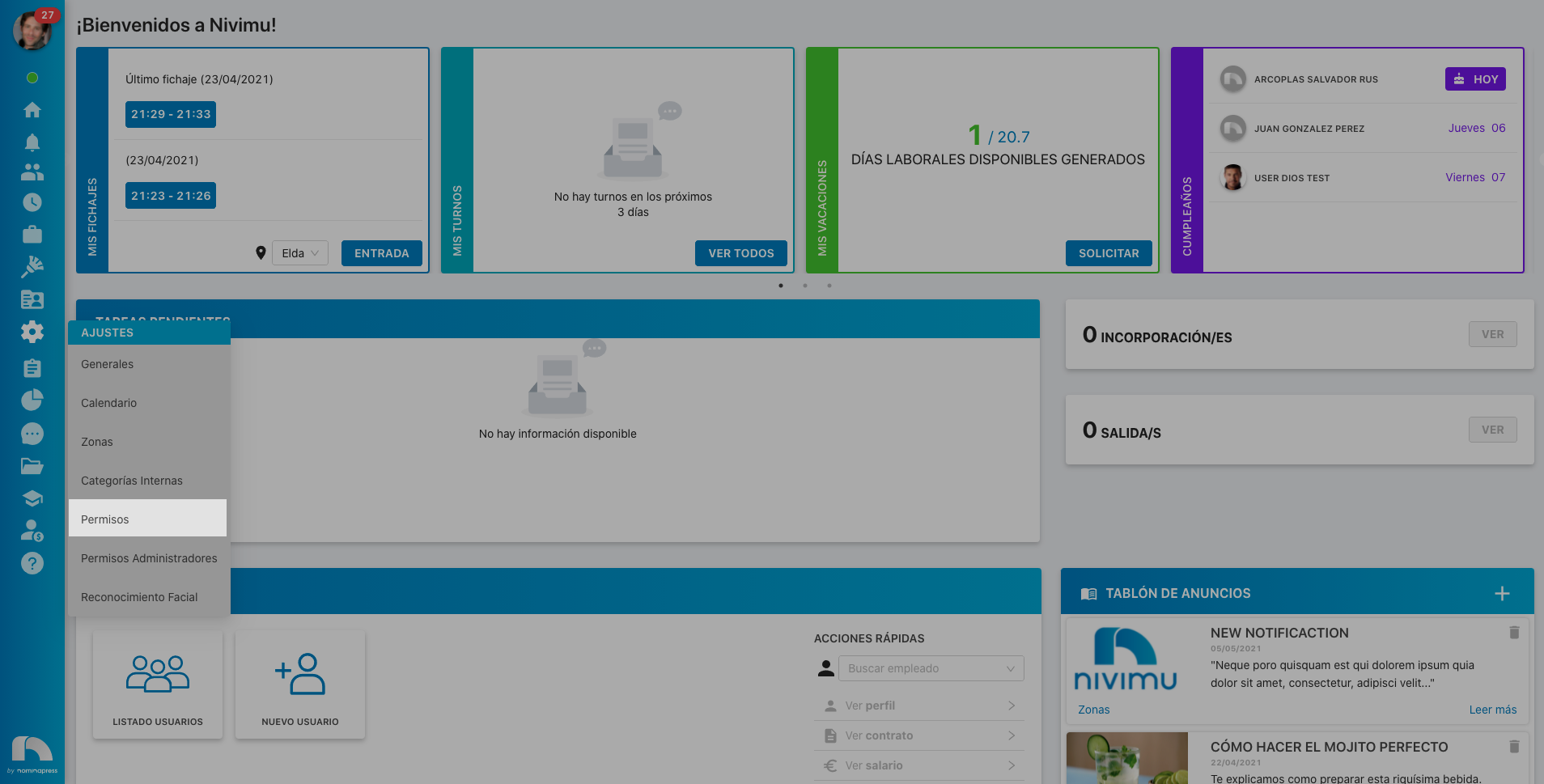
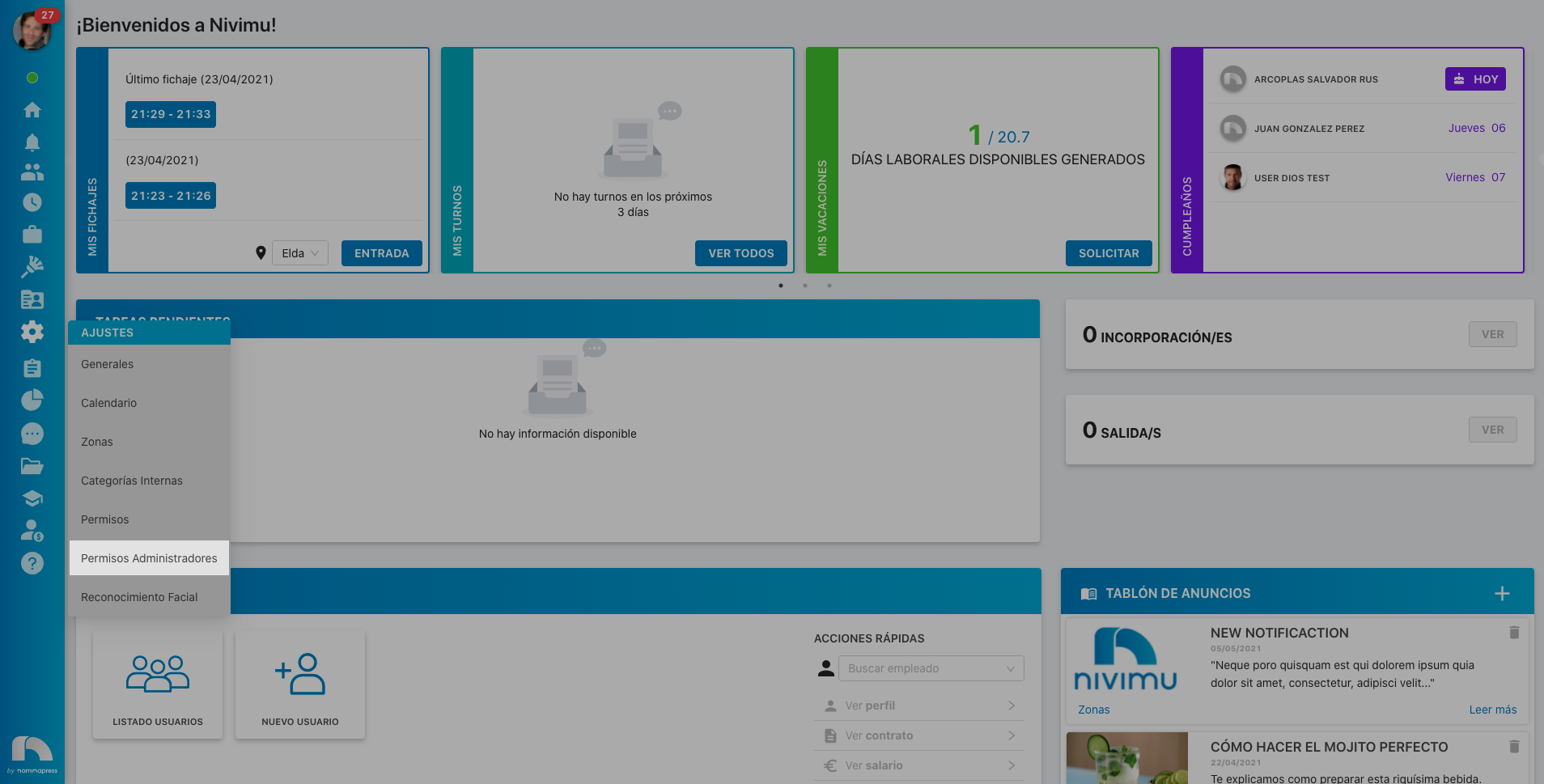
36. Administrator Permissions: If you activate this permission, both in the View option and in the Edit option, the option for the user to see the Administrator Permissions tab is enabled, where they can assign permissions to users with administrator role.
77. Ideal Template:
This permission is currently not available
191. Budgets: If you activate this permission, in the View option, the user sees the budgets screen. In the Edit option, it is enabled that the user can also create budgets.

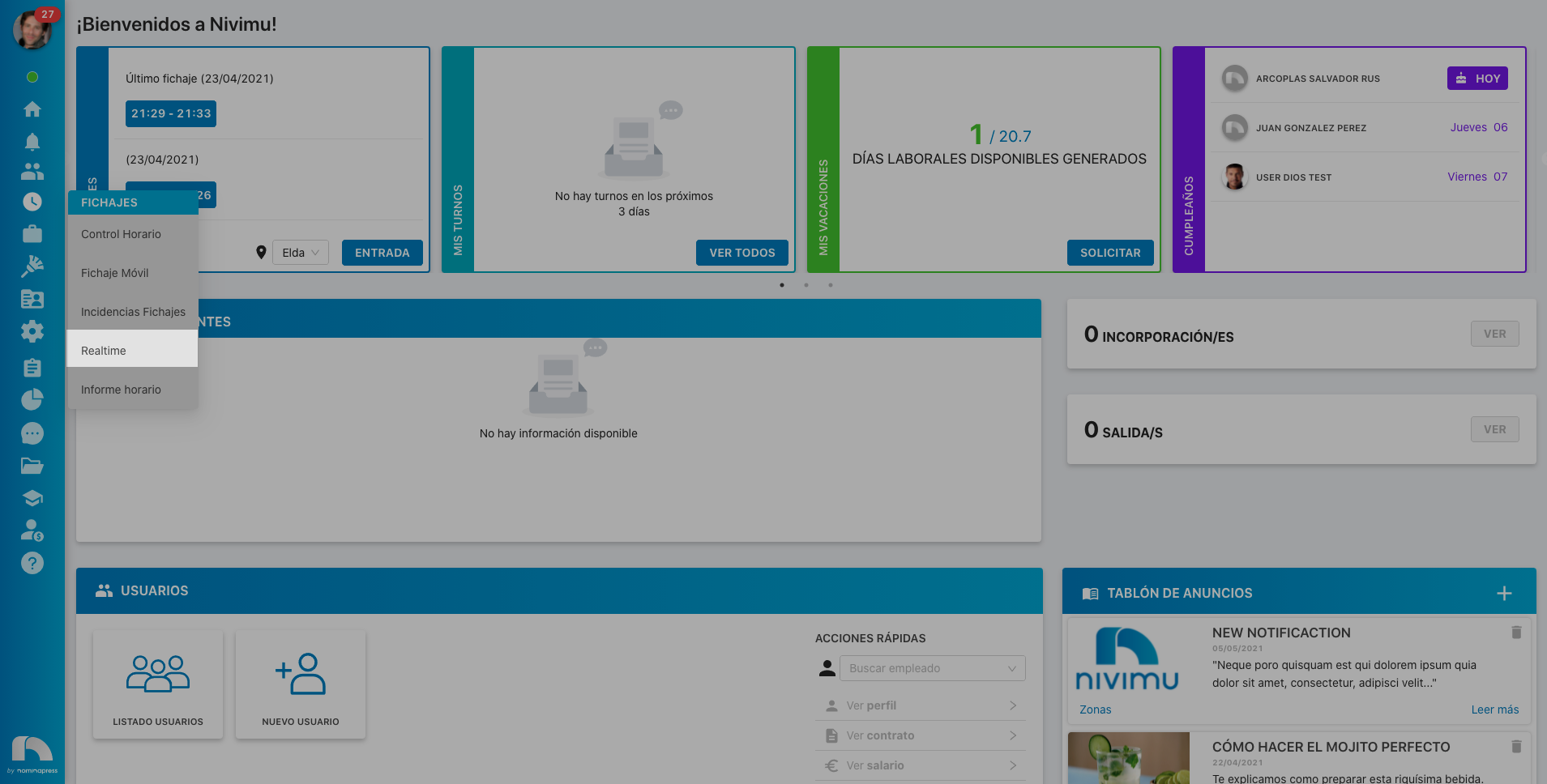
38. Realtime: If you activate this permission, both in the View option and in the Edit option, the option for the user to have access to the Realtime tab is enabled.
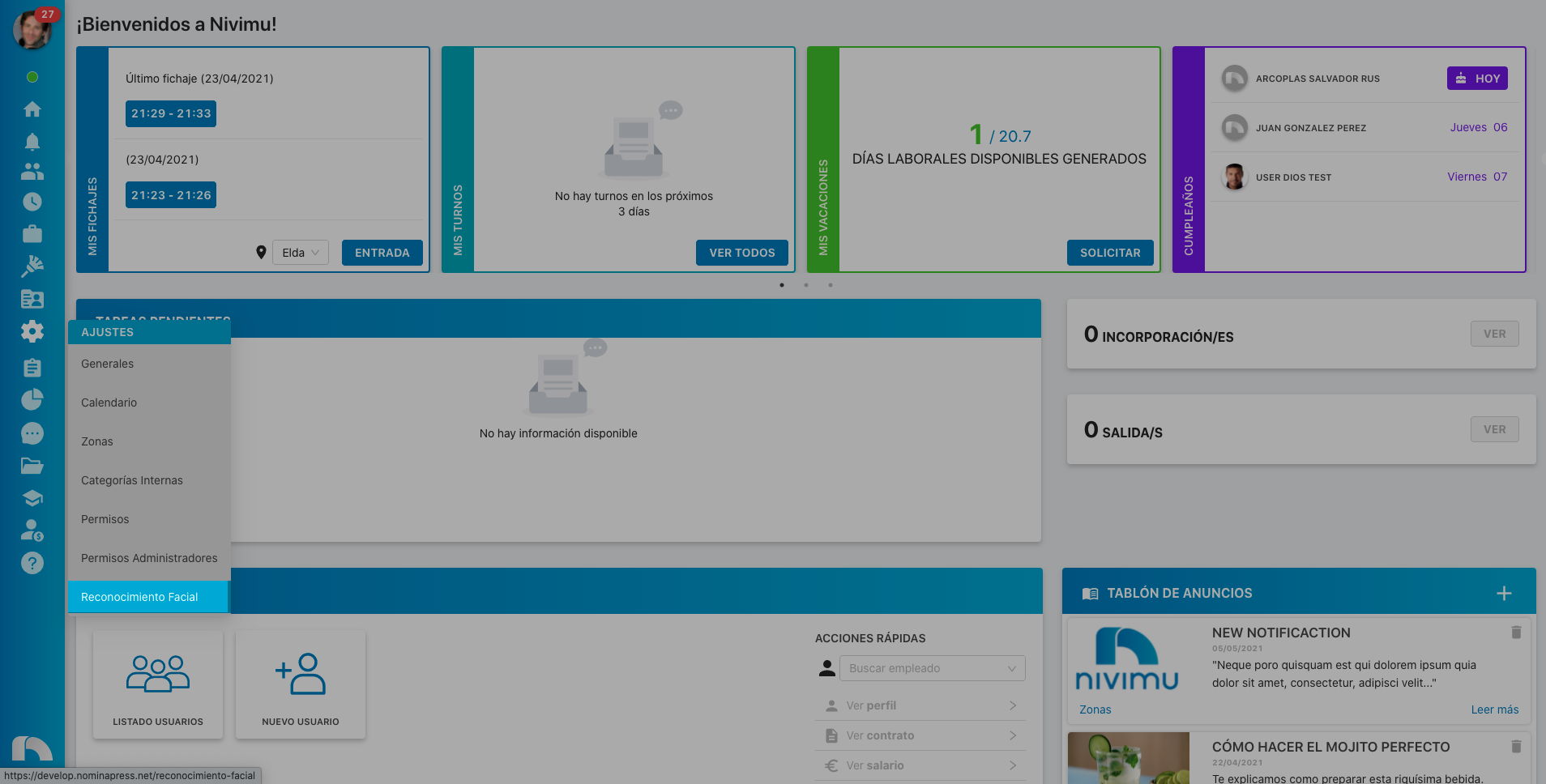
104. Facial Recognition: If you activate this permission, both in the View option and in the Edit option, the option for the user to have access to the Facial Recognition tab in Settings is enabled. Here they can validate photos.
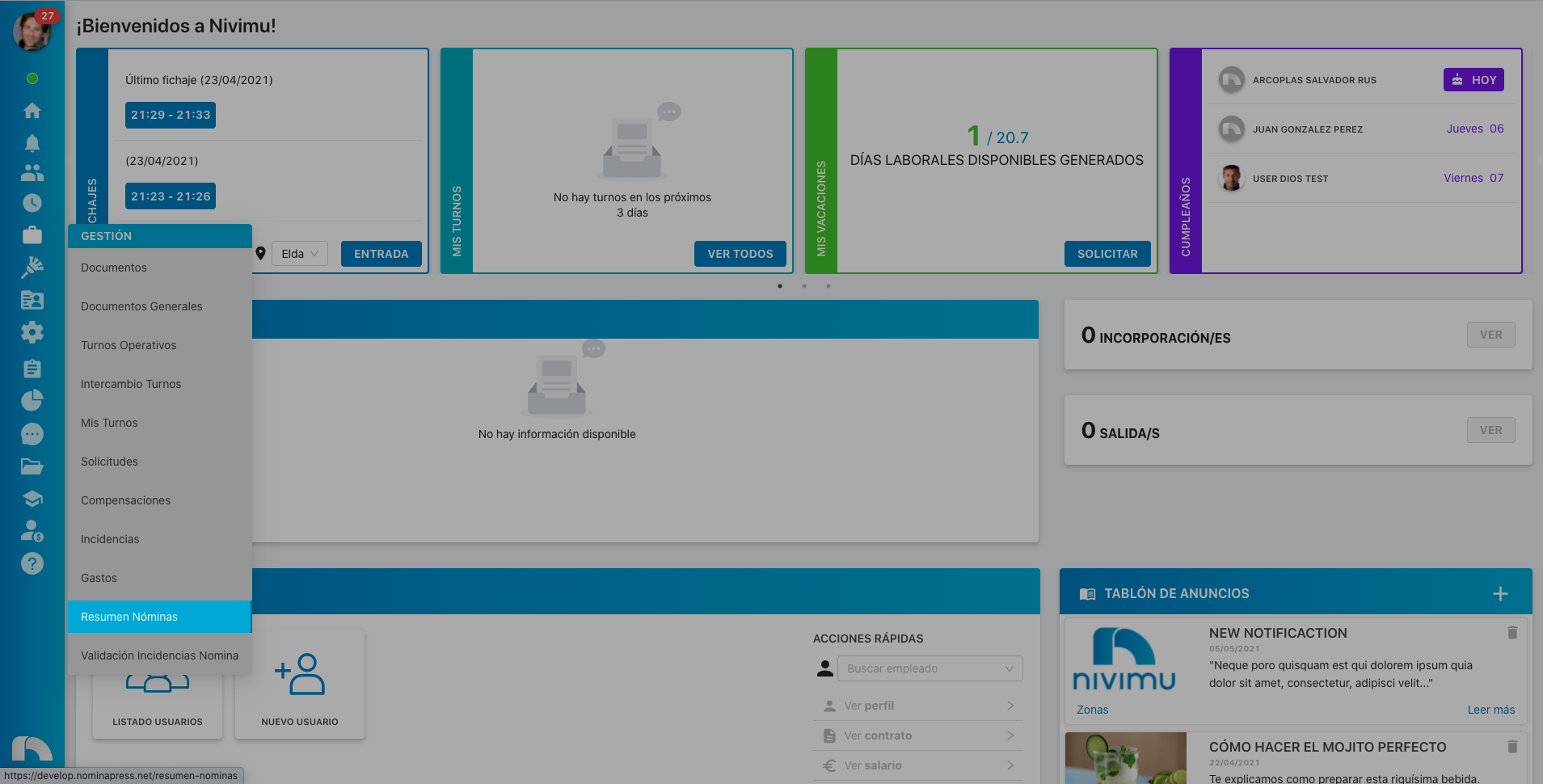
138. Payroll summary: If you activate this permission, both in the View option and in the Edit option, the option for the user to have access to the Payroll Summary tab and edit the table is enabled.
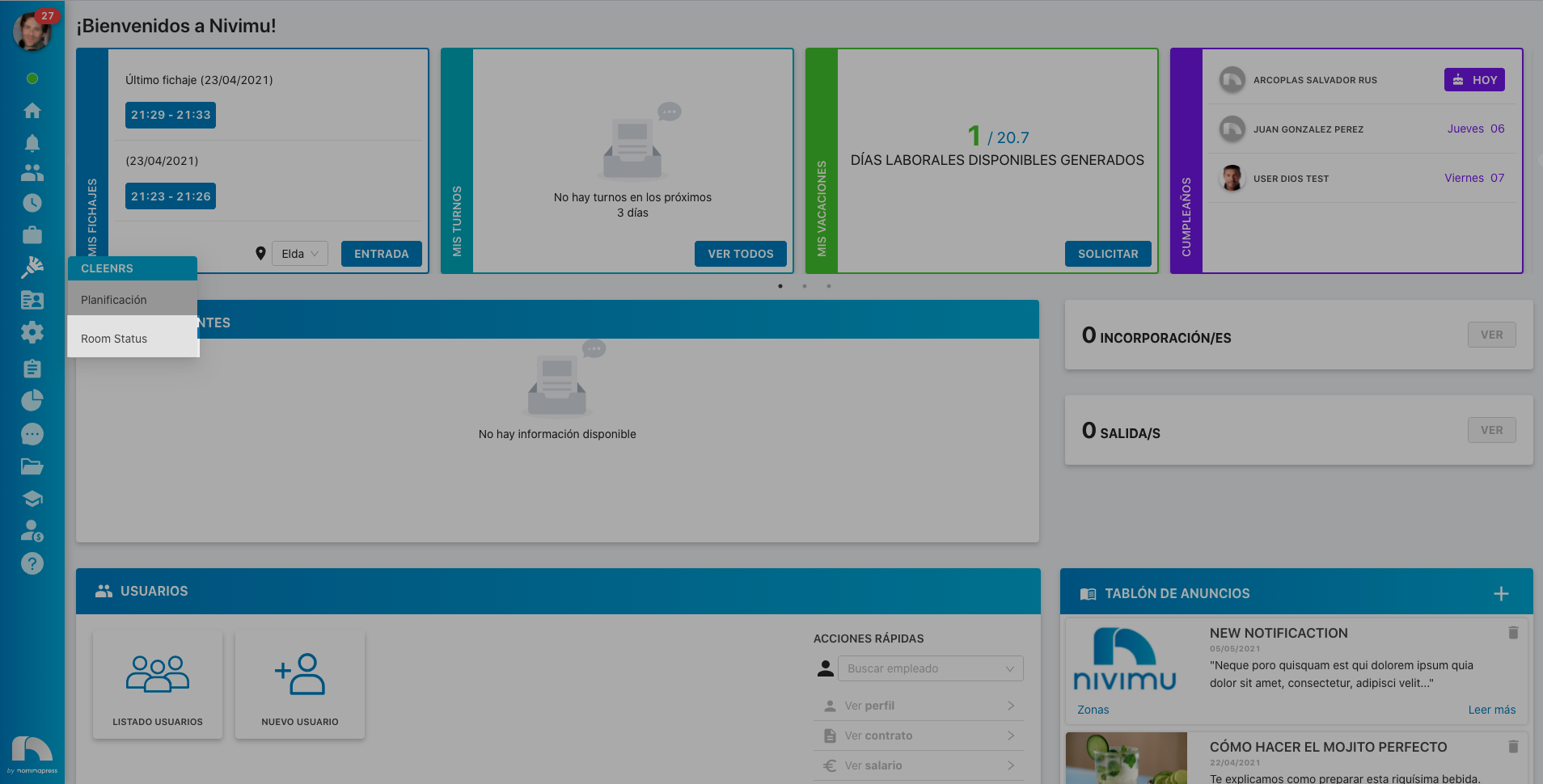
76. Room Status: If you activate this permission, both in the View option and in the Edit option, the option for the user to see the Room Status tab of the Cleenrs module is enabled. It is necessary to keep in mind that this permission is associated with the permissions in the Cleenrs section.
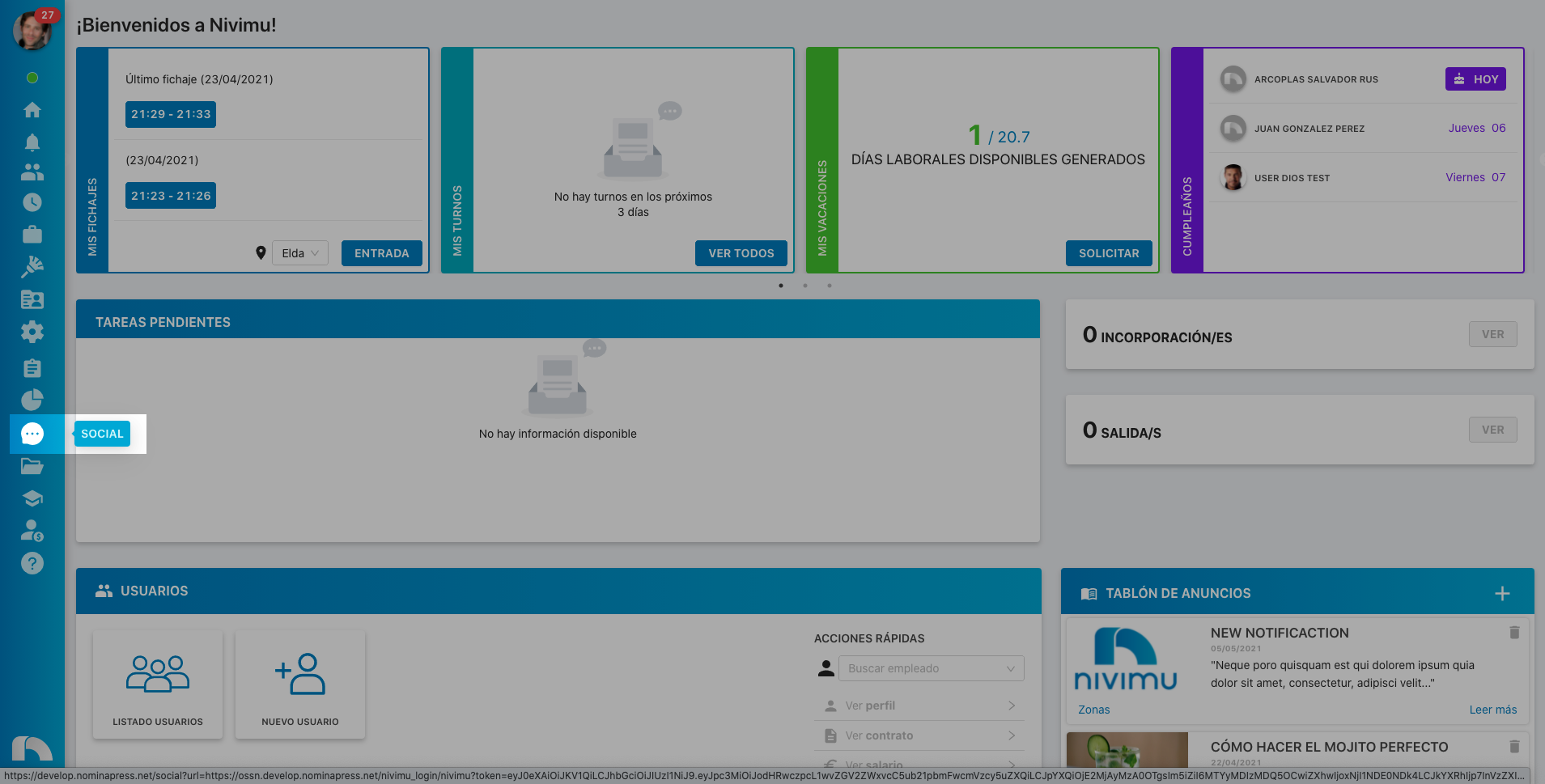
21. Social: If you activate this permission, both in the View option and in the Edit option, the option for the user to have access to the Social module is enabled.
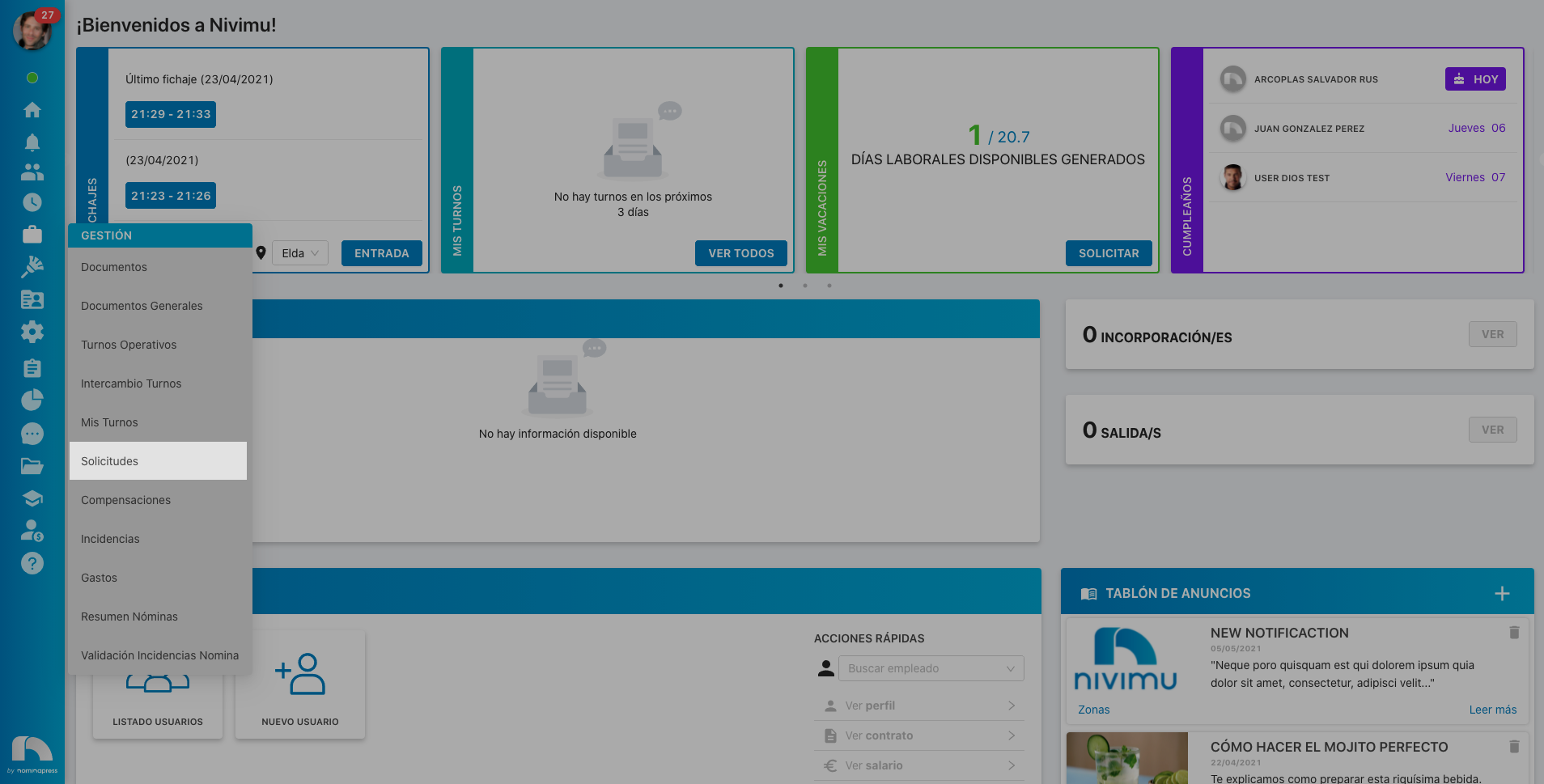
68. Requests: If you activate this permission, in the View option, the user sees the requests screen and can use it to send requests, and in the case of managers, to validate them. In the Edit option, it is enabled that they can also accept or reject them, as well as request them on behalf of employees.
65. Time Control: If you activate this permission, you give the user access to the Time Control tab.

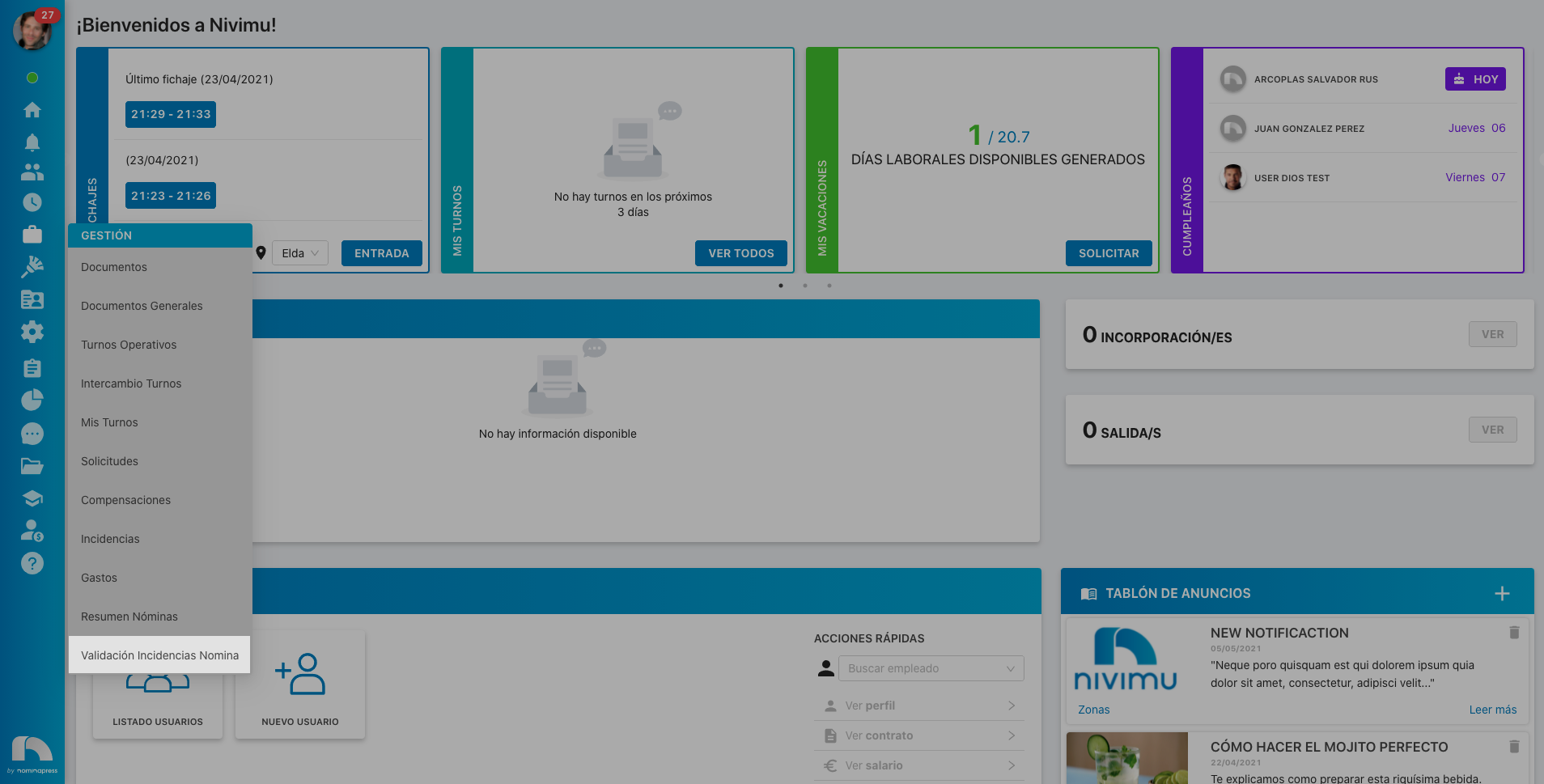
188. Payroll incidents validation: If you activate this permission, in the View option, the user sees the Payroll Incidents Validation screen. In the Edit option, it is enabled that they can also validate or reject them.
22. View compensation data in vacation report: If you activate this permission, both in the View option and in the Edit option, the option for the user to view compensated vacations in the Vacations widget that appears in Compensations and Requests is enabled.
227. Reset attachment signature in notification:
If you activate this permission, both in the View option and in the Edit option, the option for the user, when they have sent a notification to sign and it is signed, to reset the attachment to the original so that it can be signed again is enabled.
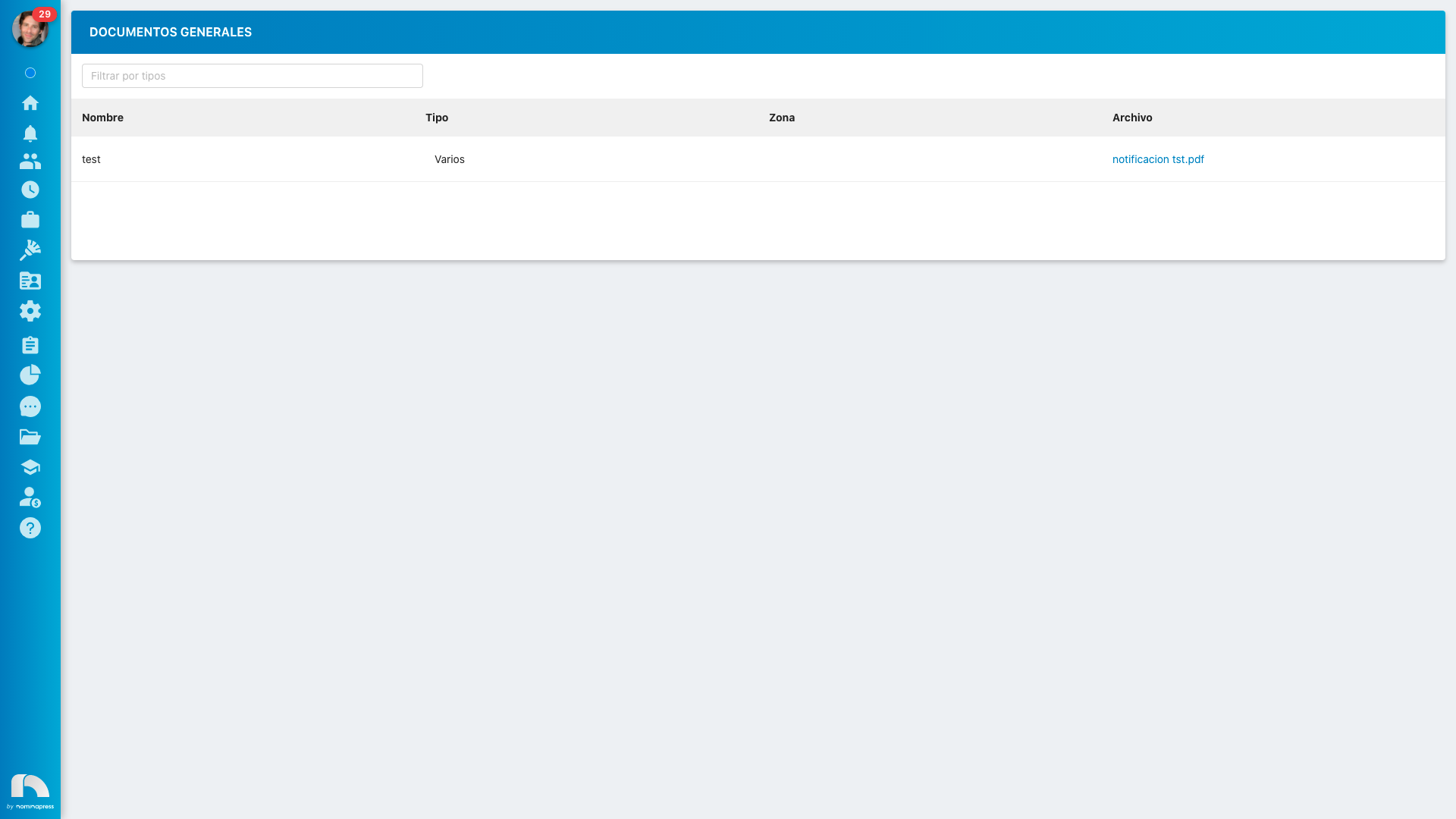
229. General Documents: If you activate this permission, in the View option, general documents can be viewed. In the Edit option, it is enabled that documents can also be uploaded and existing ones deleted.
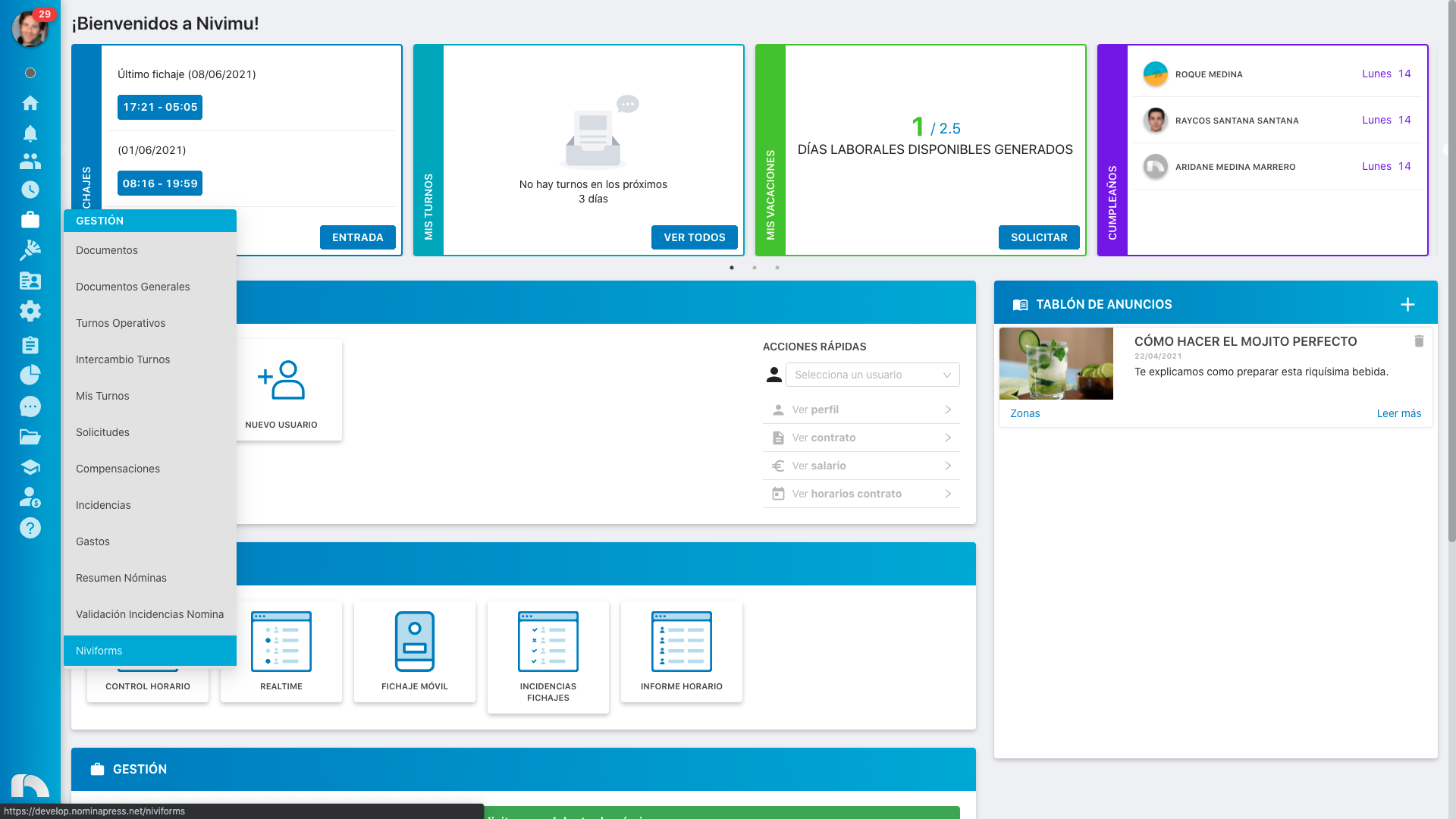
231. Surveys: If you activate this permission, in the View option, surveys and their responses can be viewed. In the Edit option, it is enabled that new surveys can also be created.
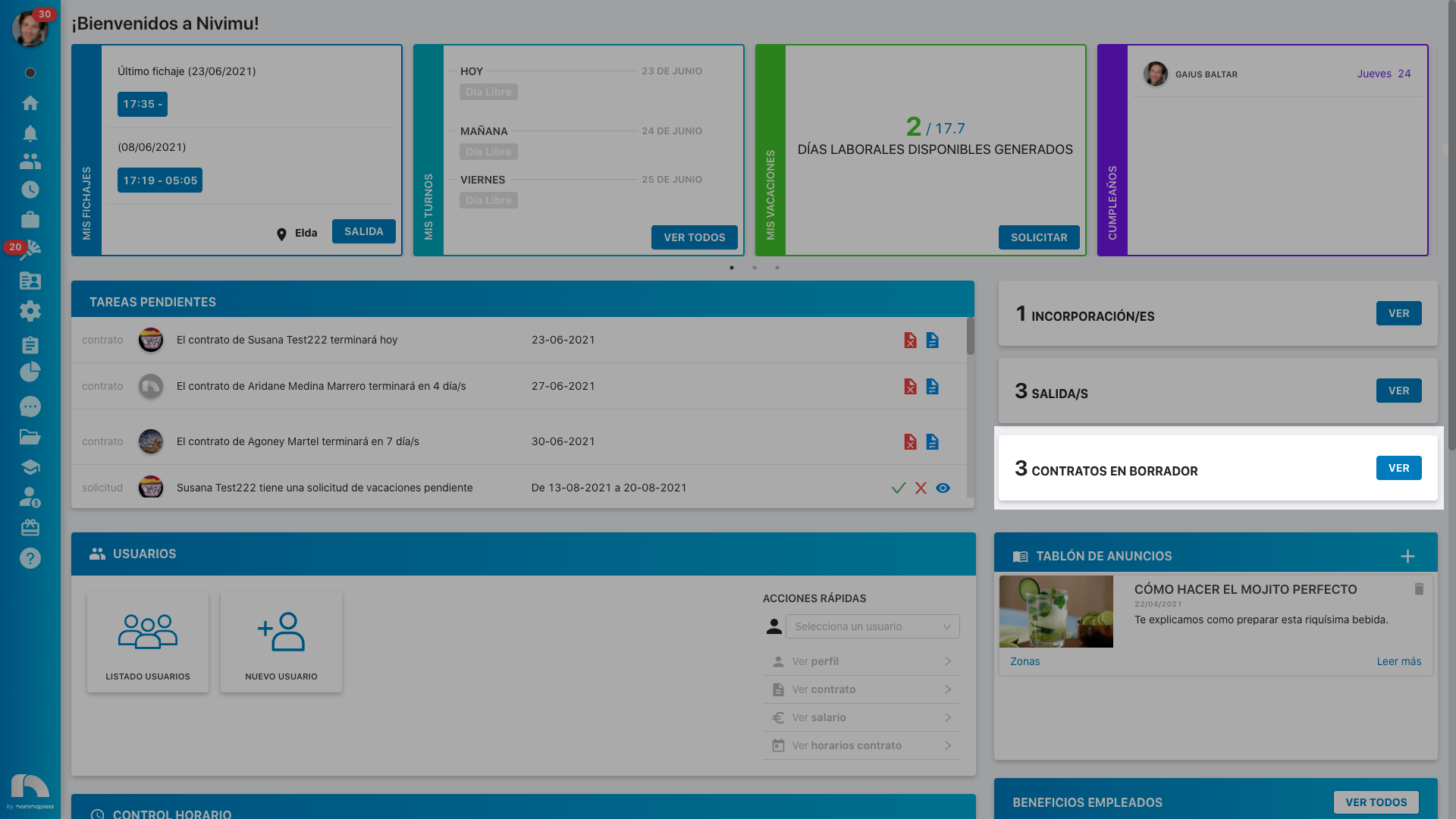
232. Draft contracts: If you activate this permission, both in the View option and in the Edit option, contracts that are in draft status appear on Home.
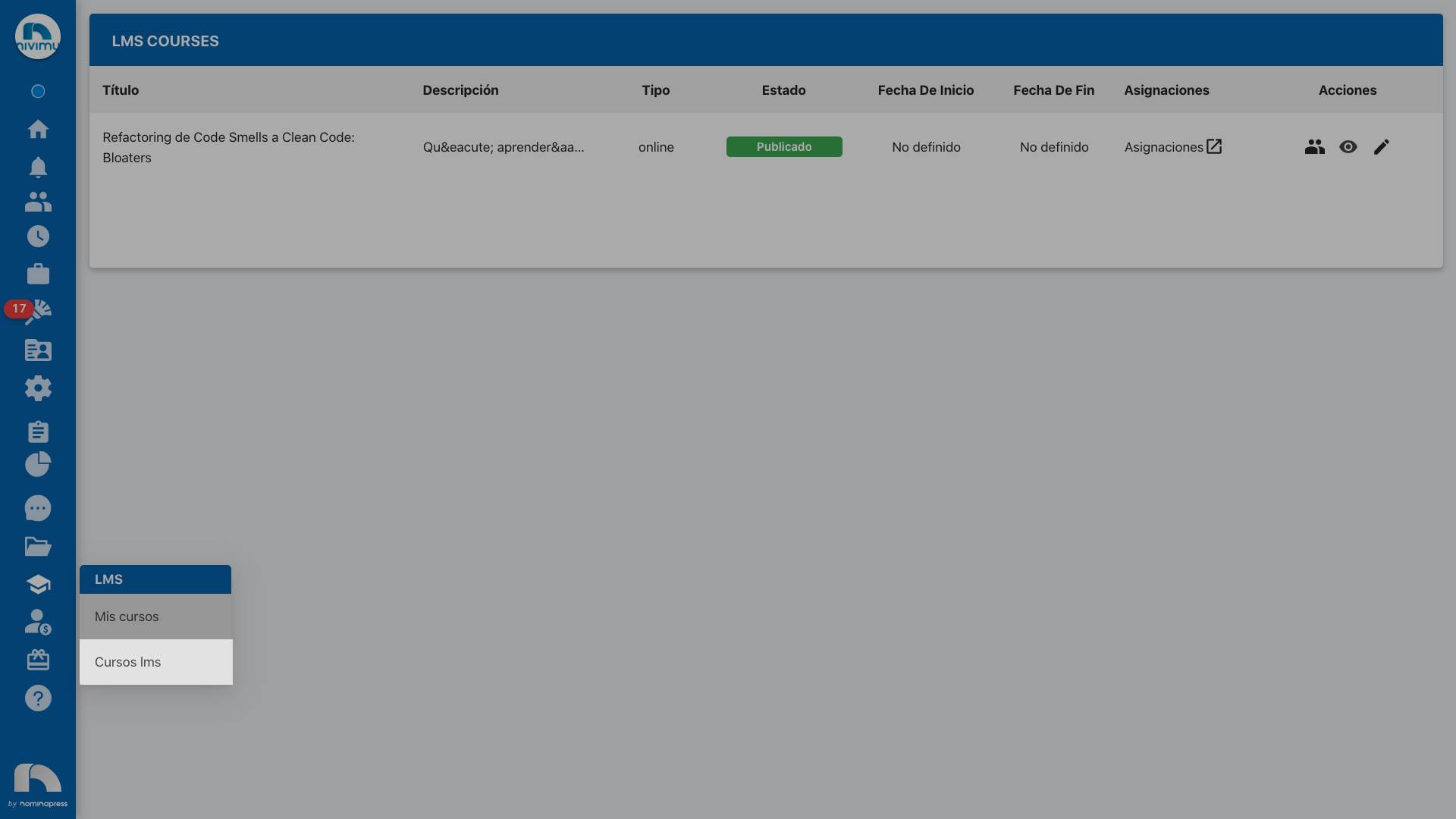
237. LMS Courses: If you activate this permission, both in the View option and in the Edit option, access to LMS courses is enabled: edit them, view them, participants, etc.
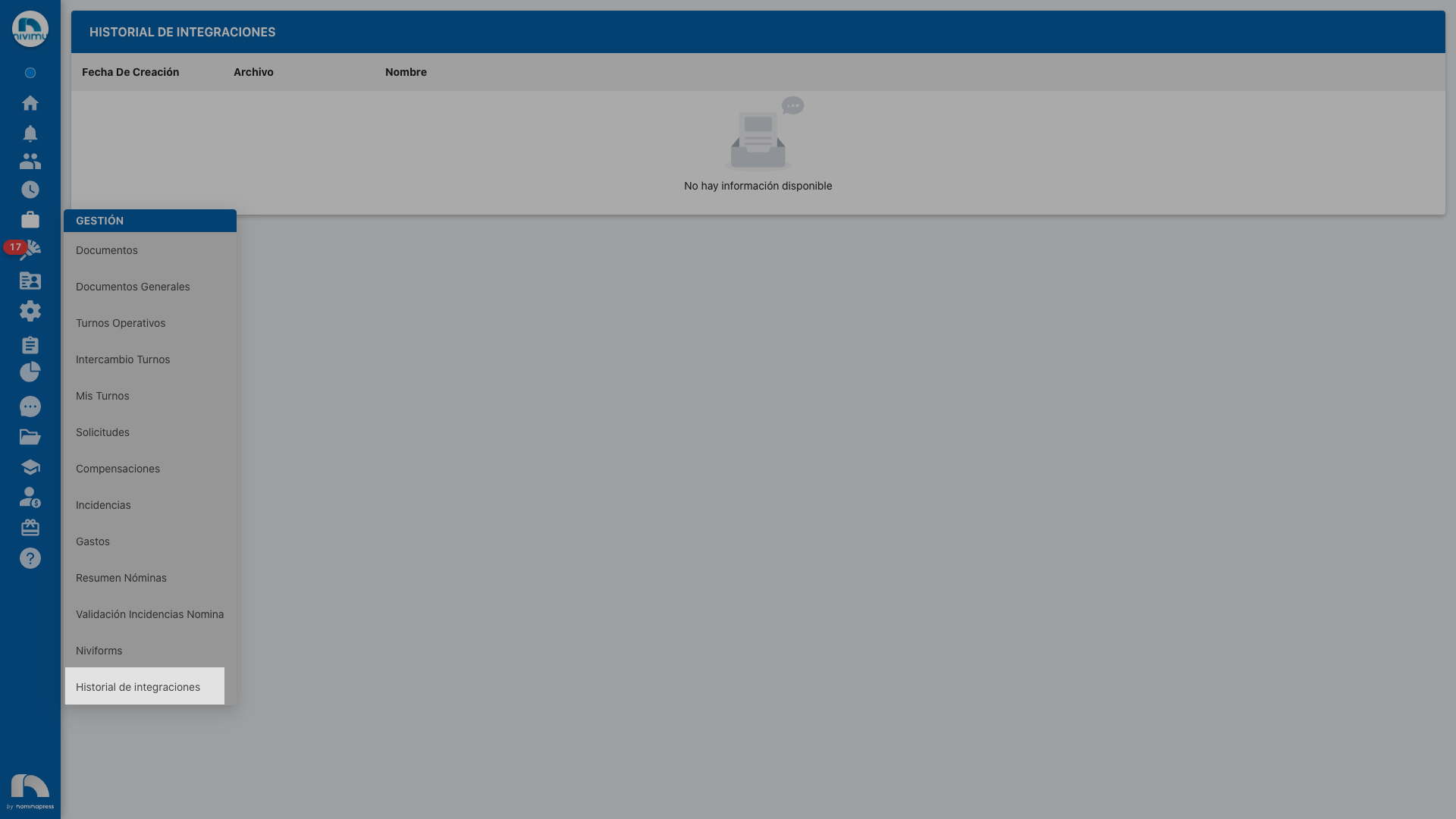
238. Integration history: If you activate this permission, both in the View option and in the Edit option, access to the integration history of Nivimu with other applications is enabled, as well as viewing and/or downloading them.