Profile Permissions
PROFILE / SUMMARY
73. ATTENDANCE:
This permission is currently not available
72. HOURS WORKED:
This permission is currently not available
74. SHIFT PUNCTUALITY:
This permission is currently not available
71. VACATIONS:
This permission is currently not available
PROFILE / SALARY
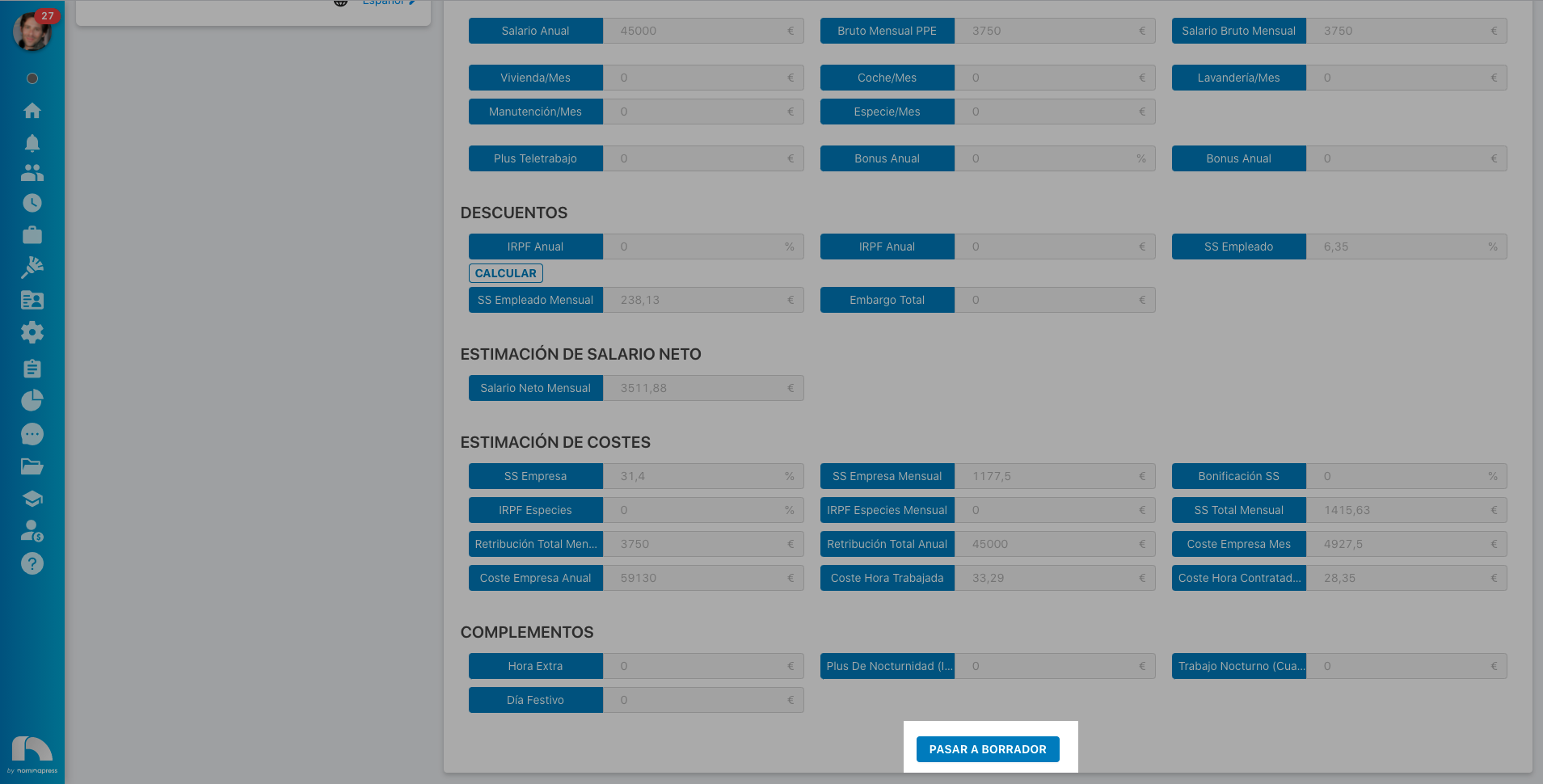
207. Pass salary to draft: If you activate this permission, both in the View option and in the Edit option, the option for the user to pass the salary to draft status is enabled.
PROFILE / USER
The permissions in this block refer to what the user sees and can do in the profiles of the users they see.
132. Activate/deactivate payroll advance: If you activate this permission, the option to activate or deactivate the payroll advance option in the user's profile is enabled.

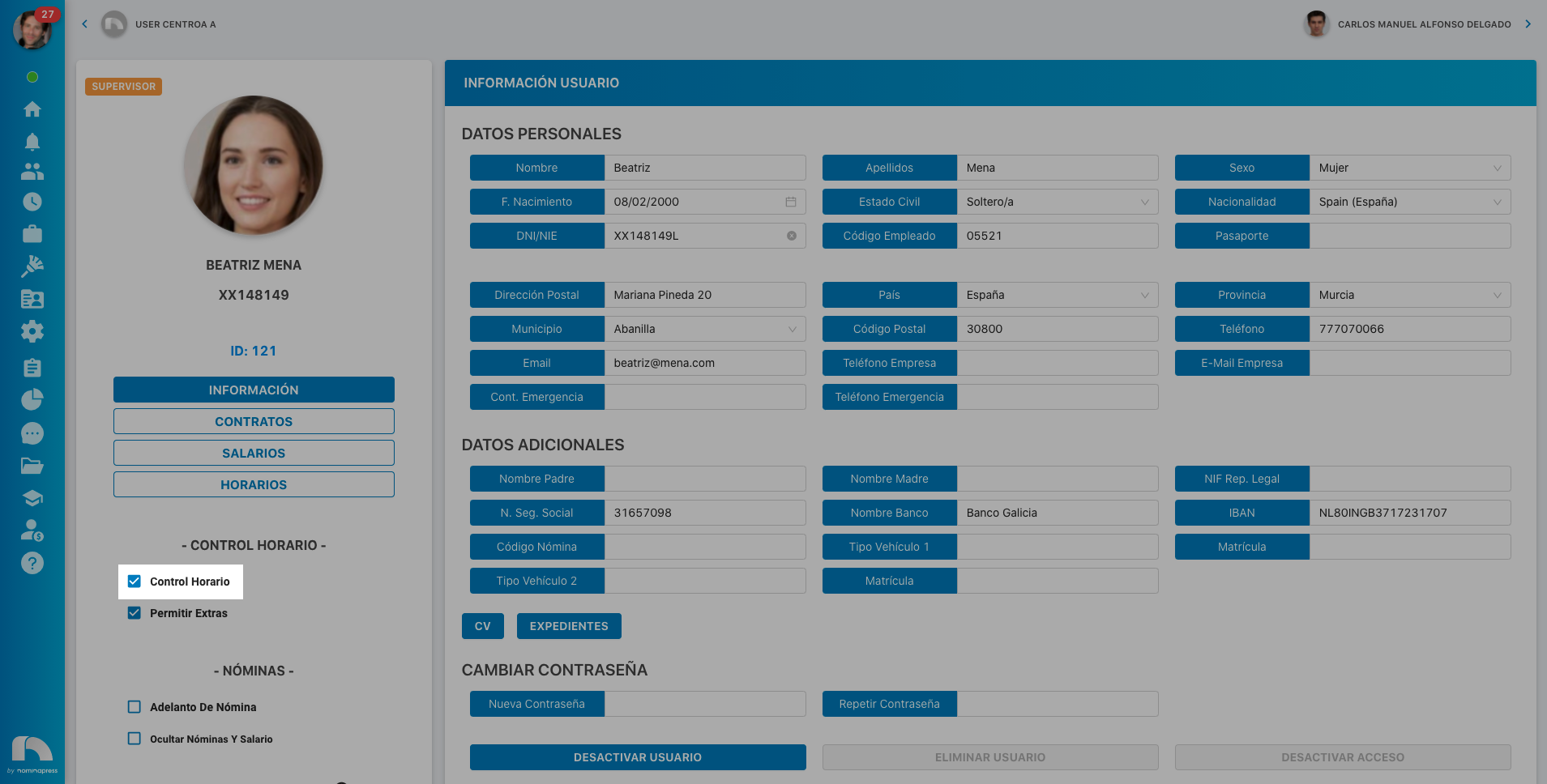
60. User Time Control: If you activate this permission, both in the View option and in the Edit option, the option to activate or deactivate the user's time control is enabled.
94. CV: If you activate this permission, in the View option, the option to view the CV appears. In the Edit option, it is enabled that the user can also upload a new file.

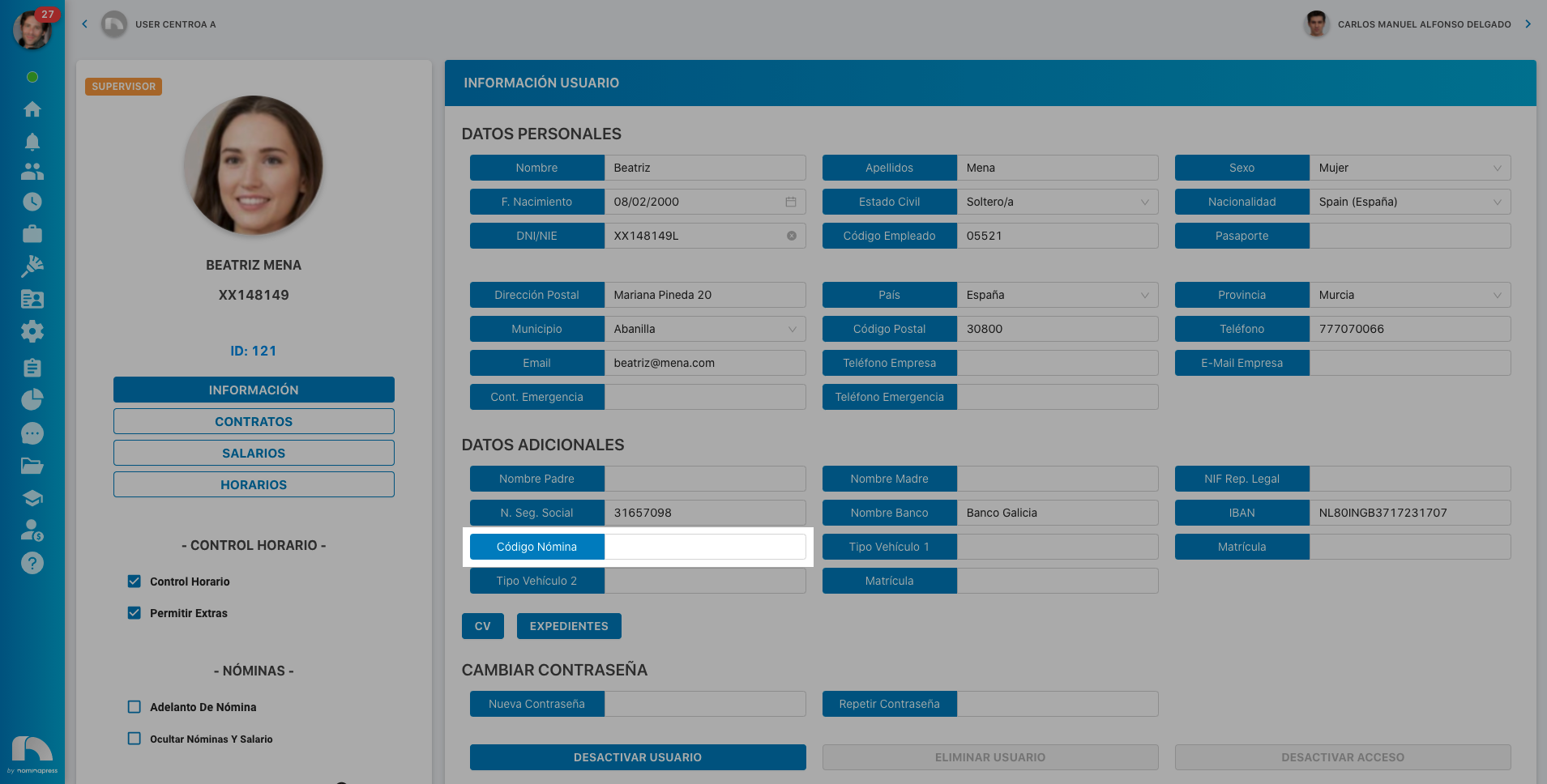
11. Payroll Code: If you activate this permission, in the View option, they can view the payroll code. In the Edit option, it is enabled that the user can also modify it.
56. Additional Data: If you activate this permission, in the View option, they can view the additional data. In the Edit option, it is enabled that the user can also modify them.

55. Contact Data: If you activate this permission, in the View option, they can view the contact data. In the Edit option, it is enabled that the user can also modify them.
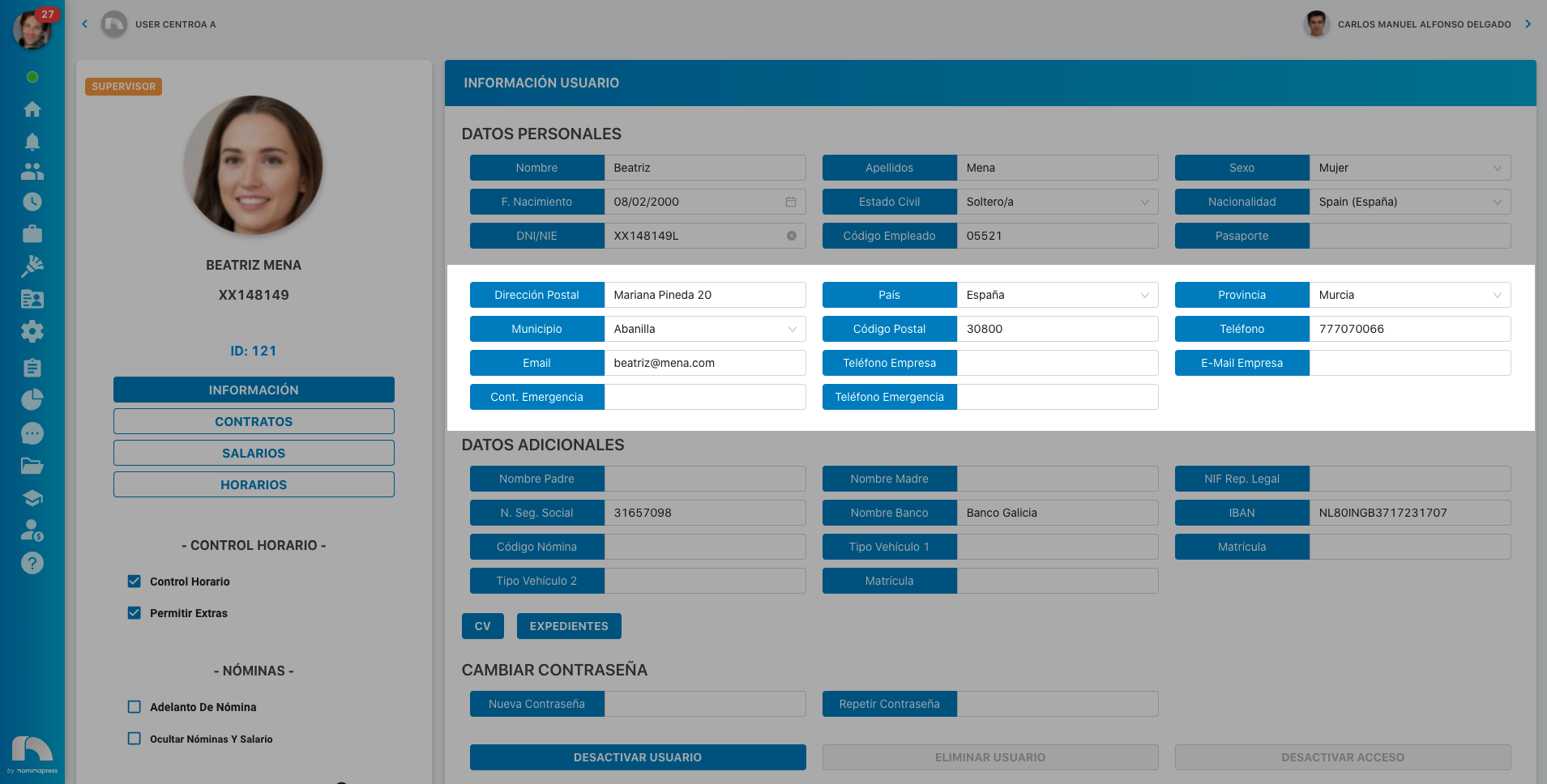
141. Extra data: If you activate this permission, in the View option, they can view the extra data. In the Edit option, it is enabled that the user can also modify them.
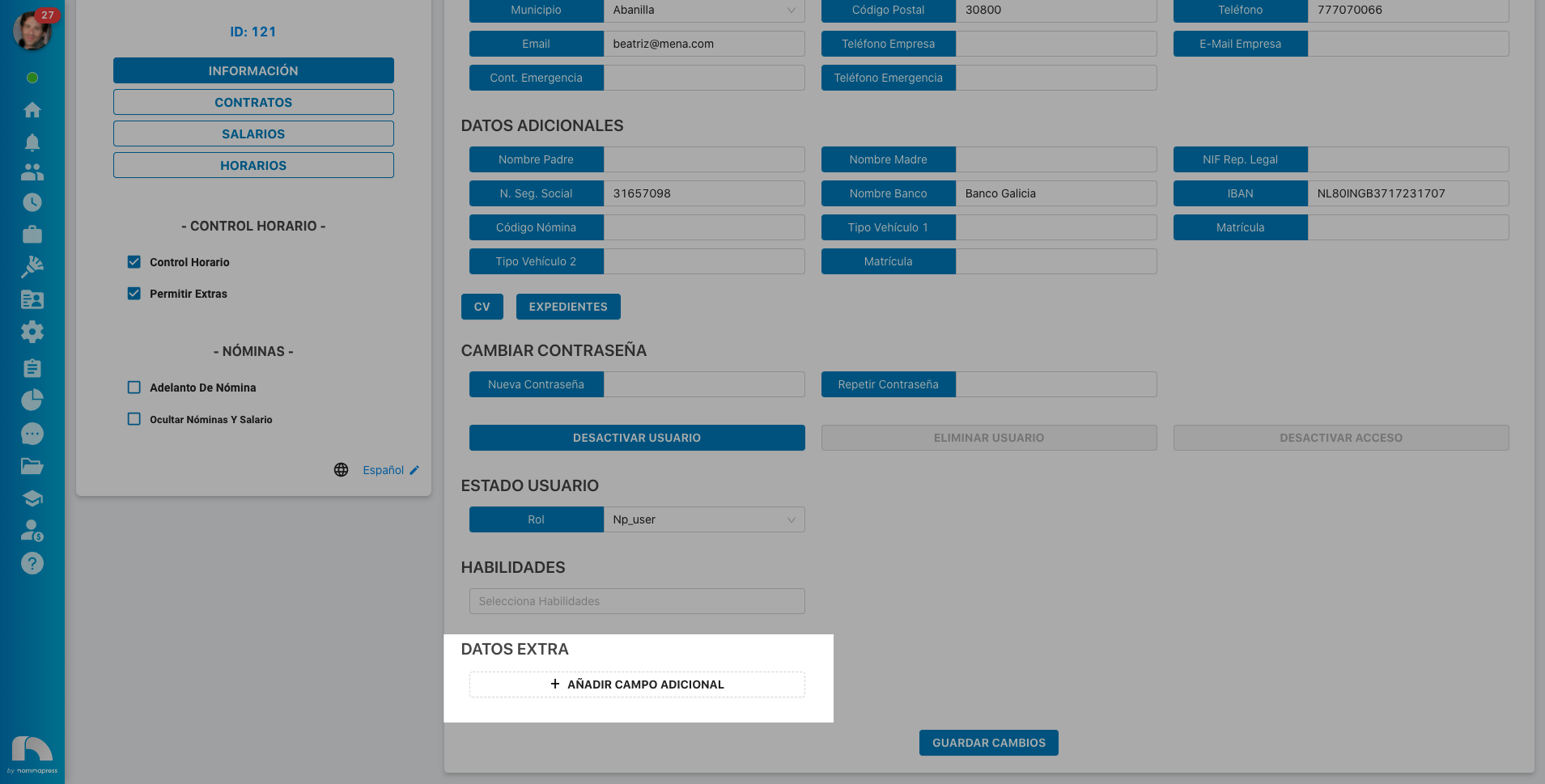
54. Personal Data: If you activate this permission, in the View option, they can view the personal data. In the Edit option, it is enabled that the user can also modify them.

142. Deactivate Access: If you activate this permission, in the View option, the user sees this option. In the Edit option, it is enabled that they can actually deactivate the user.

86. Files: If you activate this permission, in the View option, the option to view files appears. In the Edit option, it is enabled that the user can also upload a new file.

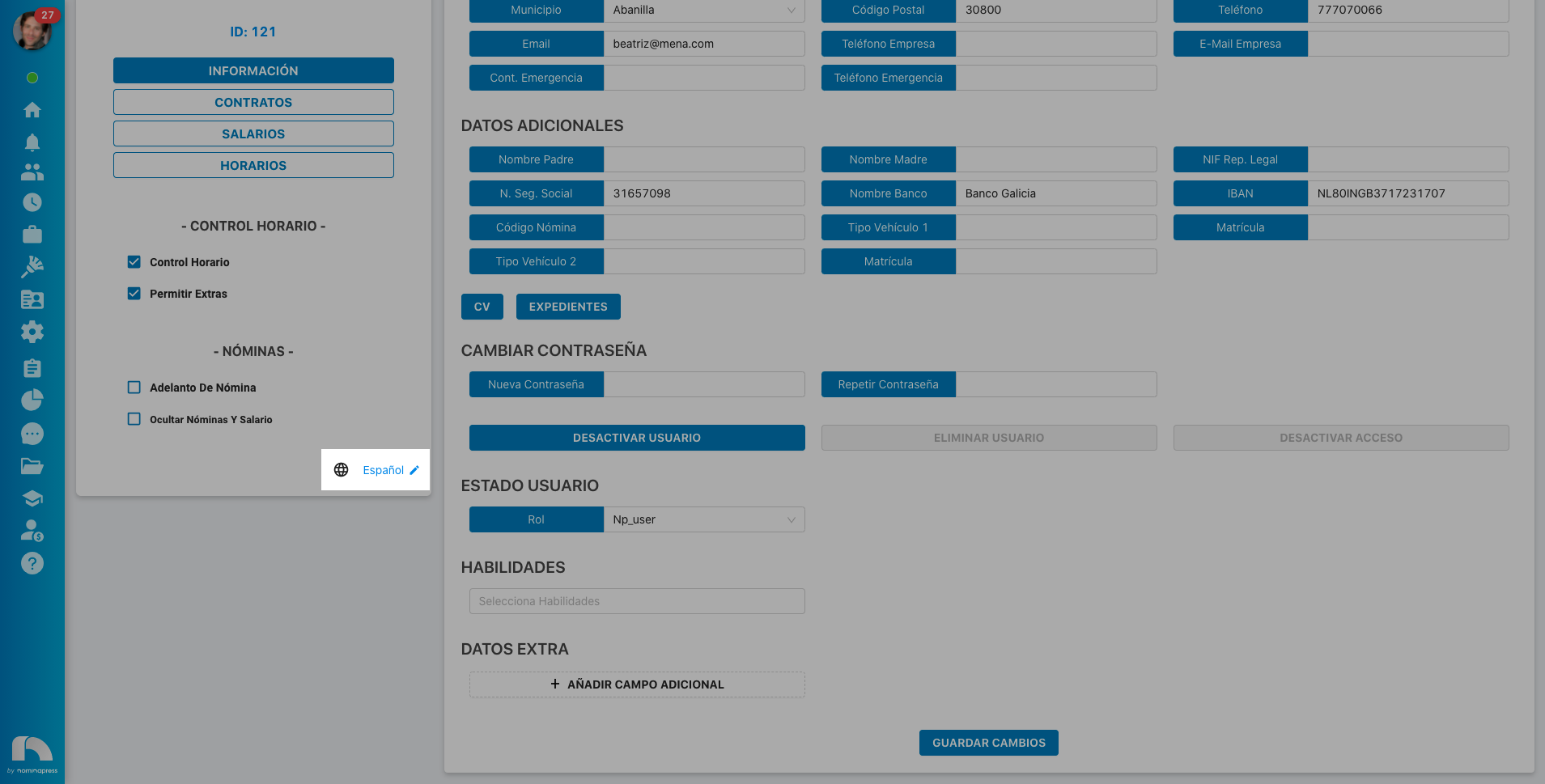
85. Skills: If you activate this permission, in the View option, they can view the skills. In the Edit option, it is enabled that the user can also modify them.
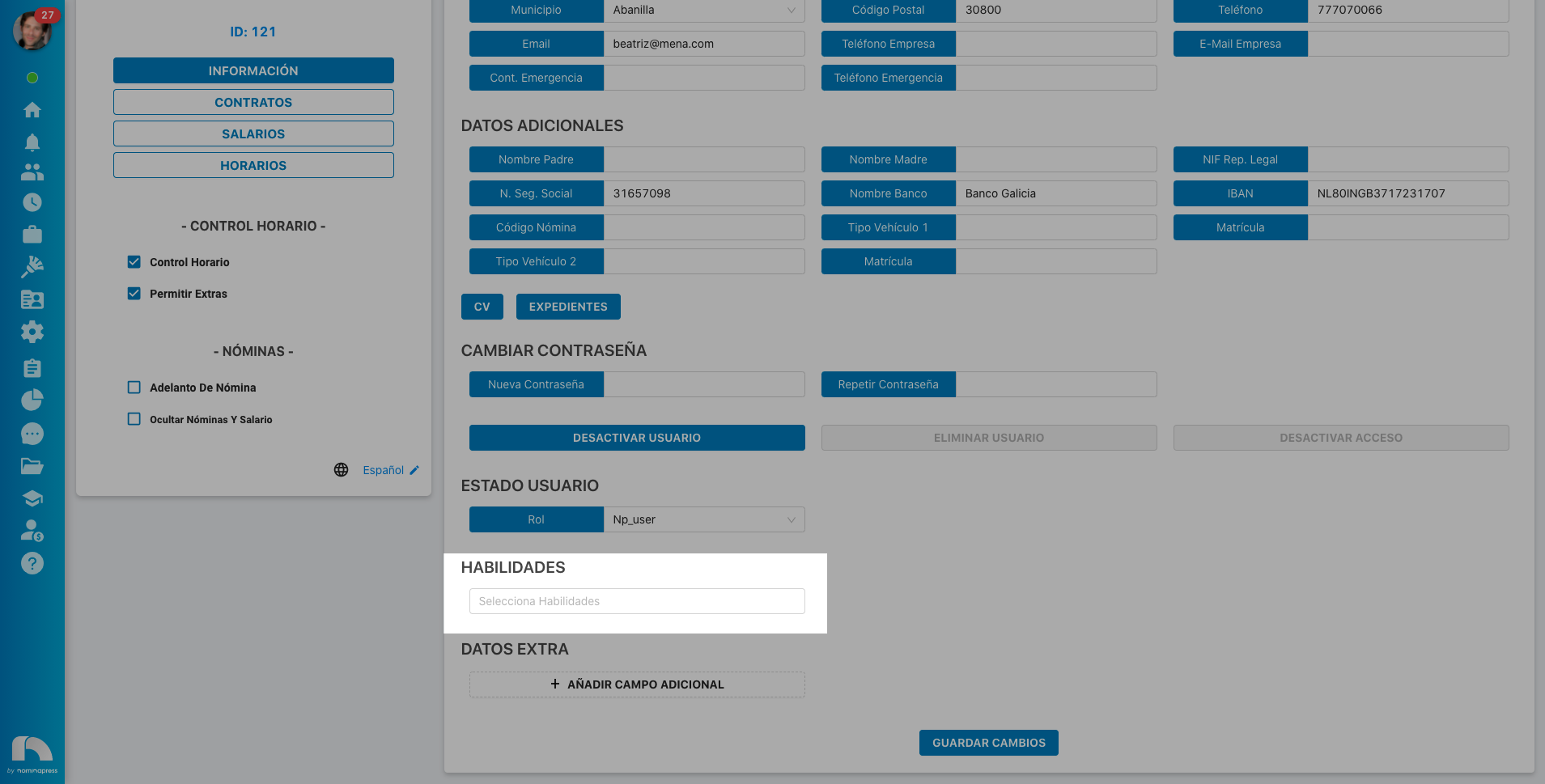
220. Language: If you activate this permission, in the Edit option, the user can change the application language of the other user.
126. Read periods: If you activate this permission, both in the View option and in the Edit option, the option for the user to see periods in contracts, salaries and schedules is enabled.
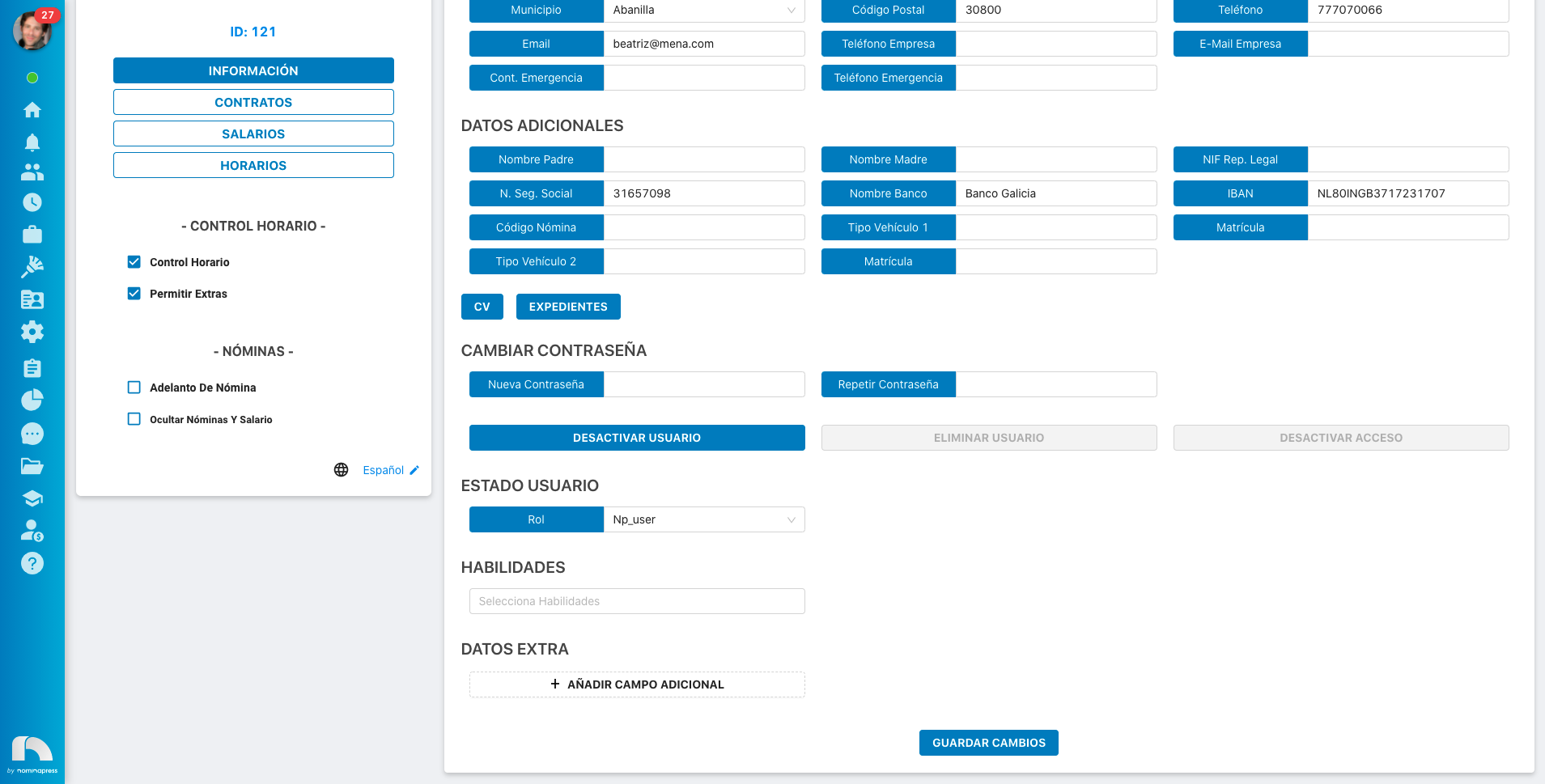
62. Modify Profile: If you activate this permission, both in the View option and in the Edit option, the option to modify users is enabled.
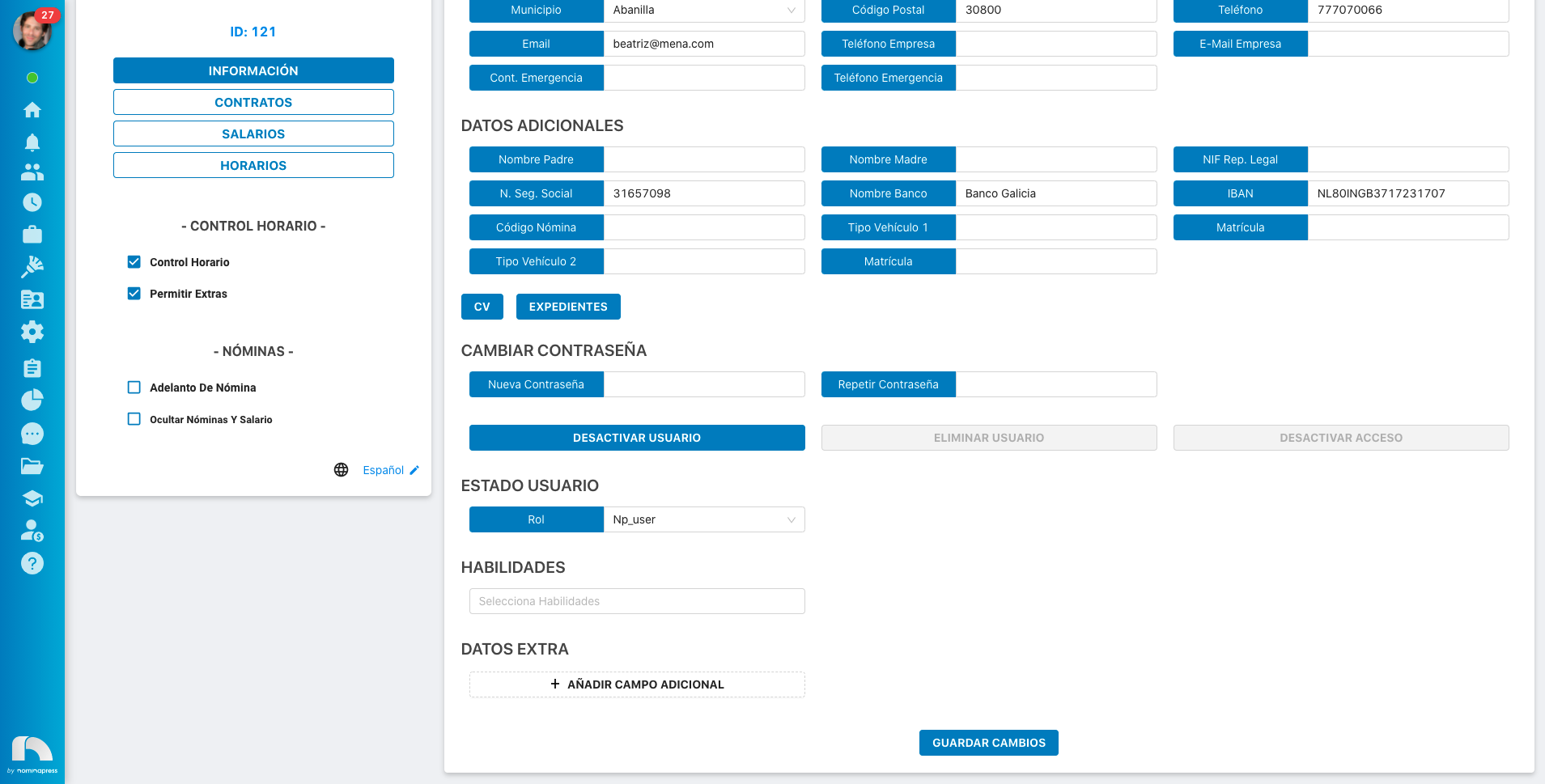
133. Hide admin payrolls: If you activate this permission, both in the View option and in the Edit option, the option to activate or deactivate hiding payrolls and salary is enabled.
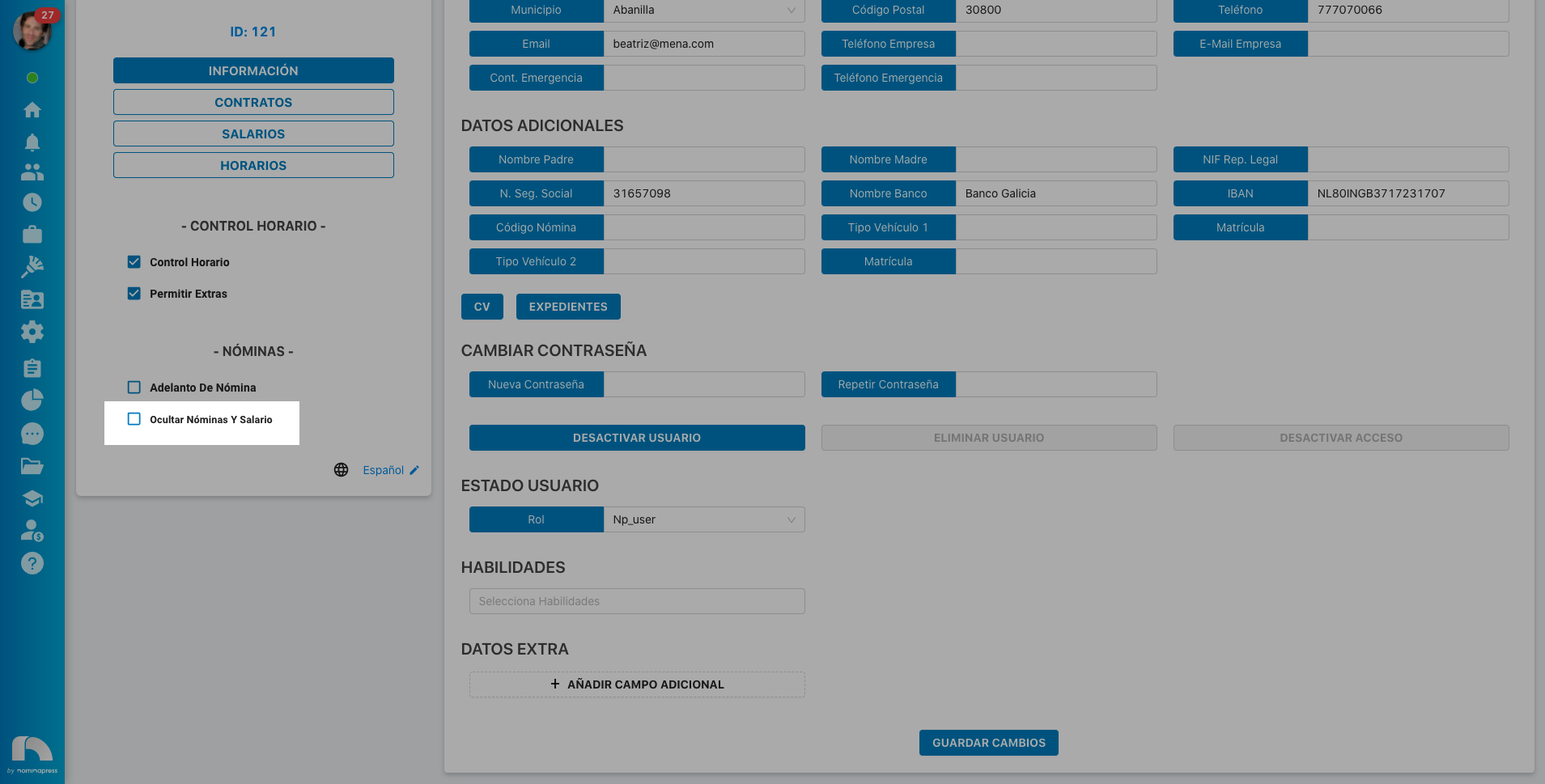
64. User roles: If you activate this permission, in the View option, they can view the user's role. In the Edit option, it is enabled that the user can also modify it.
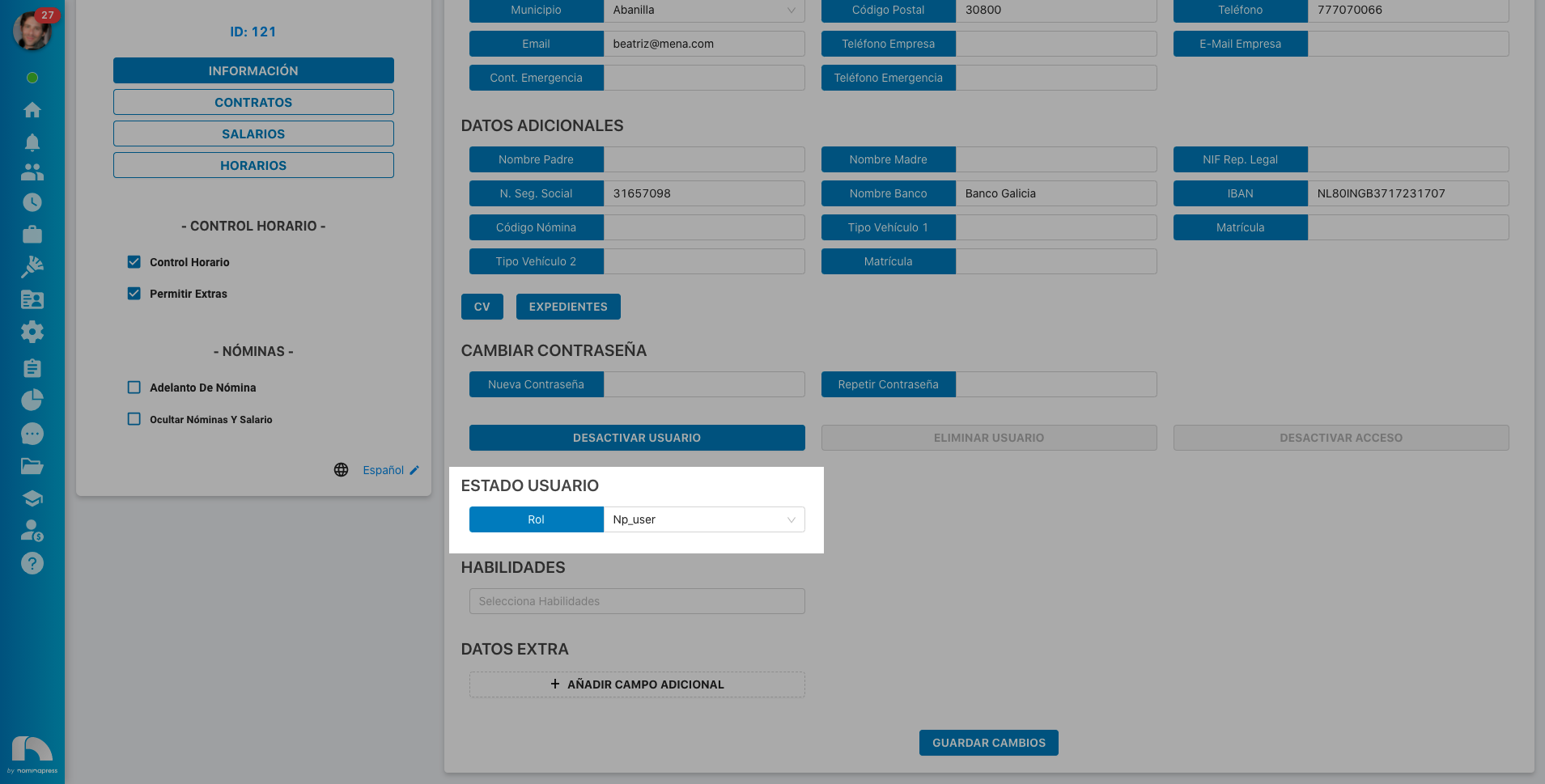
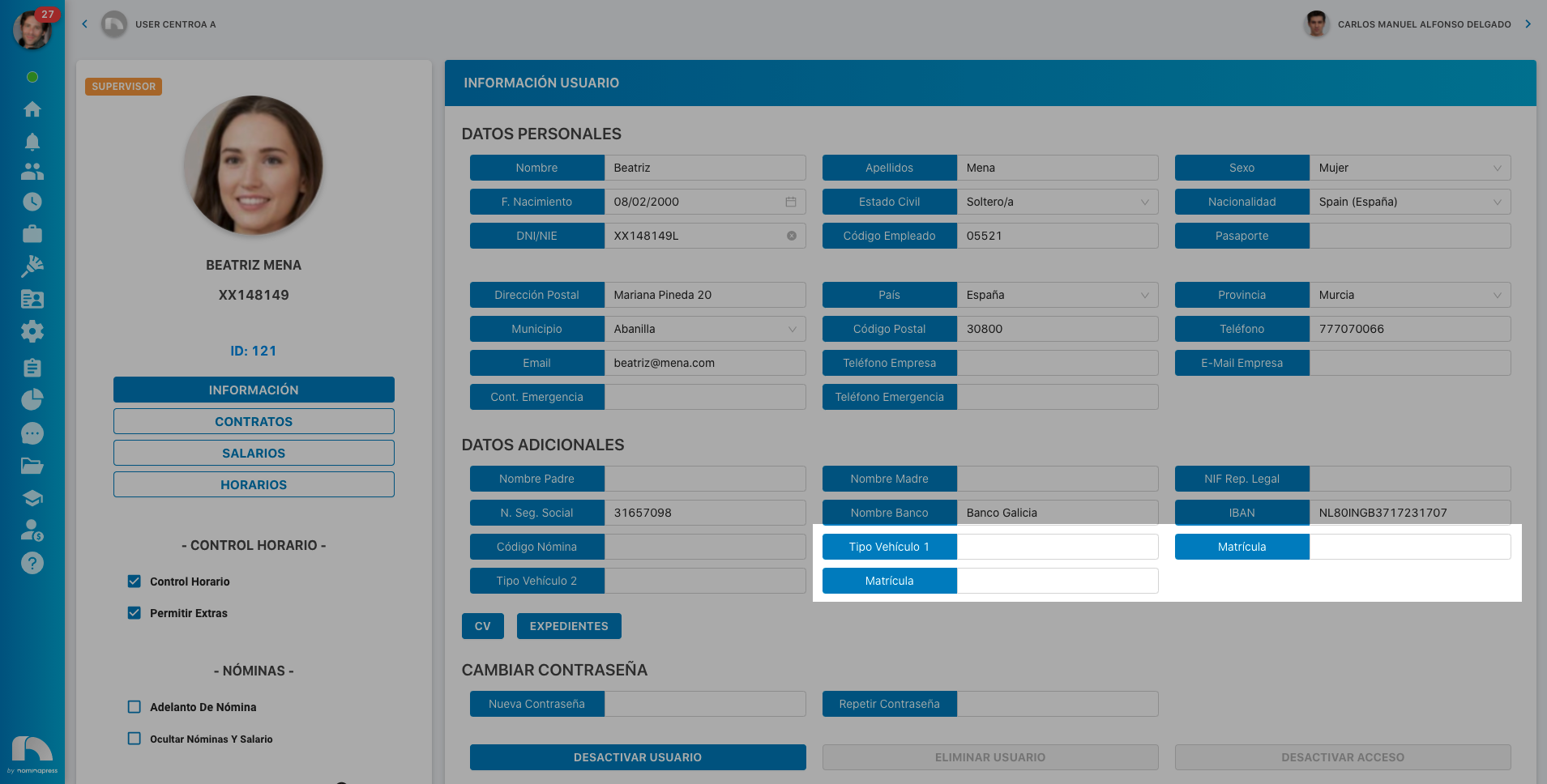
97. Vehicles and Licenses: If you activate this permission, in the View option, they can view vehicle and license data. In the Edit option, it is enabled that the user can also modify them.
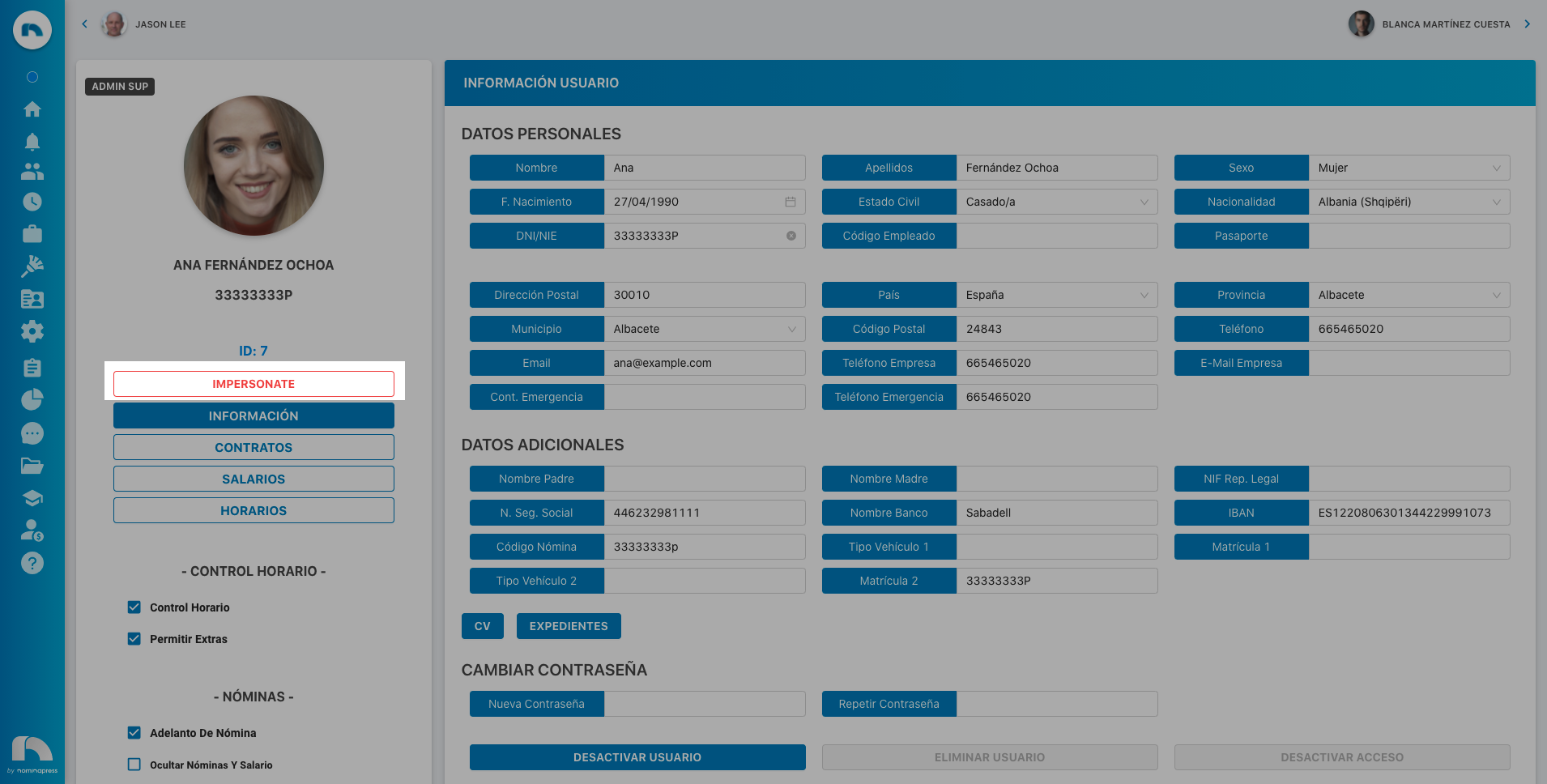
225. Log in as the user: If you activate this permission, both in the View option and in the Edit option, the option to log in as a specific user is enabled: to see what they see, what they can do, etc. That is, the Impersonate checkbox is activated.