Add Page 📃
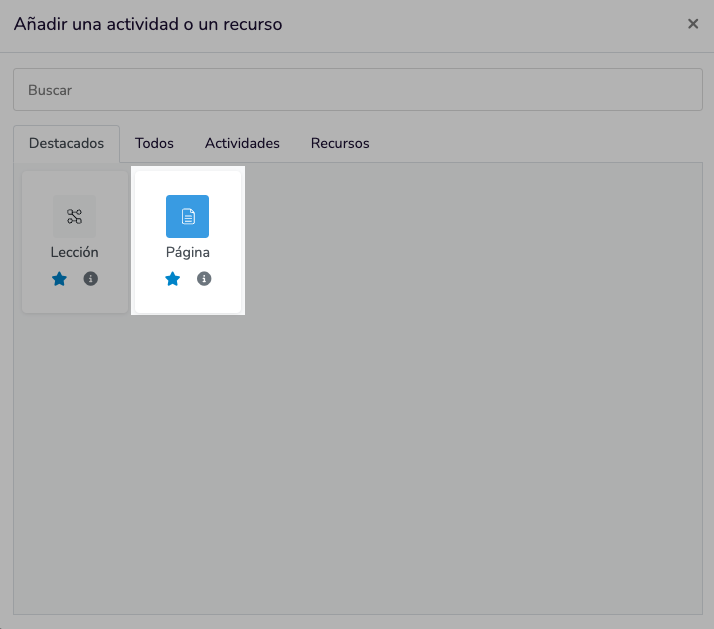
Step 1: Select "Page"
- In the list of activities and resources, select "Page".
- Click "Add".
Step 2: Complete the configuration form
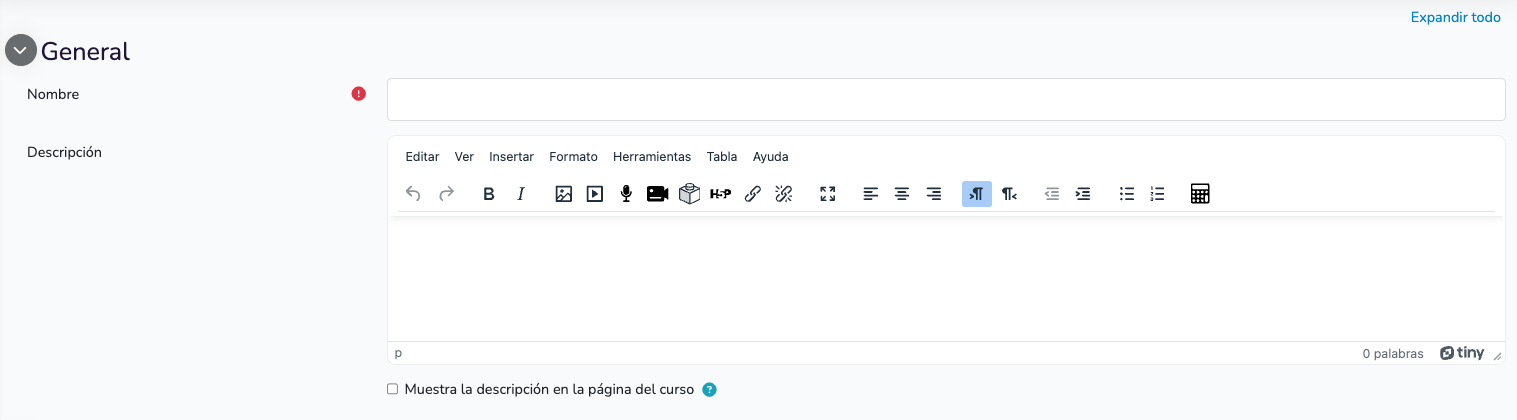
General
- Name: Enter the name of the page. This will be visible to students in the course.
- Example: "Course Introduction"
- Description: Write a brief description of the page. You can use this area to provide a summary or instructions.
- Show description on course page: Check this option if you want the description to be displayed right below the link to the activity or resource.
Page Content
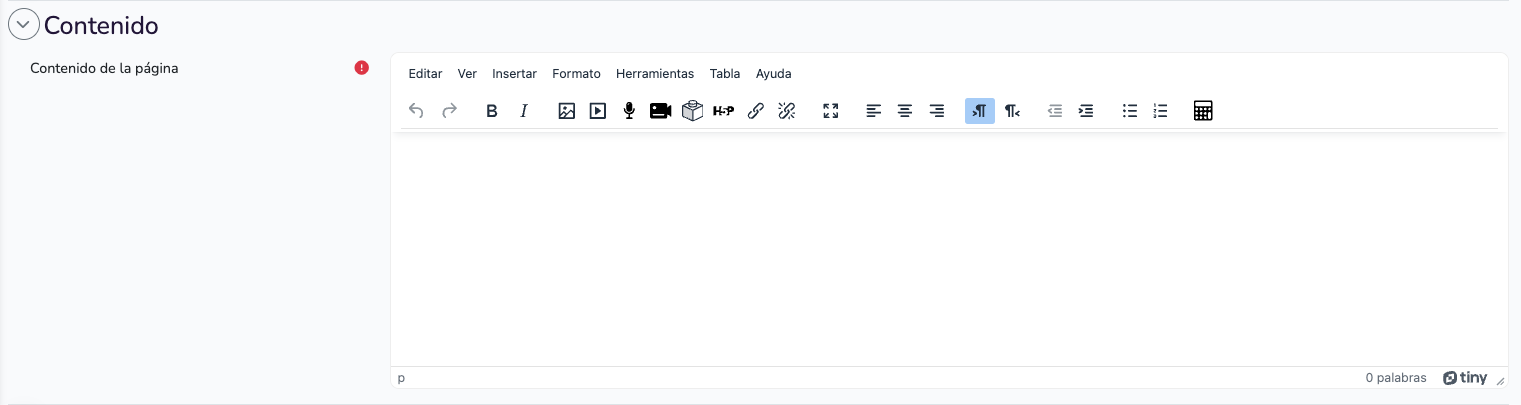
- Content: Here you can add the main content of the page. You can use the rich text editor to format text, add images, links, videos, etc.
- Example: "Welcome to the History course. On this page you will find the necessary resources to get started."
- Insert image: To add an image, click the image icon in the editor and upload your file.
- Example: Add a welcome image to the course.
- Insert video: To add a video, click the video icon in the editor and paste the video URL.
Appearance
- Show page description: Decide if the page description should be displayed
- Show last modification date: Select how you want the last date when the course content was modified to be displayed.

Common module settings
- Availability: Decide if the page will be visible to students (show) or hidden (hide).
- ID Number: This field is optional and is used to identify the activity in the gradebook.
- Example: "ID: PAGE01"
- Force language: This option allows selecting a specific language for the module, overriding the site's default language for students accessing this particular module.

Access restrictions
Add restriction: You can configure restrictions based on dates, grades, user profile, etc. This allows more detailed control over who and when can access the page.
- Example: "Restrict access to students who have completed the previous task"

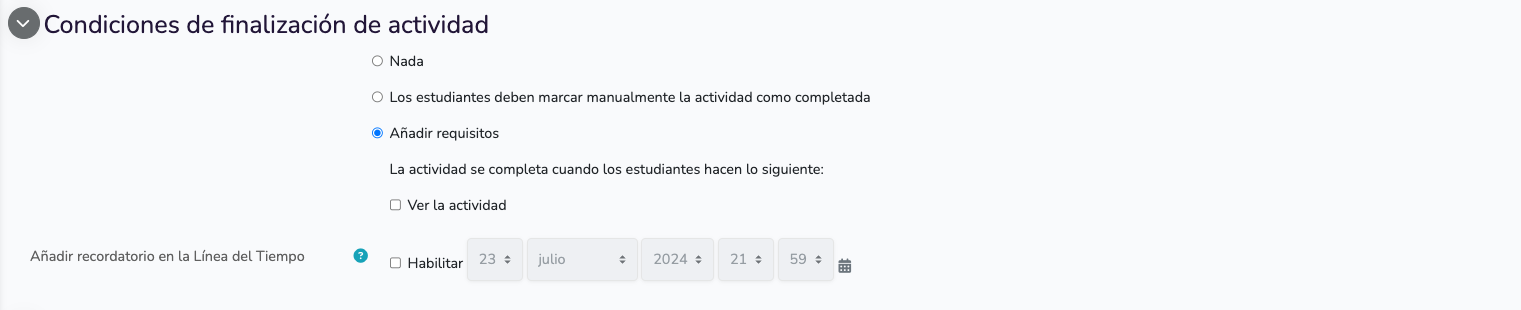
Activity completion conditions
Decide if you want to set conditions for the activity to be considered completed:
- Nothing: There is no activity completion condition
- Students must manually mark the activity as completed
- View the activity: Students must view the page to mark it as completed. You can add a reminder in the timeline for students ("page requires action").
Tags
You can use tags to organize your activities and resources within Moodle.
- Example: "Tag as 'introduction'"

Competencies
Assign competencies: You can link the page with specific competencies that you want students to acquire.
- Example: "Assign competency 'Understanding course objectives'"

Content update
Decide if you want notifications of course content updates to be sent to participants

Step 3: Save and display
Once you are satisfied with the configuration, click "Save changes and display" to apply your settings.
Step 4: Review the page
Review the page to ensure that all content is displayed correctly and that restrictions and settings are applied as expected.