Add Lesson 📘
The Lesson allows you to create and customize lessons that include various types of content and interactive activities. Below, the available options under this section are explained:
-
General:
- Name: Enter the name of the lesson.
- Description: Provide a description of the lesson. This may include instructions, learning objectives, or any relevant information for students.

-
Appearance:
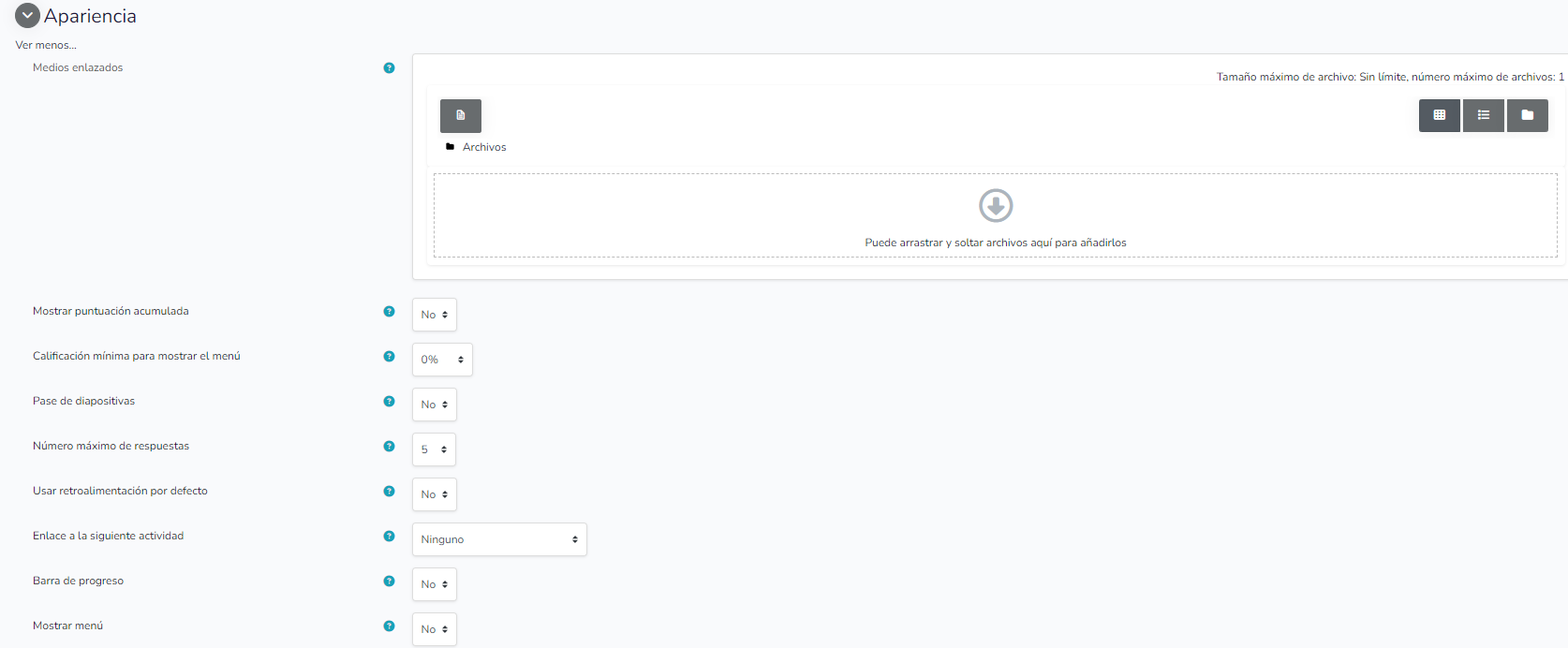
Allows you to customize the visual presentation and interaction of the lesson for students. Below, the available options under this section are explained:
Linked media:
- Allows adding multimedia files that will be available during the lesson. You can drag and drop files into the designated area to add them.
Show accumulated score:
- Available options: Yes, No.
- Allows displaying the student's accumulated score throughout the lesson.
Minimum grade to show menu:
- Available options: 0% - 100%.
- Defines the minimum grade percentage that a student must achieve for the lesson menu to be shown.
Slideshow:
- Available options: Yes, No.
- Allows enabling or disabling slideshow-style navigation within the lesson.
Maximum number of answers:
- Available options: 1 - 10.
- Sets the maximum number of answers that can be presented in each question of the lesson.
Use default feedback:
- Available options: Yes, No.
- Allows enabling or disabling the use of default feedback for answers.
Link to next activity:
- Available options: None, Activity name.
- Allows selecting the activity to which it will automatically link at the end of the lesson.
Progress bar:
- Available options: Yes, No.
- Allows showing or hiding a progress bar that indicates the student's progress throughout the lesson.
Show menu:
- Available options: Yes, No.
- Allows showing or hiding the lesson menu, which may include links to different sections or pages within the lesson.
-
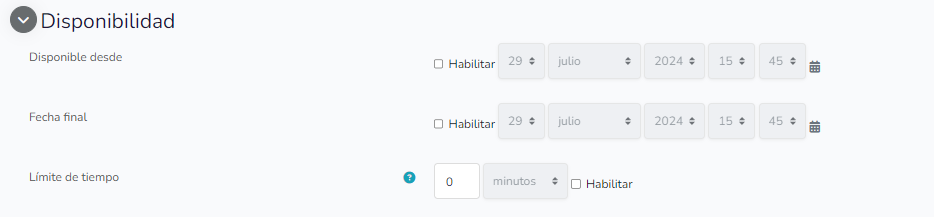
Availability:
- Available from / to: Configure the dates and times when the lesson will be available to students.
- Time limit: Set a time limit to complete the lesson.
-
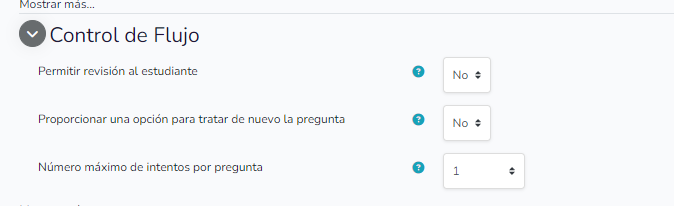
Flow control:
- Allow students to review: Allows students to review the lesson after completing it.
- Maximum number of attempts per question: Defines how many attempts a student has to answer each question correctly.
-
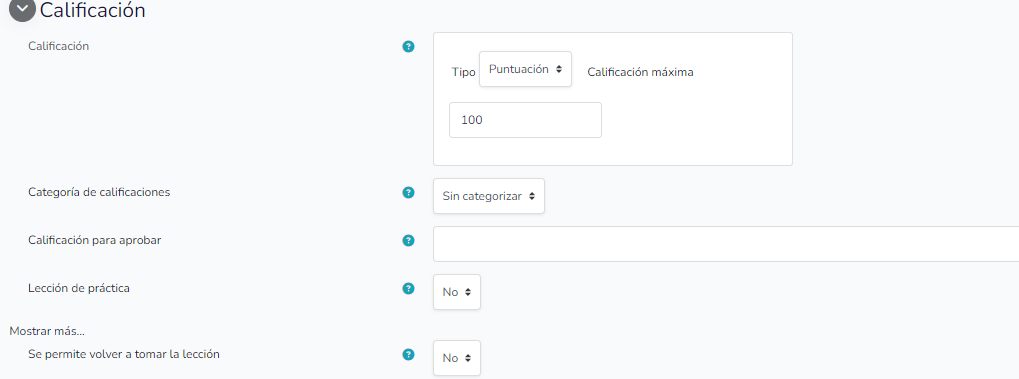
Grading:
- Grade: Select the grade type and maximum value.
- Grade category: Assign the lesson to a specific grade category.
- Grade to pass: Set the minimum grade that students must achieve to pass the lesson.
- Practice lesson: These lessons are not shown in the gradebook.
- Retake the lesson allowed: Determines if students can take the lesson more than once
-
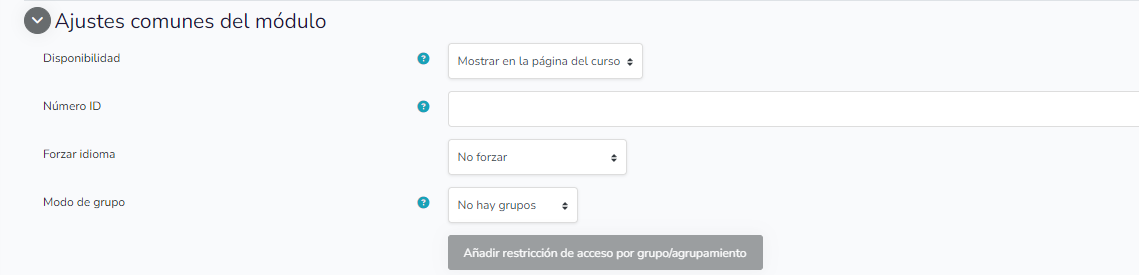
Common module settings:
- Availability: Decide whether the lesson is shown or not on the course page
- Module ID number: Assign a unique identification number to the module, if necessary.
- Force language: Select if you want to force a specific language for this module.
- Available options: No force, English, Spanish.
Group mode: Decide if students will be divided into groups.
-
Access restrictions:
- Restricted access: Configure the conditions under which students can access the lesson.
-
Activity completion conditions:
- Completion tracking: Set the conditions that determine when the lesson is considered complete.

-
Tags:
- Tags: Enter tags to categorize and organize the lesson.

-
Competencies:
- Competencies: Associate the lesson with specific competencies that students must achieve.
- Add competency evidence: Select if lesson completion should be added as evidence of the competency.
