Add a Certificate to a Course
Once you have a certificate created, you can associate it with a course so that it is automatically issued when users complete it.
Steps to associate a certificate with a course
-
Select the course to which you want to add the certificate.
-
Enable Edit mode, located in the top right corner.

- Navigate to the course section where you want to add the certificate and click Add an activity or resource.

- A pop-up window will appear with several options to add.
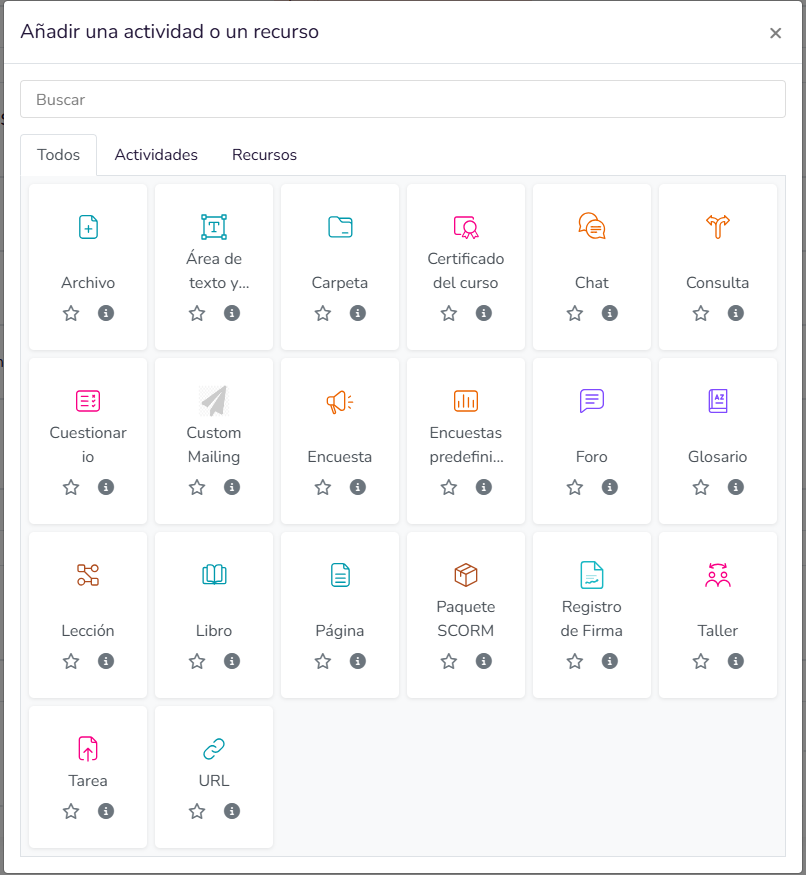
- Select Course certificate.

- Clicking on Course certificate will show a screen to configure various certificate options for this course.
Certificate Configuration
1. General
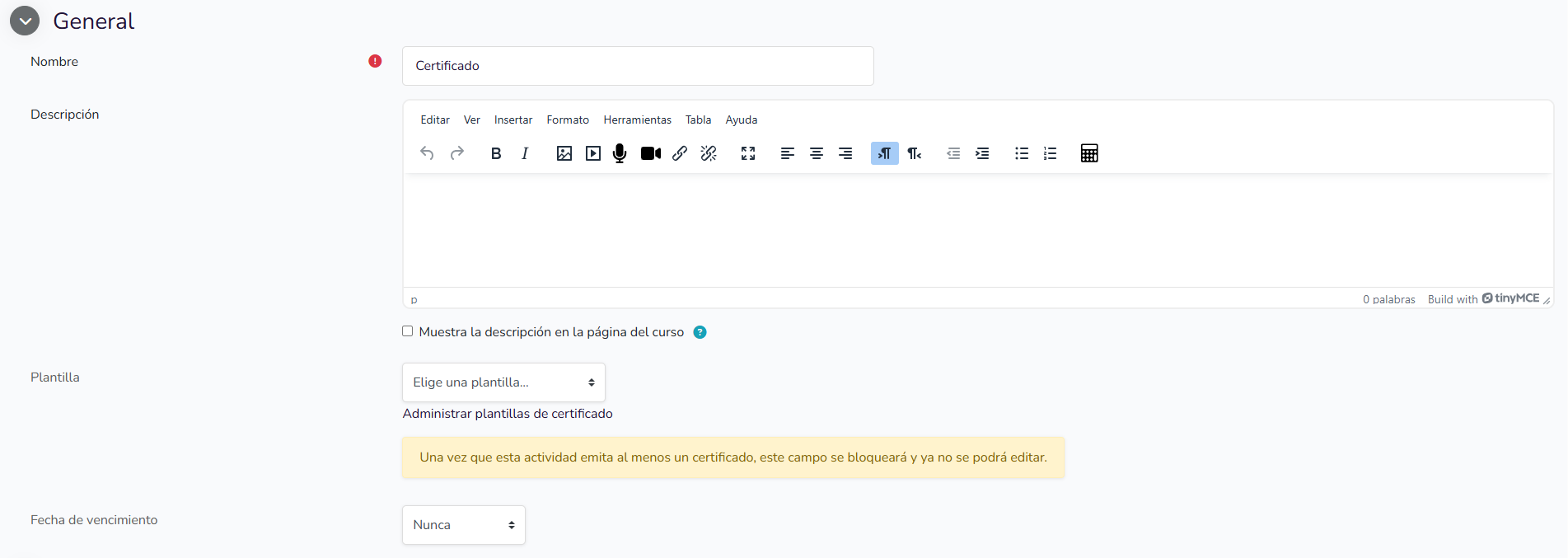
- Name: This field allows you to assign the title by which the certificate activity will be identified within the course.
- Description: This field allows you to enter an explanatory text that provides context about the certificate activity, its purpose, or the conditions associated with its issuance. It includes a text editor that allows you to format the content and insert elements such as links, images, or lists.
- Show the description on the course page: This option lets you decide whether the content entered in the description field will be displayed directly on the main course page. When enabled, the descriptive text is visible without needing to access the activity.
- Template: This field allows you to select the design that will be used as the basis for generating the certificates issued by the activity. The template determines the visual structure, fixed content, and dynamic fields that will appear in the final document.
- Below the field, the link Manage certificate templates appears, which allows you to access the management of available templates.
Once this activity has issued at least one certificate, this field will be locked and can no longer be edited. This means the template must be carefully selected before the certificate is issued for the first time.
- Expiry date: This field allows you to define until when the issued certificate will be valid. The selected value determines the temporal validity of the generated certificate.
2. Common module settings
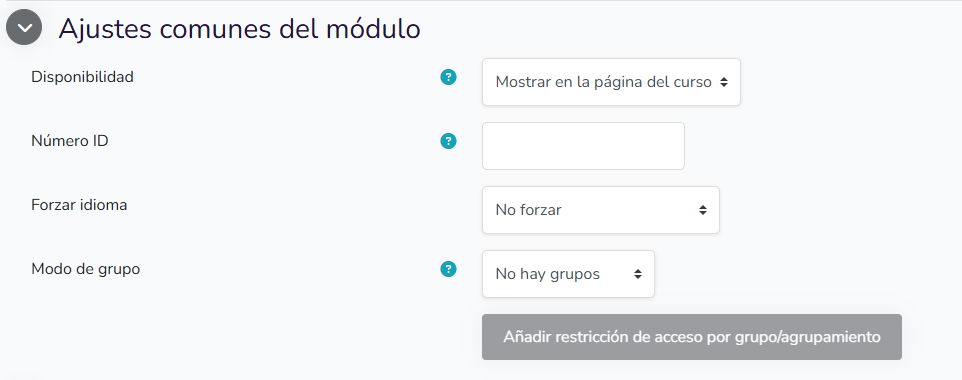
- Availability: This option lets you decide whether the activity will be visible to students within the course page or whether it will be hidden.
- ID number: This field allows you to assign an internal identifier to the activity to facilitate its technical or administrative reference. The value entered here is not usually shown to students.
- Force language: This option allows you to define the language in which the interface of this specific activity will be displayed, regardless of the language configured by the user or the site. It is used when you want the interaction with the activity to take place in a specific language.
- Group mode: This option allows you to define how groups are managed within the activity. It determines whether access to or interaction with the activity takes place individually or taking into account the group organisation.
- Add group/grouping access restriction: This button allows you to define additional conditions that limit access to the activity based on the group or grouping the user belongs to.
3. Access restrictions
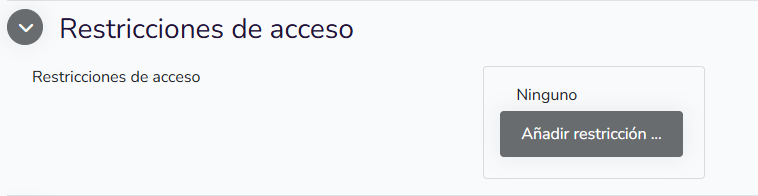
The Access restrictions section allows you to control when and for whom the activity will be available within the course. Through these options, conditions can be set that must be met before a person can view or access the activity.
Clicking Add restriction opens the following menu:
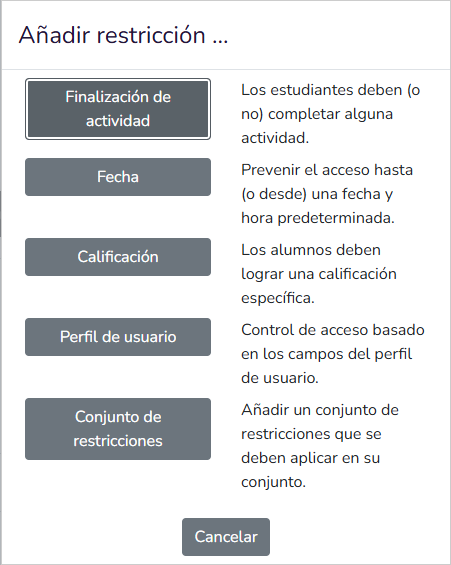
- Activity completion: This restriction conditions access to one or more course activities having been previously completed. The criterion is based on the completion status defined for other activities. It is used when access must depend on the participant's progress within the course.
- Date: This restriction allows you to control access based on a specific date and time. It can be used both to prevent access before a given moment and to close it after a specific date. Useful for coordinating availability with the course calendar.
- Grade: This restriction requires the participant to have achieved a certain evaluative result. Access is conditioned on meeting a threshold previously defined in an assessable activity or in the course. Used when access must depend on academic performance.
- User profile: This restriction bases access on information stored in the user's profile. The criterion can rely on profile fields configured in the platform. Used when access must vary according to administrative or identification characteristics of the user.
- Restriction set: This option allows you to group several conditions and define how they must be combined. It is used to build more complex rules, in which several criteria may be involved simultaneously. Access will depend on meeting the set according to the configured logic.
4. Activity completion conditions

This section allows you to define when an activity is considered to have been completed by a participant. This configuration is used for progress tracking and can interact with access restrictions, reports, and course completion. The following options are available:
- None: indicates that the activity will have no automatic or manual completion criteria.
- Students must manually mark the activity as complete: This option allows the participant themselves to indicate when they consider the activity to have been completed. Completion depends on an explicit action by the user and not on automatic conditions. Used when the activity has no objective criteria that the platform can evaluate on its own.
- Add requirements: This option allows you to define specific conditions that must be met for the activity to be marked as complete. Requirements can be based on actions such as viewing the activity, receiving a grade, or meeting other configurable criteria. Used when completion must depend on facts verifiable by the platform.

- View the activity: This option considers the activity complete when the student accesses it. The criterion is based on viewing the activity, not on performing an additional action within it. Used when it is enough for the participant to consult the content to consider it completed.
- Add reminder in the Timeline: This option allows you to schedule a notice that will appear in the user's timeline. The reminder serves as an informational element to flag a relevant date associated with the activity.
- Example: In a certificate activity with limited availability, a reminder can be added to notify students of the deadline before access expires.
5. Tags
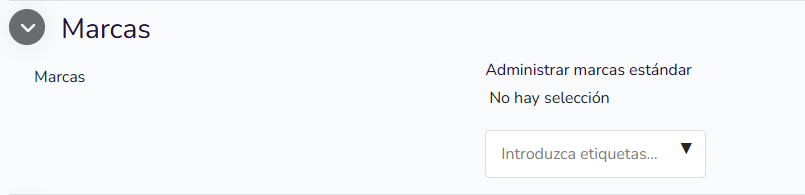
This section allows you to assign one or more tags to the activity. Tags are used as classification elements that help identify and group activities with common characteristics. When no tag is added, the activity is not associated with any additional categorisation criteria.
- Manage standard tags: This link provides access to the management of tags available at the platform level. From there, reusable tags can be created, edited, or deleted. Its purpose is to maintain consistency in tag usage across different courses and activities.
- Enter tags…: This field allows you to type and select tags to be associated with the activity. Tags can be created on the spot or selected from existing ones, depending on the site configuration. When a tag is entered, it is linked to the activity as metadata.
- Example: Adding the tag "official certificate" makes it easier for administrators or instructors to identify this activity as part of the certification process.
6. Competencies
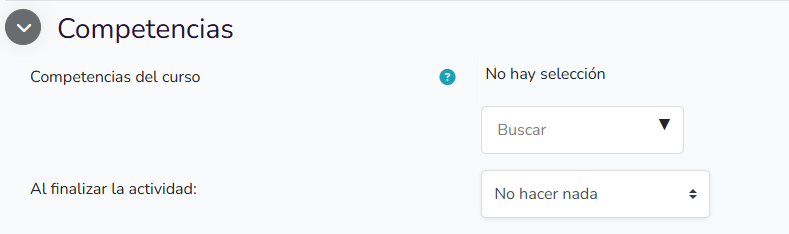
When you add a certificate to a course, competencies represent a skill or ability that the course officially certifies the participant has demonstrated upon meeting the established criteria. The certificate acts as formal proof that one or more competencies have been achieved, based on evidence such as activity completion, instructor evaluation, or fulfilment of conditions defined in the course.
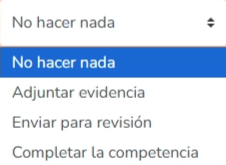
There are four configuration options:
- Do nothing: completing the activity has no effect on the associated competency.
- Attach evidence: the completed activity is saved as proof for the instructor to assess the level achieved in the competency.
- Send for review: the completed activity indicates that the competency must be explicitly reviewed by the instructor before deciding on its achievement.
- Complete the competency: the competency is automatically marked as achieved upon completing the activity.
7. Content update
Decide whether you want update notifications about the course content to be sent to participants.

Save changes
Once all the different certificate settings have been determined, click Save changes and return to course or Save changes and display and the certificate is added to the course.