Certificate Download
Once users have obtained certificates in your courses, you can download them in two ways: individual download or bulk download.
Individual Option
This option is for downloading the certificate of one or more users manually.
Steps to download an individual certificate
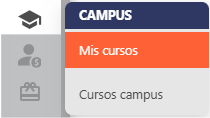
- From the home page, go to Campus and click "My courses".
- Switch to Edit mode.

-
Select the course from which you want to download the certificates.
-
Go to the section where the certificate is located and select it.
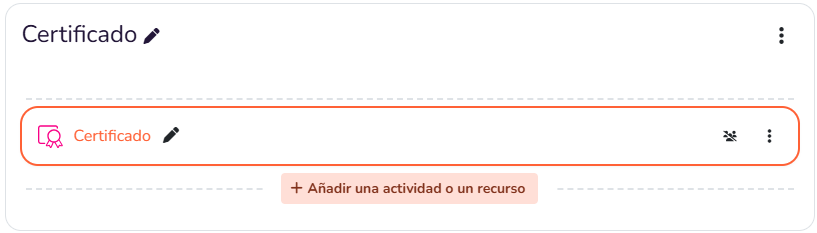
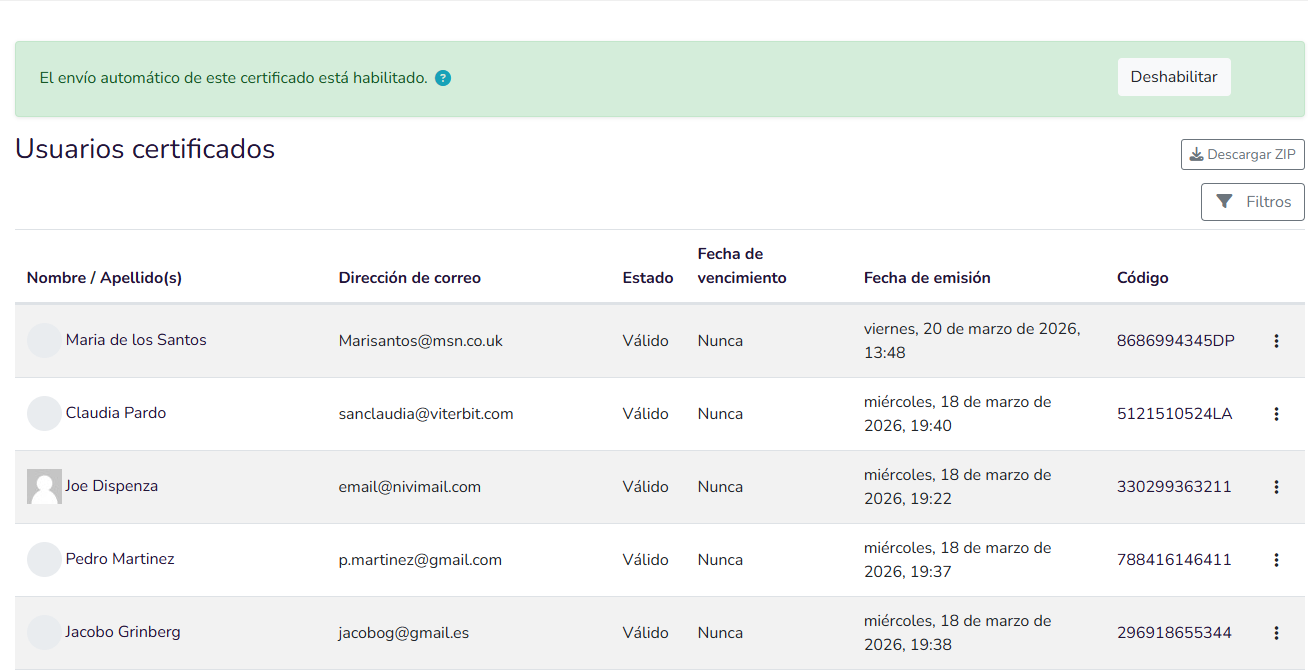
- A list of users who have obtained the certificate will appear on the following screen:
-
Locate the users whose certificate you want to download.
-
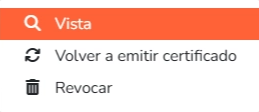
On the right side of the user's row, click the three dots that appear and select View.
- You will be taken to a screen similar to this one, where you can find the download icon located at the top right.
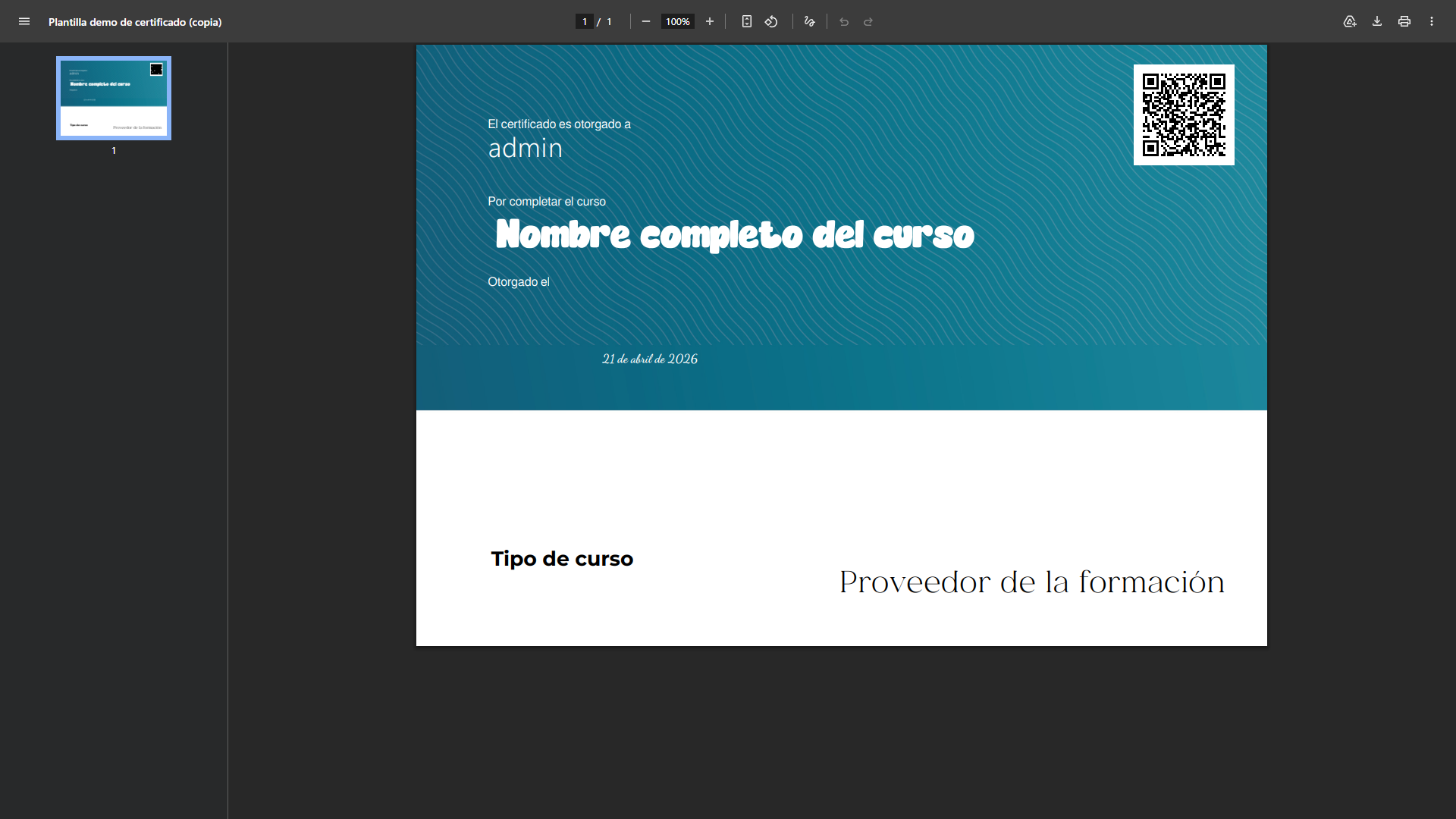
- Finally, click the download icon.

Global Option (Bulk Download)
The global option allows you to download all certificates from an activity at once in a ZIP file.
Steps to download certificates in bulk
-
From the home page, go to Campus and click "My courses".
-
Switch to Edit mode.
-
Select the course from which you want to download the certificates.
-
Go to the section where the certificate is located and select it.
-
A list of users who have obtained the certificate will appear.
-
Click the Download ZIP icon visible on the right side of the page.
If there are many certificates to download, it may take a moment to generate the download file.
