Org Chart
Nivimu lets you view org charts that show your company structure by site. To display employees on the chart, configure each employee's positions and internal categories, and ensure your zones are created.
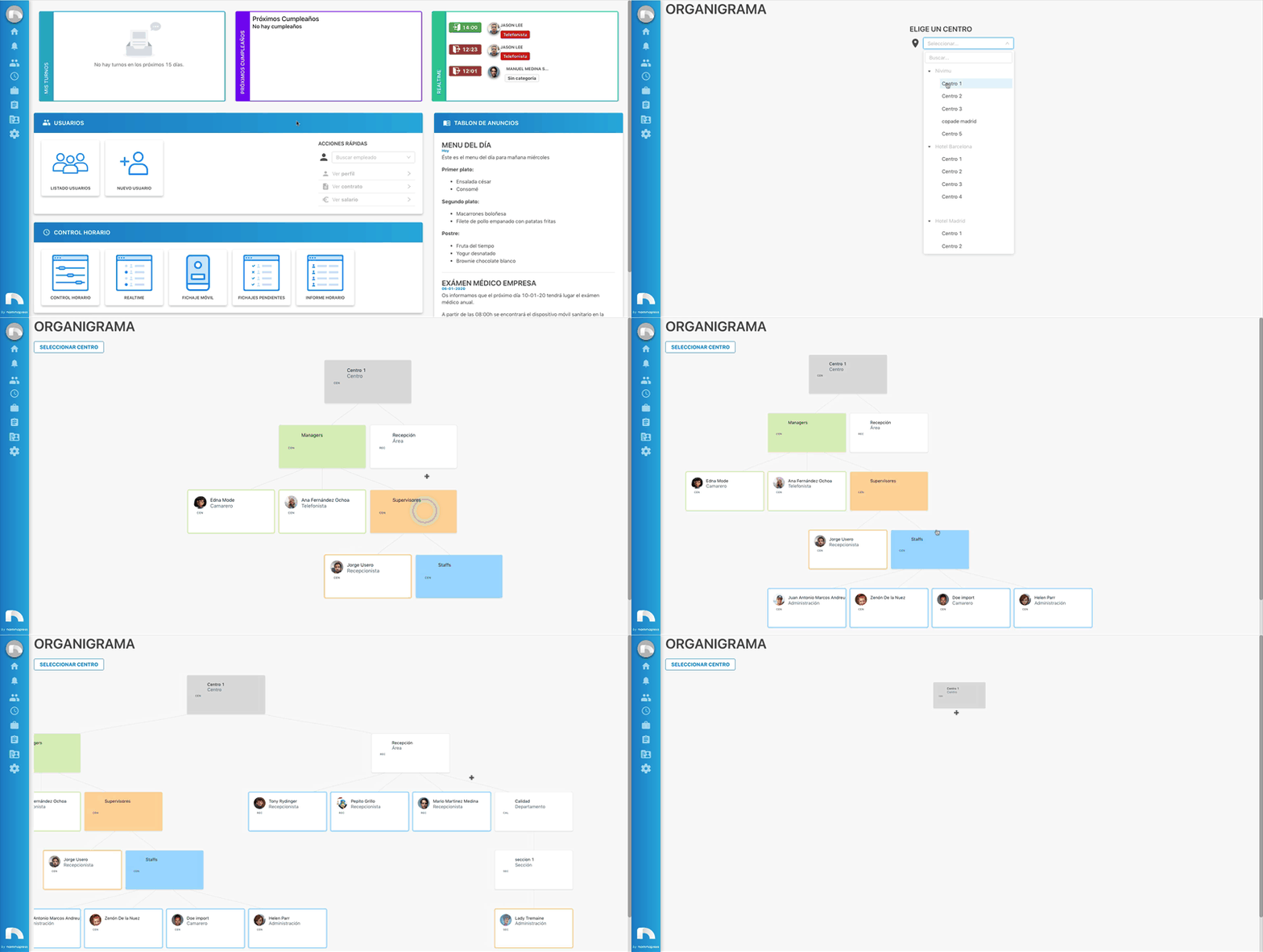
Access and view an org chart
- Open the menu → Users → Org Chart.
- Click the Choose a Site dropdown. It lists all companies and sites configured in Zones.
- Pick the site to view its chart. You can also search above the list.
- You will see a gray square for the site. Click it to expand zones and see managers/supervisors.
- Click through each zone to see assigned workers until the last level (staff).
- To switch charts, click Select Site at the top.
Org chart appearance
Org charts use colored squares; each color represents a zone or employee position:
- Sites: first level, gray. Other branches stem from here.
- Zones: categories configured under Zones below sites. White squares; click to see managers, supervisors, and staff.
- Manager: green squares mean the site/zone has at least one manager. Click to see who it is and their team. Manager cards have green borders.
- Supervisor: orange squares show zones with supervisors. Click to see them and their team. Supervisor cards have orange borders.
- Staff: last level, blue squares. Click to see staff assigned to that zone.
Employee squares show the name, profile photo, and internal category.