New Notification
Use notifications to message employees individually or in groups. Only super-admin/admin roles and managers with permission can send them.
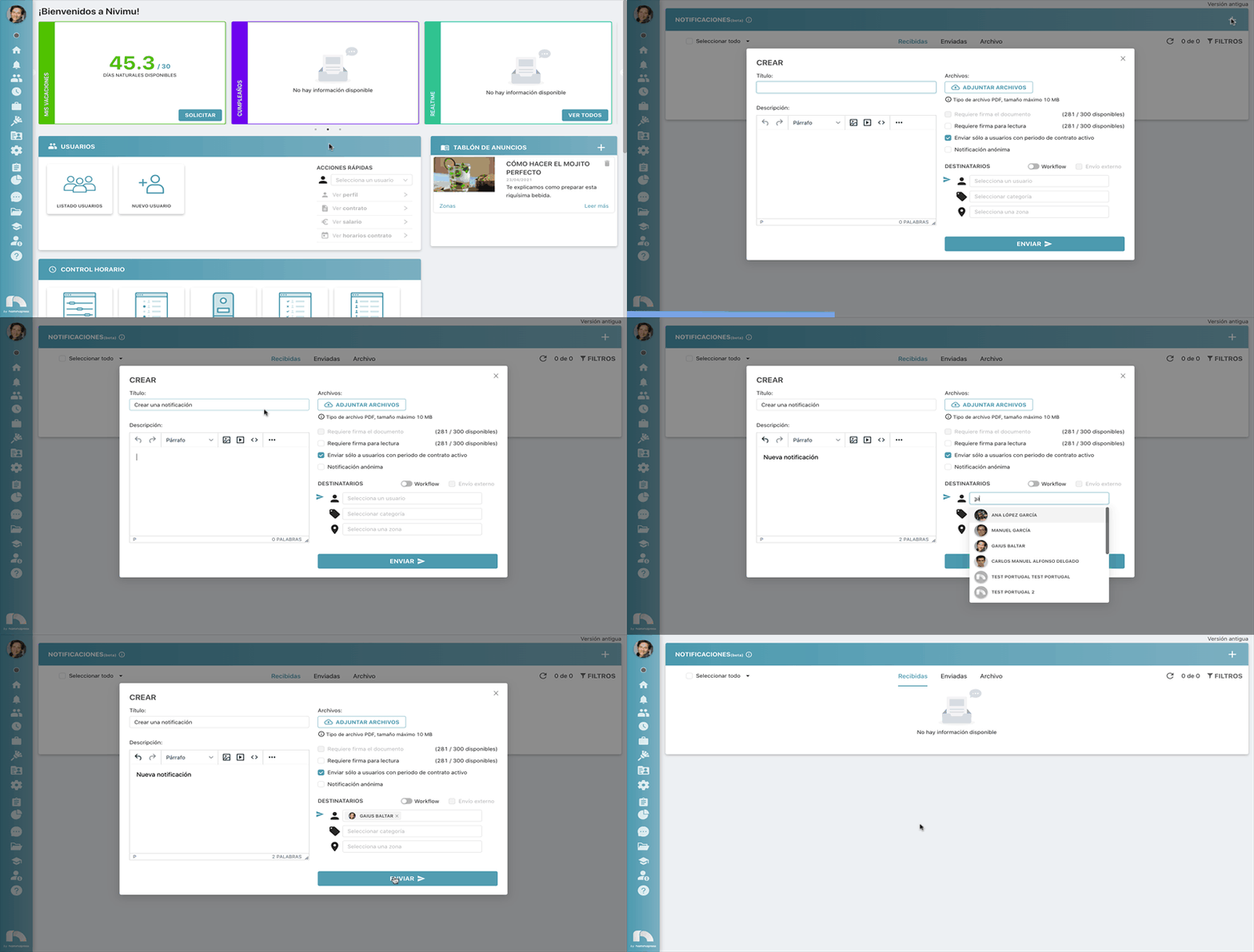
Create a notification
- Menu → Notifications.
- Click + (top right).
- Enter the Title.
- Write the Description (supports formatting, images, video, links).
- In Recipients, choose:
- Users
- Internal Categories
- Zones
- To send only to users with an active contract, check Send only to users with active contract period.
- For anonymous sender, check Anonymous notification.
- Click Send.
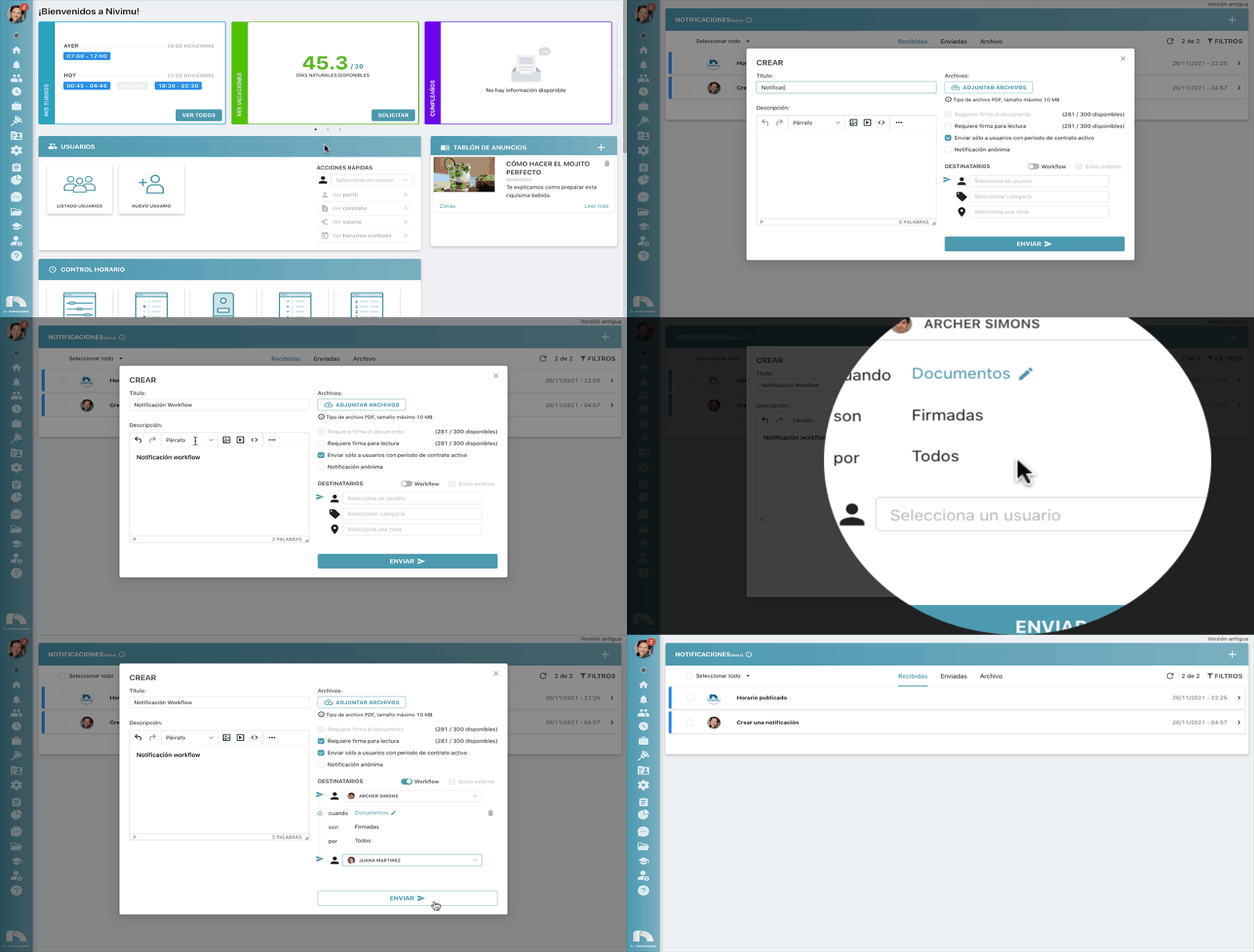
Create a workflow
- Menu → Notifications → +.
- Enter Title and Description (supports formatting/media).
- Attach files via Attach Files.
- In Recipients, choose Workflow and select recipients.
- Click + Add... to define when it moves to the next recipient (e.g., when Documents are signed by All recipients).
- Optionally check Send only to users with active contract period.
- Optionally check Anonymous notification.
- Click Send.
Notifications with attachment
Send a message with an attached file to one or many recipients.
- Menu → Notifications → +.
- Enter Title and Description.
- Click Attach Files.
- Choose recipients (Users / Internal Categories / Zones).
- To delete a wrong file, hover and click the trash icon.
- Optionally check Send only to users with active contract period.
- Optionally check Anonymous notification.
- Click Send.
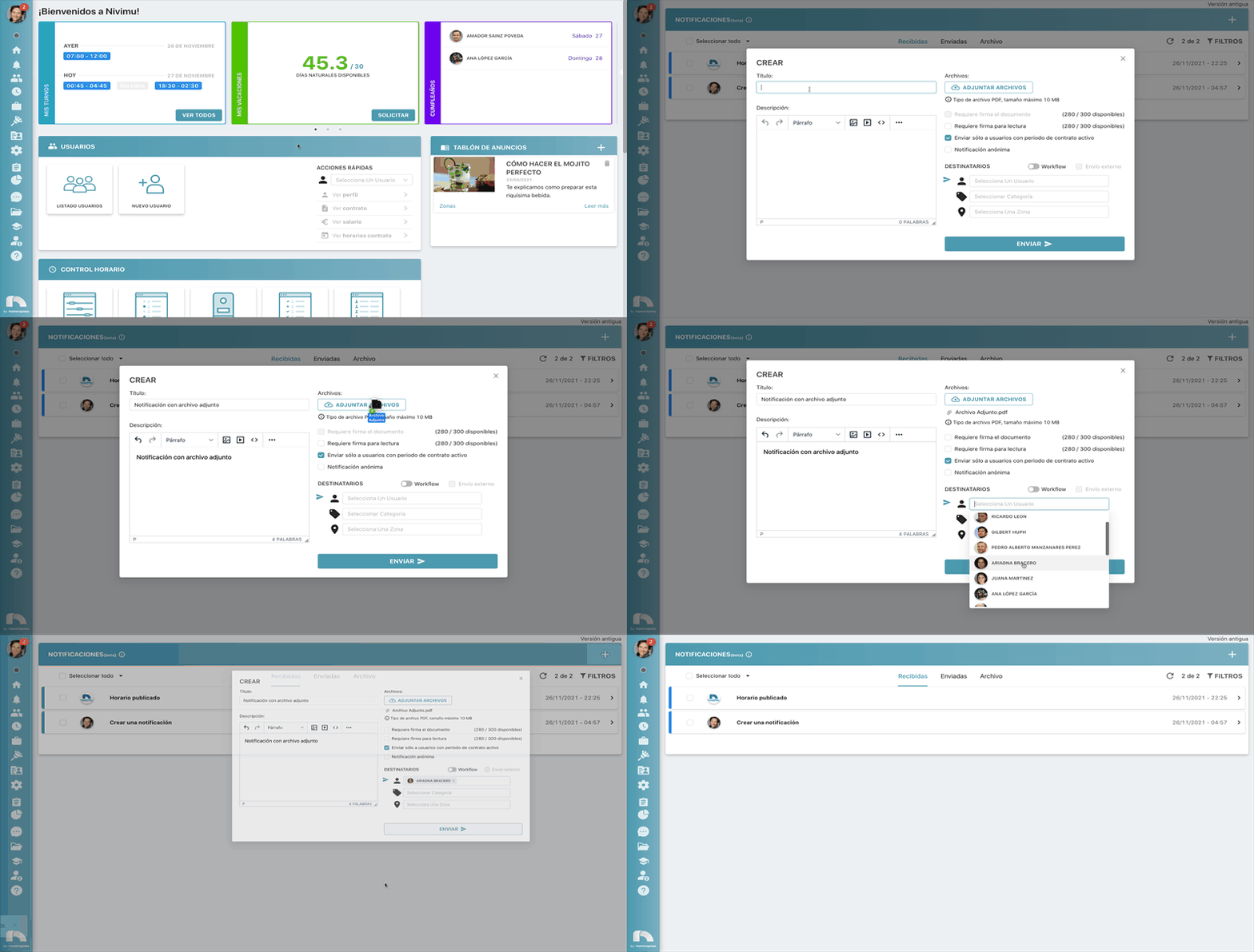
Only .pdf files up to 10MB are allowed.
Require signature to read
Force recipients to sign before reading important notices. Signature quotas reset monthly (see counts in Notifications under require signature to read).

- Menu → Notifications → +.
- Enter Title and Description.
- Choose recipients (Users / Internal Categories / Zones).
- Check Require signature to read.
- Optional: Send only to users with active contract period, Anonymous notification.
- Click Send.

Require signature on document
These can target one person or a workflow of up to 3 people.
Request signature on the attached document. Counts reset monthly (see require signature on document in Notifications). Signed document and a "Certificate of electronic signature preservation" go to the admin.
- Menu → Notifications → +.
- Enter Title and Description.
- In Recipients, choose recipients or workflow (max 3).
- Check Require signature on document.
- Optional: Send only to users with active contract period, Anonymous notification.
- Click Send.
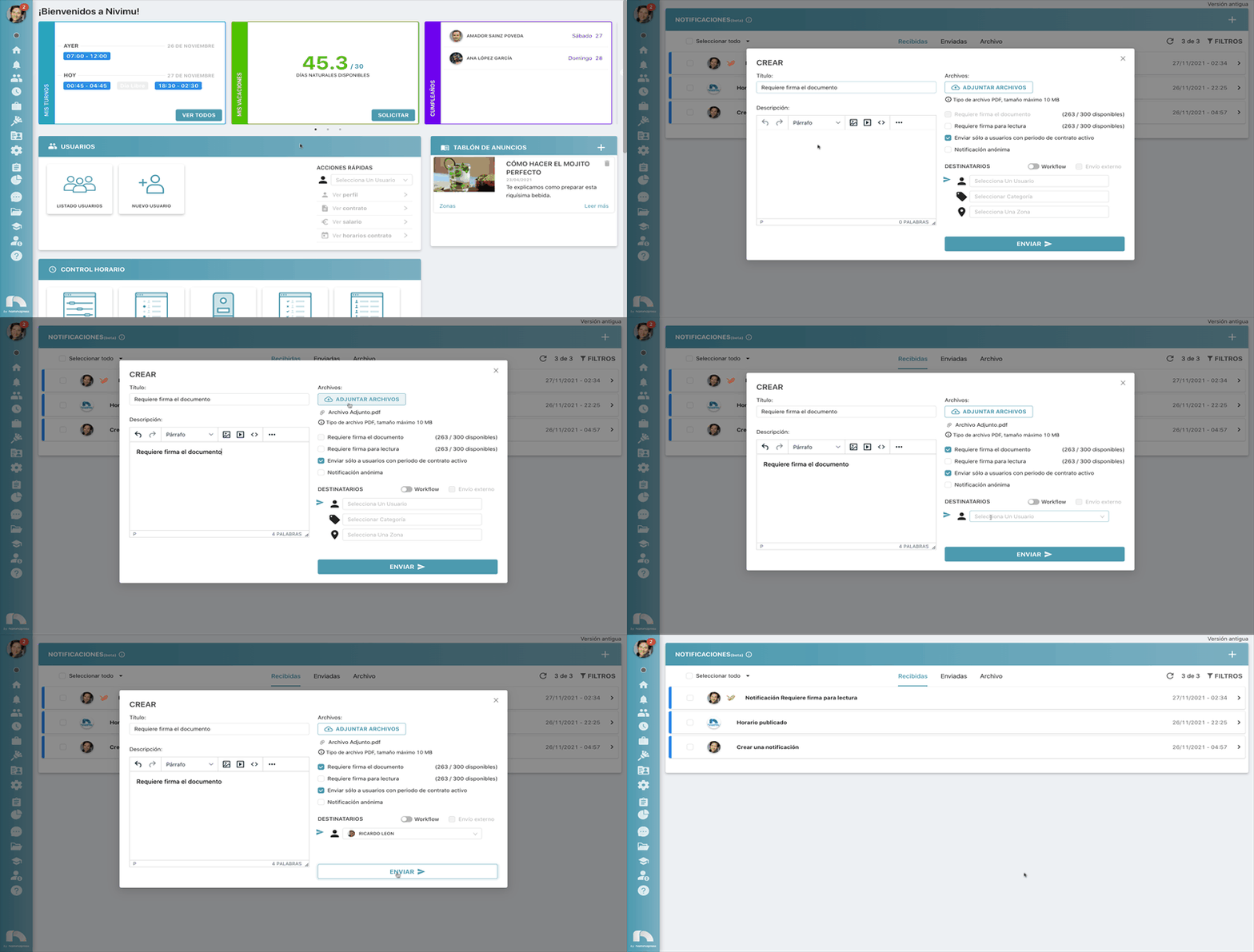
If you require signature to read and on the document, it consumes 2 signatures. Counters show available vs. contracted; they refill monthly and do not roll over.
Electronic signature certificate
Every sent notification can include the electronic signature preservation certificate.
HR Nominapress 360 S.L is a non-qualified Trusted Electronic Services Provider registered with the State Secretariat for Digitalization and AI (Spain). The certificate lists all actions taken on the notification and updates dynamically.
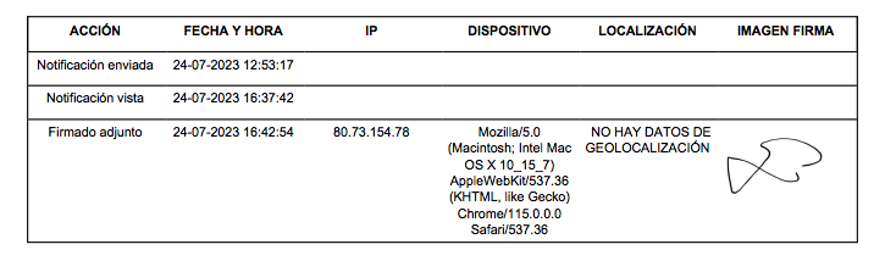
"Sent" includes notifications created here plus work contracts and published schedules from their modules.
Admin access to superior admin notifications
Yes. If you manage permissions, enable permission 215 (orange) to let an admin view notifications sent by the superior admin. Otherwise, contact Nivimu by email to request the change.