Introduction
Through requests, employees can manage all their vacation permits, sick leaves, payroll advances, absences, and even resolve clocking incidents.
To access requests:
- Open the app menu.
- Under Management, click Requests.
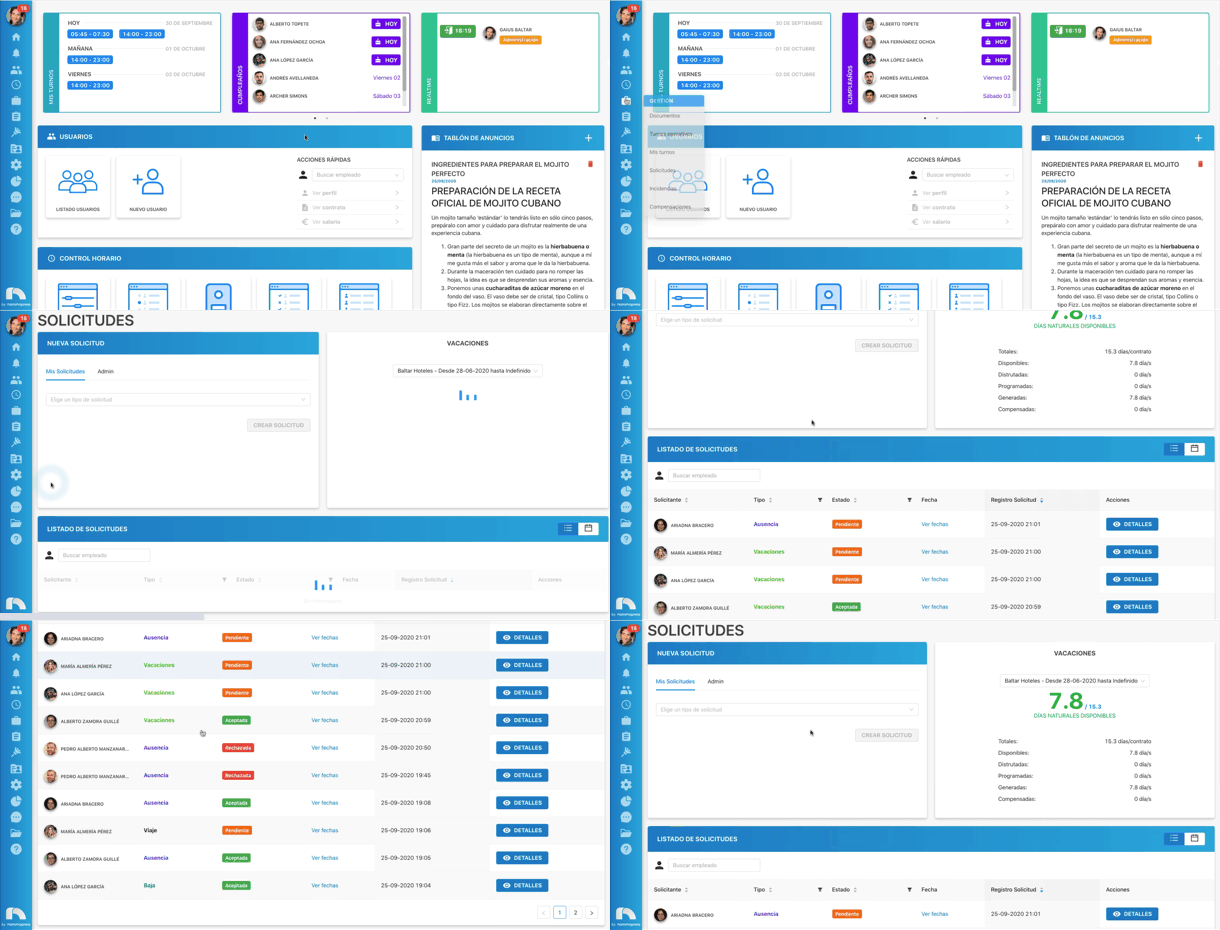
When you access requests, you'll see several sections with different information. First, you'll find the New request section where you can create requests. Administrators will see two tabs here: one for their own requests and one for requesting on behalf of other users.
Second, you'll have the Request list where you can view and manage all user requests with relevant information for each. You can also change the view type; in the upper right corner, switch between List View or Calendar View.
Vacation Widget
The vacation widget has two display modes:
My requests: when viewed in employee mode, shows available working days the employee can request relative to what they generate per year. For example, if 15/22 appears, the first number represents available days (15), and the second the days generated per year (22). If the employee has already requested those days, they cannot request them again (same dates), but they won't be deducted from the 22 days until the request is accepted, regardless of day status (scheduled or taken). They'll only become available again if the request is rejected.
Admin: this view is for the admin profile; both the admin's own vacation and other employees' can be viewed. Detailed vacation information is included:
- Available working days period/year generated: days available to the employee from those generated in that period/year. The other number indicates annual contract days. For example, 13/22 means 13 days available from generated in that period/year and 22 vacation days per period/year.
- Available until year end: vacation days the employee can request, same figure appearing in "my requests" mode.
- Available generated until today: vacation days generated by the employee until today, same as "available working days period/year generated".
- Vacation per year: annual contract vacation days.
- Generated until today: vacation days generated from contract start or year start if the employee started the previous year.
- Regularized in 2021: vacation days regularized during the period/year (if positive, adds available days; if negative, subtracts).
- Taken in 2021: vacation days from accepted requests the employee has already taken.
- Scheduled: vacation days from accepted requests the employee hasn't taken yet.
- Expired from previous year: vacation days the employee didn't take and expired the previous year.
Request List
In the Request list, you can view and manage all user requests with relevant information for each request.
- Requester: the employee who sent any type of request. Click the employee name to access their personal profile.
- Type: the request type sent by the user. Different colors appear by request class, facilitating calendar view visualization.
- Status: the request's current state. Can be: New, In progress, Waiting, Accepted, or Rejected, each a different color for easy differentiation.
- Validation:
- Date: when the request has more than one day, see dates appears; click to view all days assigned to the request.
- Request log: the date and time the request was sent.
- Actions: a button to view request details appears. Clicking also allows validating and resolving the request.
Request Calendar
In the Request calendar, you can view all user requests more visually, with a month's worth of requests at a glance.