Create a New Contract
Create a new contract
- Menu → Users → User List.
- Find the employee and click View Profile.
- In the profile, click Contracts.
- If this is the first contract, click New Contract and fill all required data.
- If the user already has a contract, end it first: click End Contract at the bottom. Then create the new contract.
- Click Save to keep changes, or Save and Publish to publish.
Note
Once published, contract data cannot be edited unless you revert to draft.
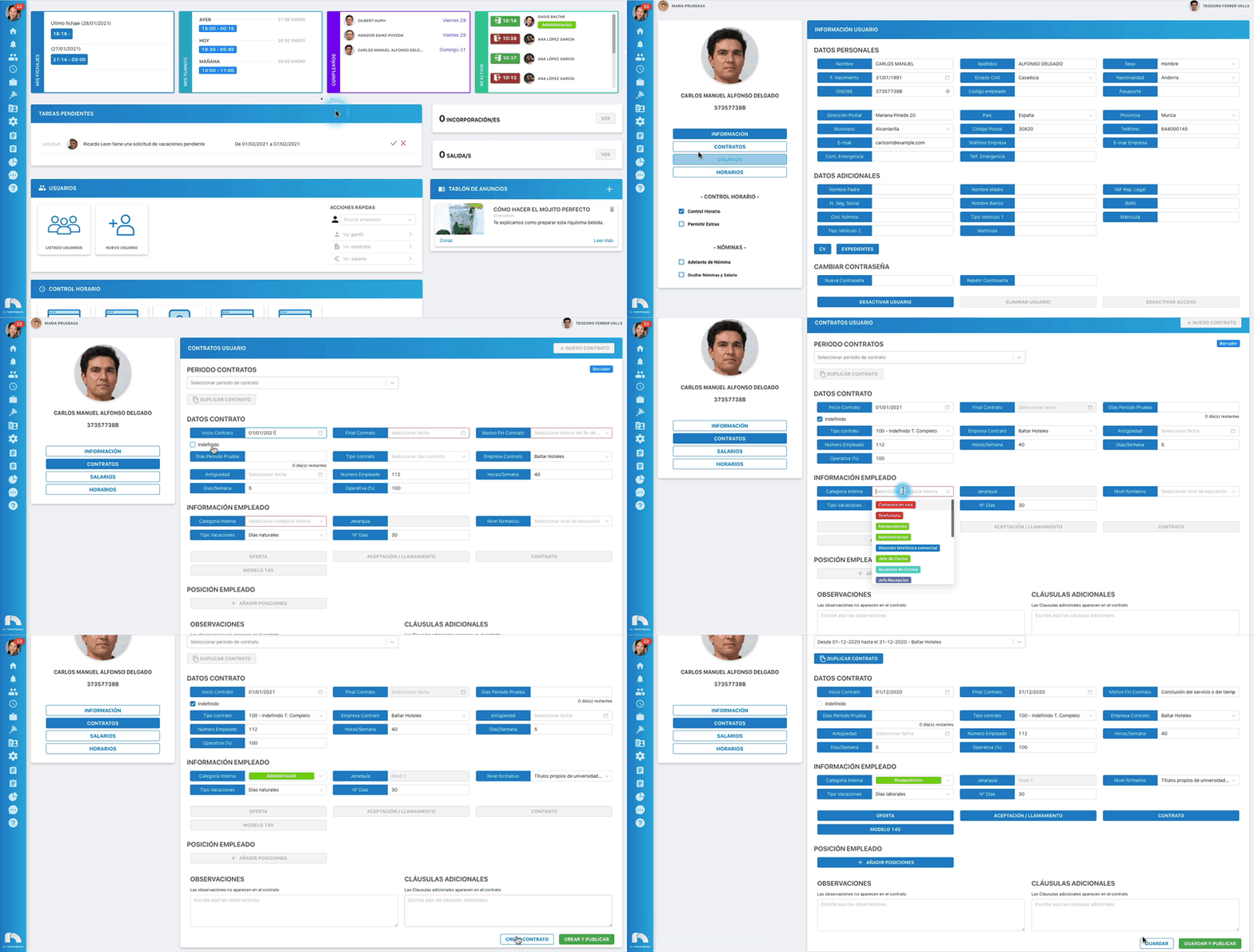
Duplicate an existing contract
- In the contract, click Duplicate Contract.
- In Previous Contract, set an end date and choose End-of-contract reason.
- Click Severance if the worker is entitled to it.
- In New Contract, set a start date and choose Indefinite or a contract end date.
- Click Duplicate contract to create it.
