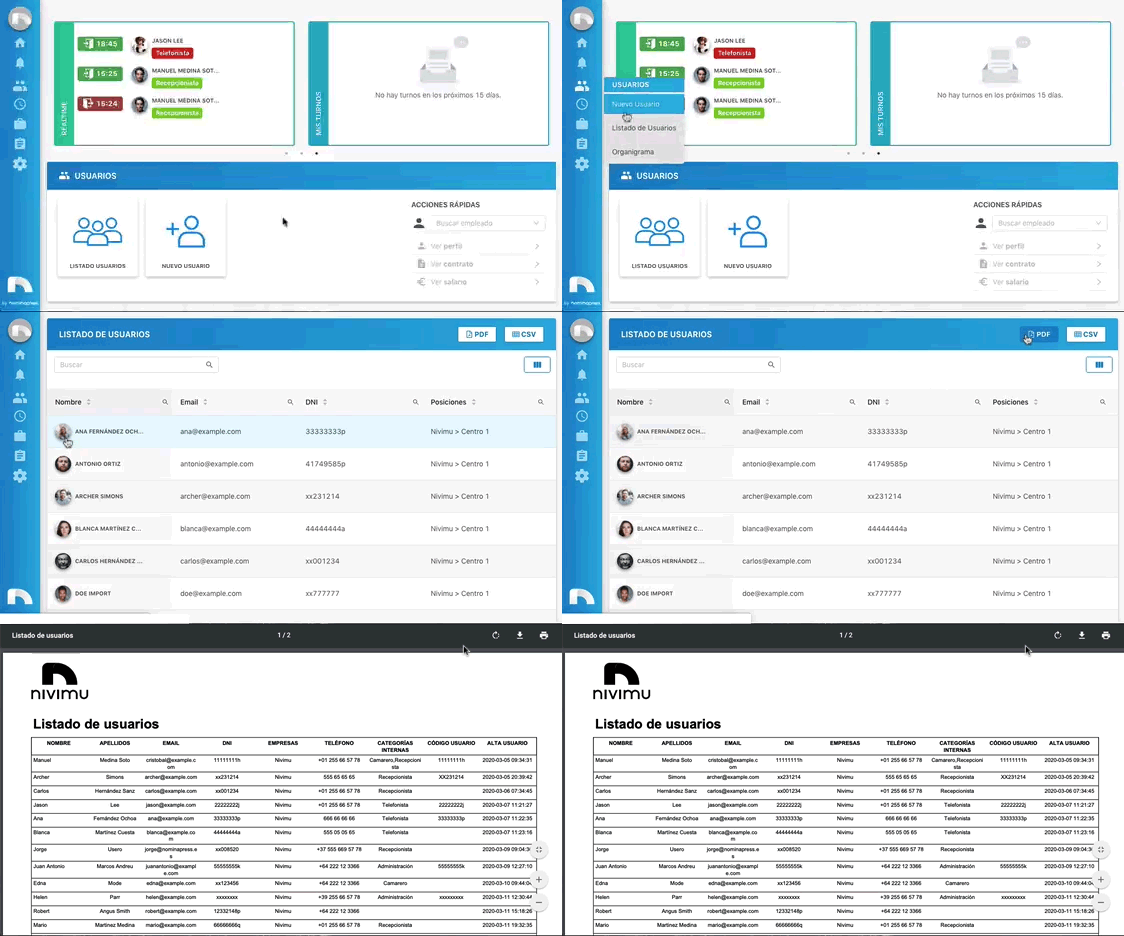
User List
In User List, you'll have access to all company employees, viewing each one's basic information without accessing their profiles. You can also configure table content (adding or removing information columns per your preferences) and filter information by employee, company position, internal category, etc.
Filter Content
-
Open the app menu and under Users, click User List.
-
To add or remove table content, click Filter Table.

-
Select checkboxes for sections you want to view.

-
The user list has a search at the top left to search any keyword; it's not exclusive or a filter, meaning it shows any list part containing those words. To the right of the search, see a checkbox called "active users only," checked by default, showing employees with an active contract. If unchecked, see both employees with and without active contracts.

-
You can also search in each cell of each column, and sort results by clicking arrows. Columns allowing this option are: User, email, ID, active time control, birthdate, positions, main position, companies, phone, Internal cat., Postal code, hierarchy, contract start, contract end, registration date.

-
For each selected column, we have the option to sort ascending or descending by clicking the two-arrow icon.

-
Additionally, some columns have a filter to select or uncheck some available variables. Marked with the icon: clicking it shows available options. Select one or several options, clear selection, or click "OK" when satisfied with selection to view on screen. Columns with this option are: marital status and gender

-
At the bottom right, navigate through different pages by clicking forward/back arrows or a specific page. You can also select how many users to view per page, up to 100 per page.
Download or Print User List
Within User List, you have two options to download data of interest: either through a CSV file to get an editable table in any other application, or through a PDF file for printing.
CSV File
-
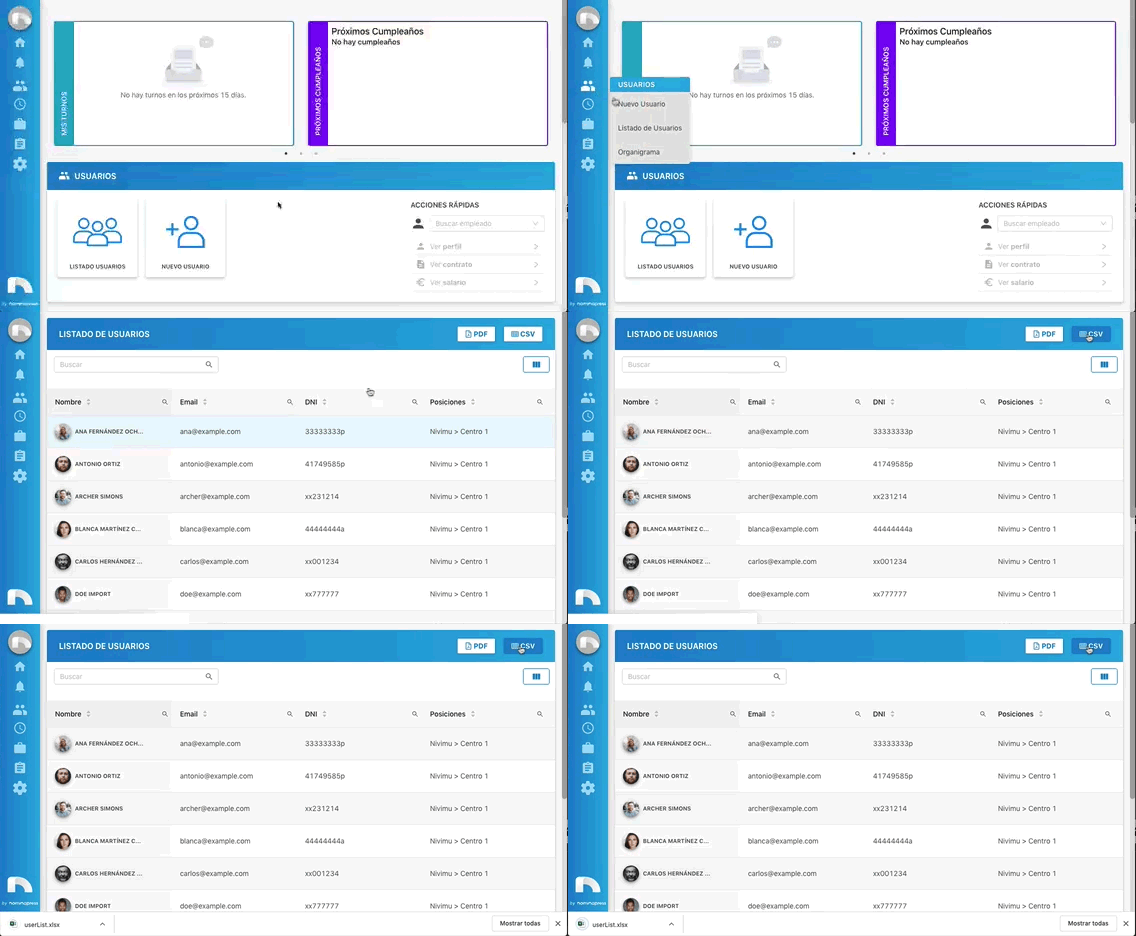
Open the app menu and under Users, click User List.
-
Filter the information you want in your document.
-
To download the report in CSV format, click Download CSV.
-
Clicking automatically downloads the report to import into any application.
PDF File
-
Open the app menu and under Users, click User List.
-
Filter the information you want in your document.
-
To download the report in PDF format, click Print.
-
Clicking opens a new browser tab to download or print the document.