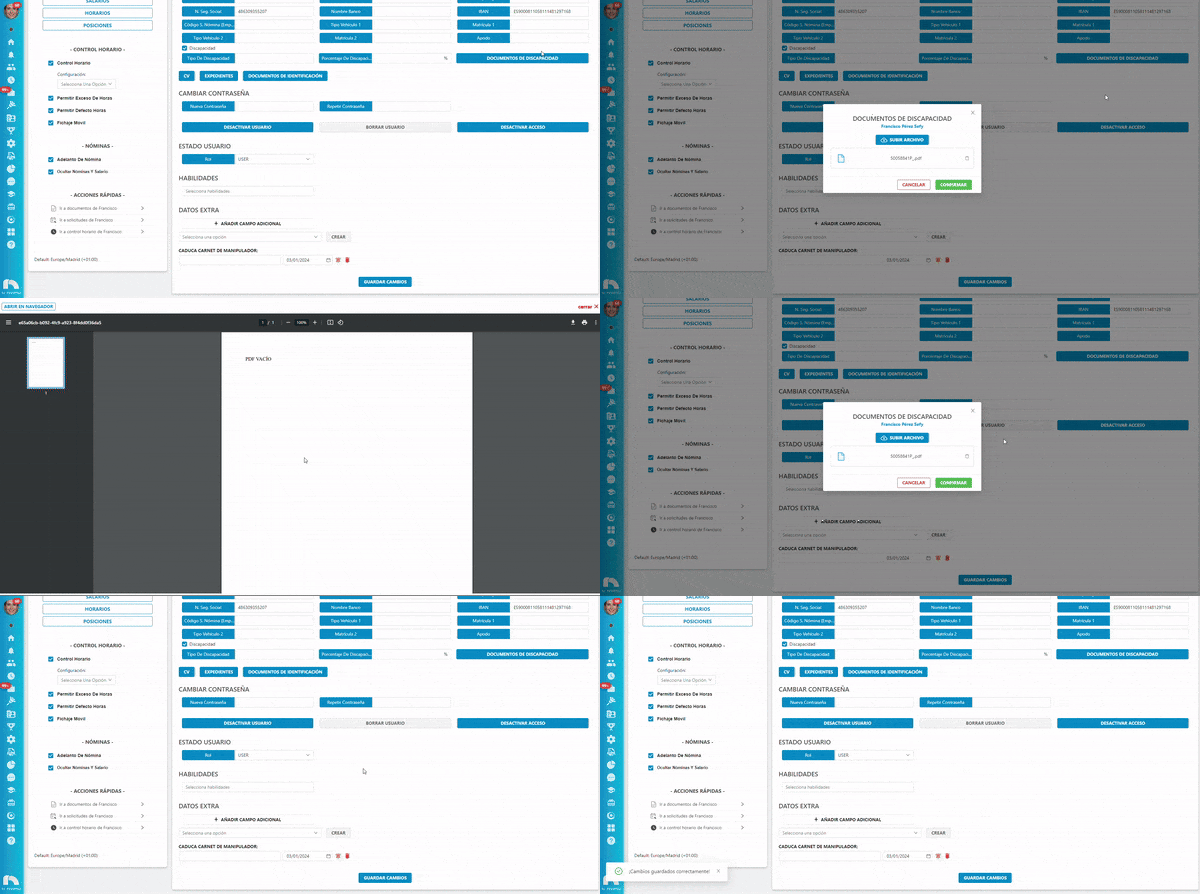
Upload Documents
Employee Resume
To upload an employee's resume:
- Open the app menu and under Users, click User List.
- Find the employee and click View Profile.
- Once you've accessed the profile, click Information.
- In the additional data section, click the CV button.

- Select the file you want to upload and click Save Changes.
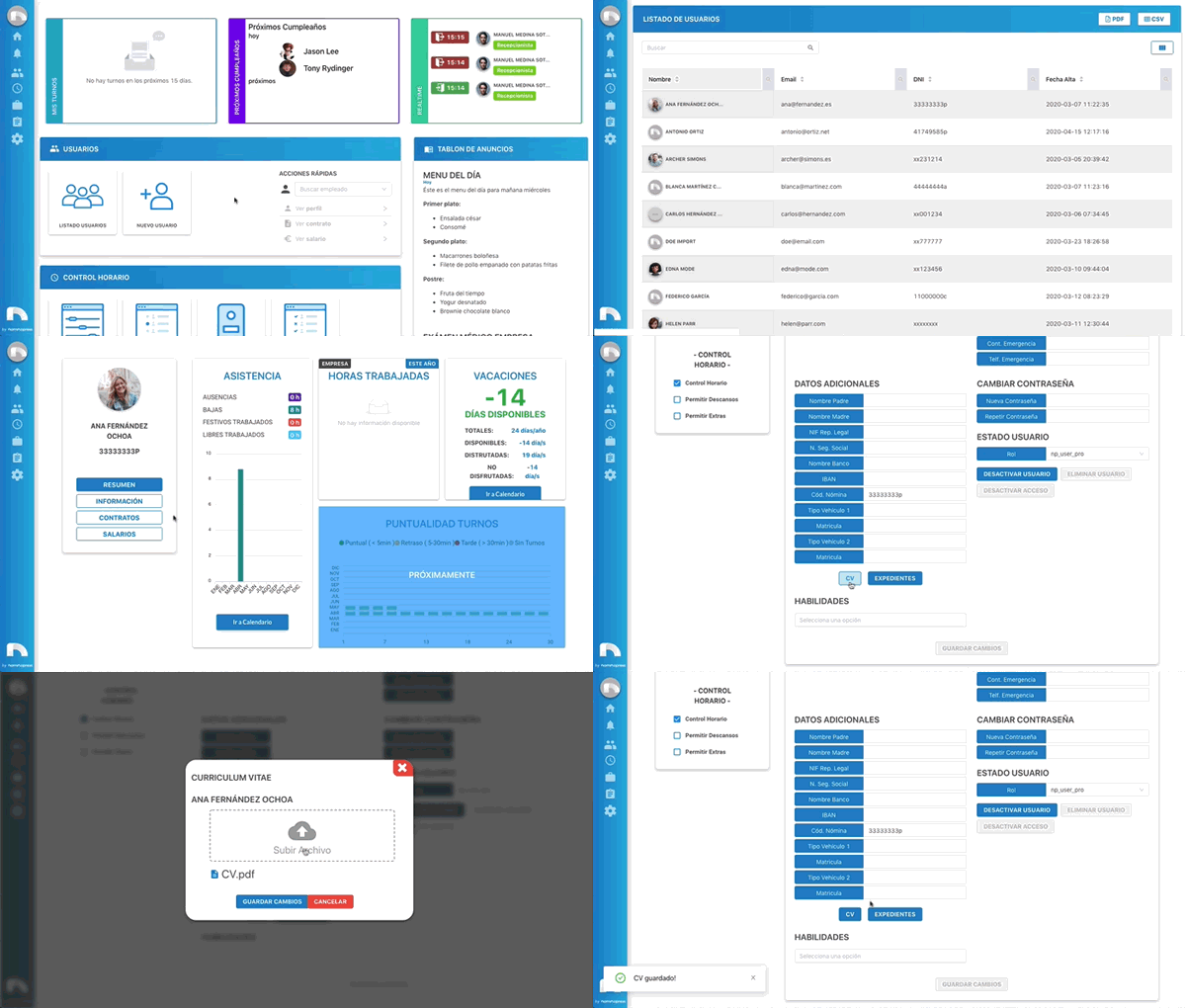
You can access and download any user's resume at any time.
NOTE
Only .pdf files can be uploaded
Employee Work File
To upload an employee's work file:
- Open the app menu and under Users, click User List.
- Find the employee and click View Profile.
- Once you've accessed the profile, click Information.
- In the additional data section, click the Files button.

- Select the file you want to upload and click Save Changes.
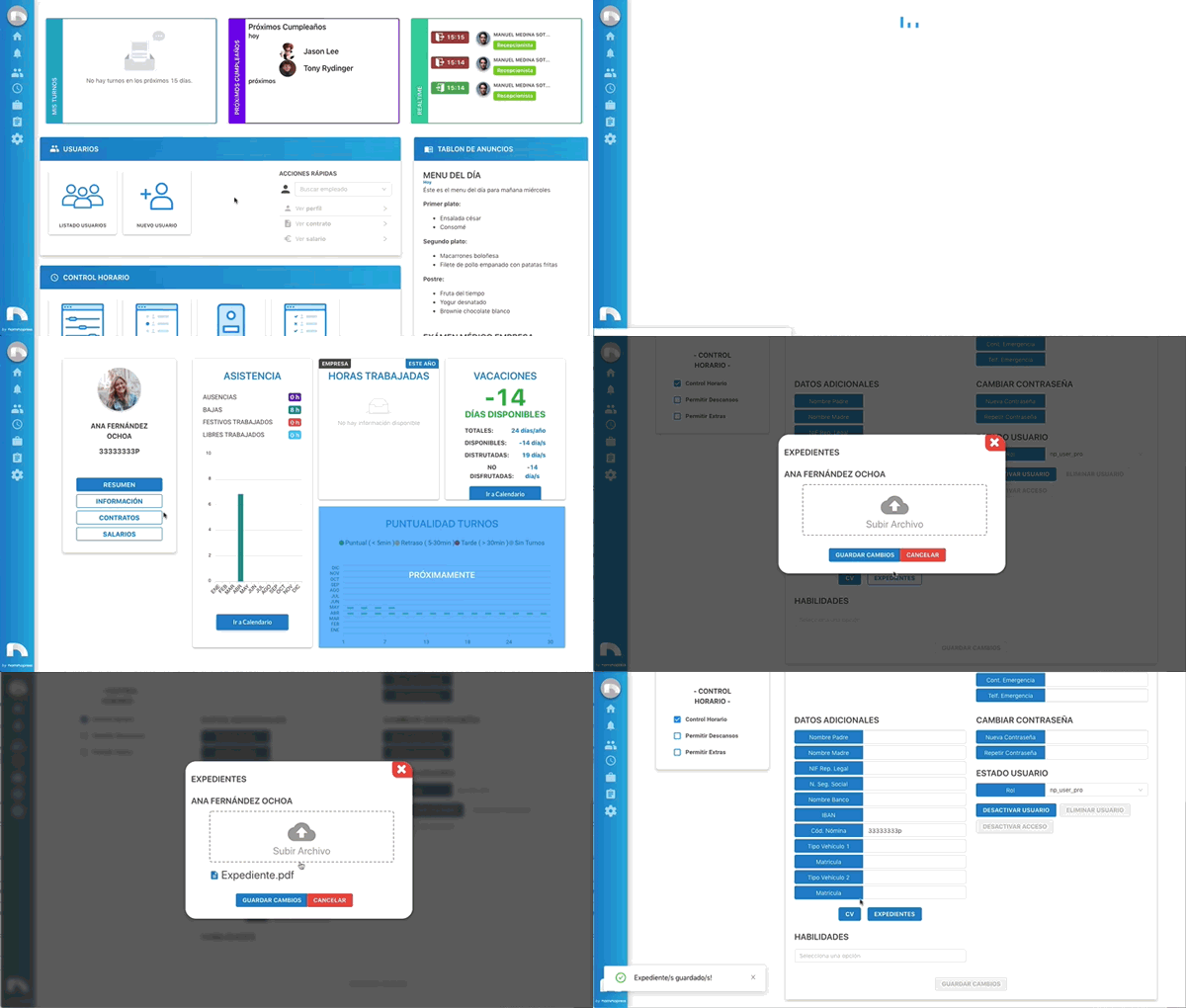
You can access and download any employee's file at any time.
NOTE
Only .pdf files can be uploaded
Upload Identification Documents
To upload the identification document:
- Open the app menu and under Users, click User List.
- Find the employee and click View Profile.
- Once you've accessed the profile, click Information.
- In the additional data section, click the "Identification documents" button.
- Select the file you want to upload and click Save Changes.
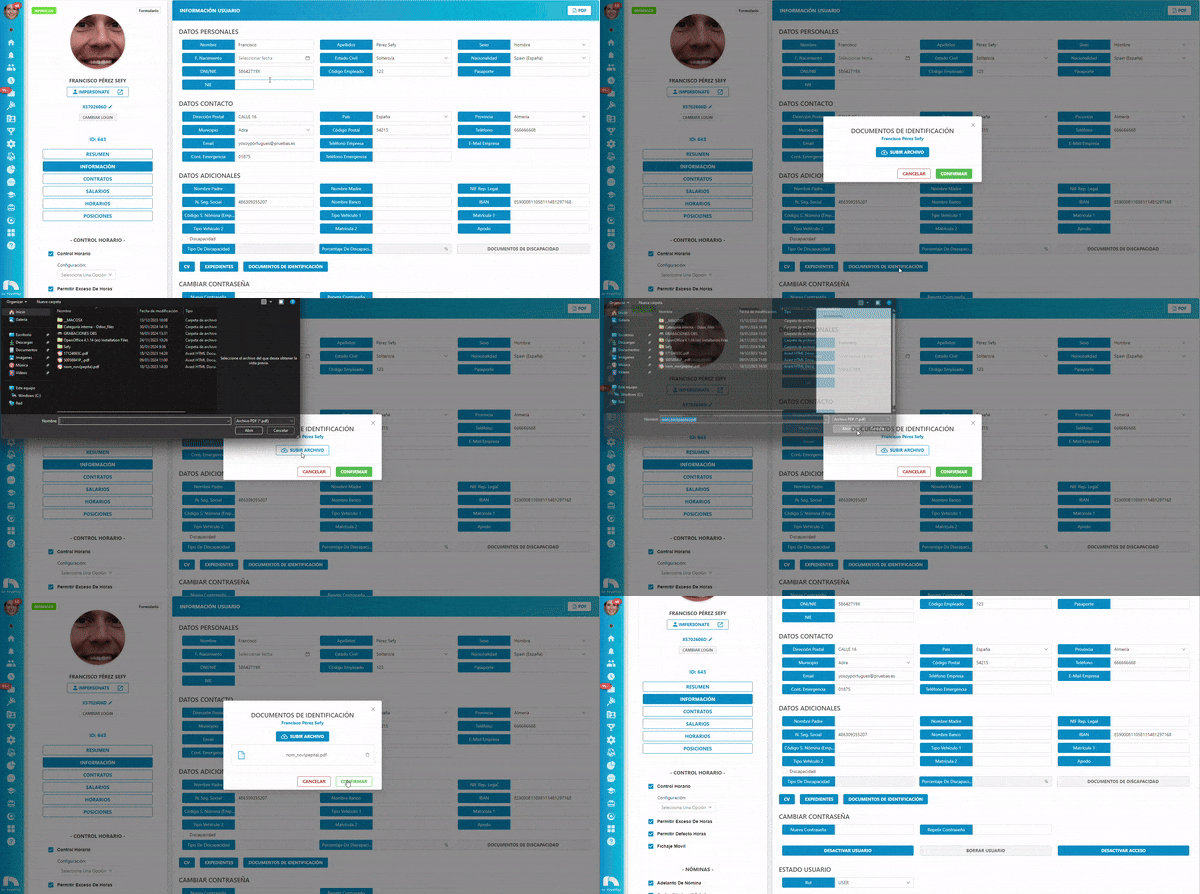
Upload Disability Documents
To upload the disability document if the employee has one:
- Open the app menu and under Users, click User List.
- Find the employee and click View Profile.
- Once you've accessed the profile, click Information.
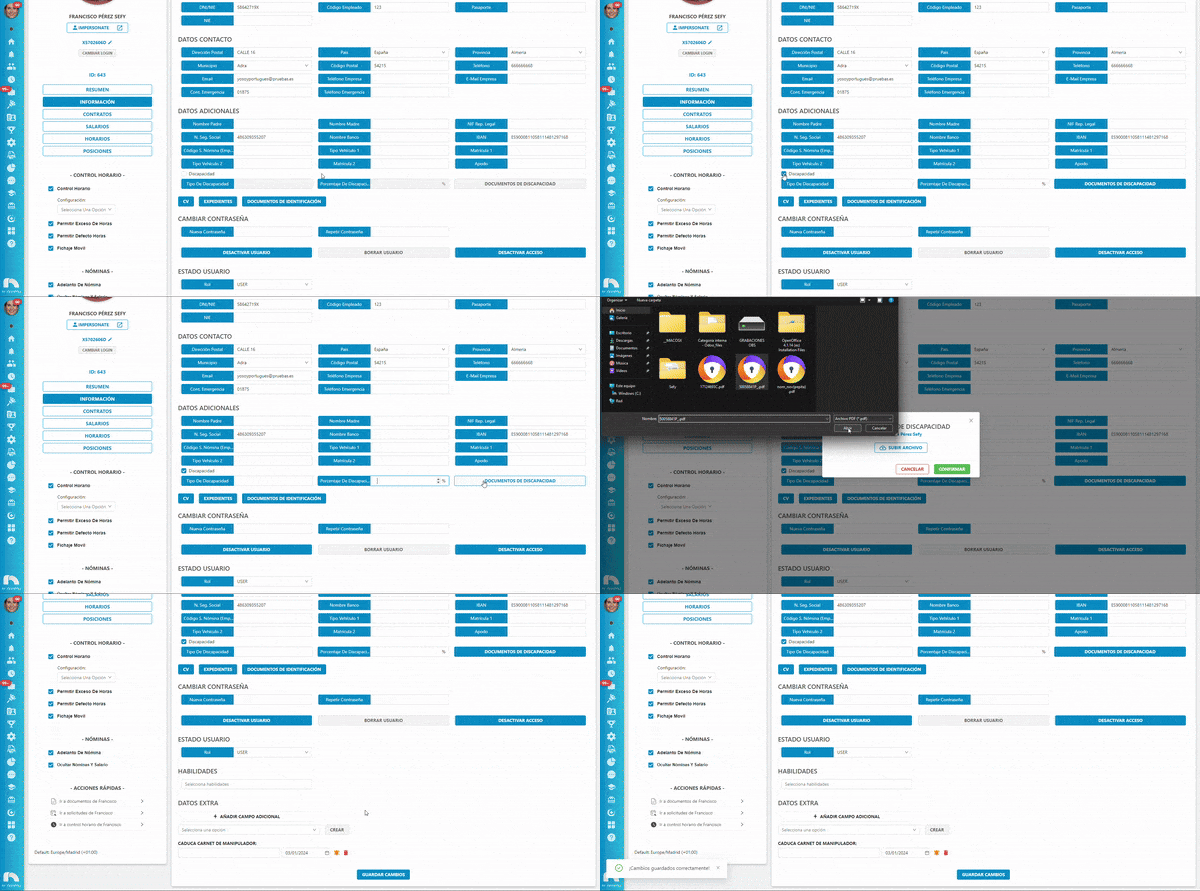
- In the additional data section, check the "Disability" checkbox.
- Enter the disability type and percentage (not mandatory).
- Click the "Disability Documents" button.
- Select the file you want to upload and click Save Changes.
NOTE
You can review or delete the attached document for all document types mentioned here.