Extra Fields
In extra fields, we can add extra information to users that's useful, such as ("Dangerous goods course" or "Food handler card").
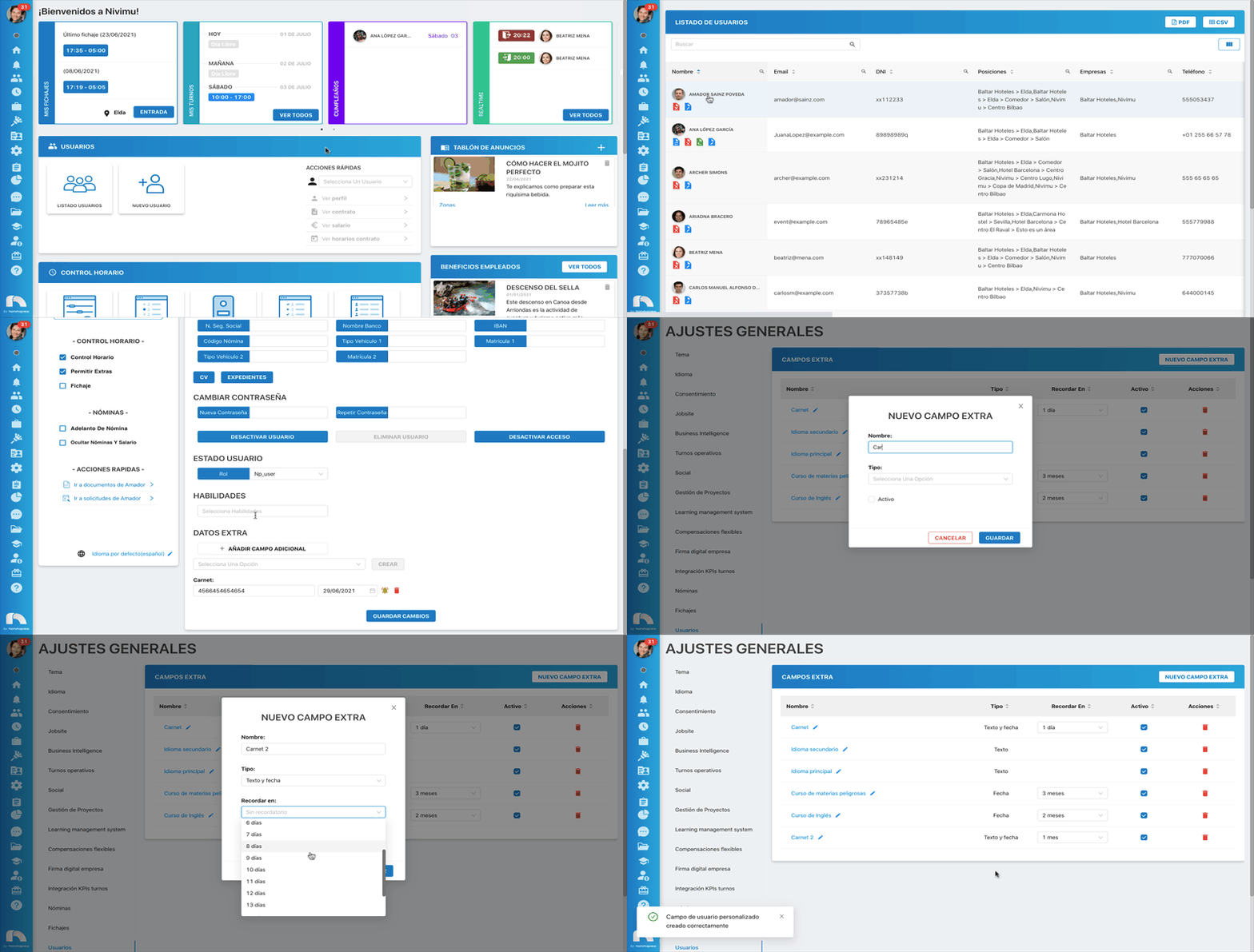
Create New Extra Field
- Open the app menu and under Users, access User List.
- Find the user and click View Profile
- Once you've accessed the profile, click Information.
- In the Extra Data section, click "+ Add Additional Field".
- Click "New Extra Field".
- Type the extra field name.
- Select the extra field type.
- If you select "Date" or "Text and Date", a "Remind on:" dropdown opens to add a reminder to the extra field.
- Select "Active" if you want to activate the extra field.
- Finally, click Save.
Assign Extra Field to a User
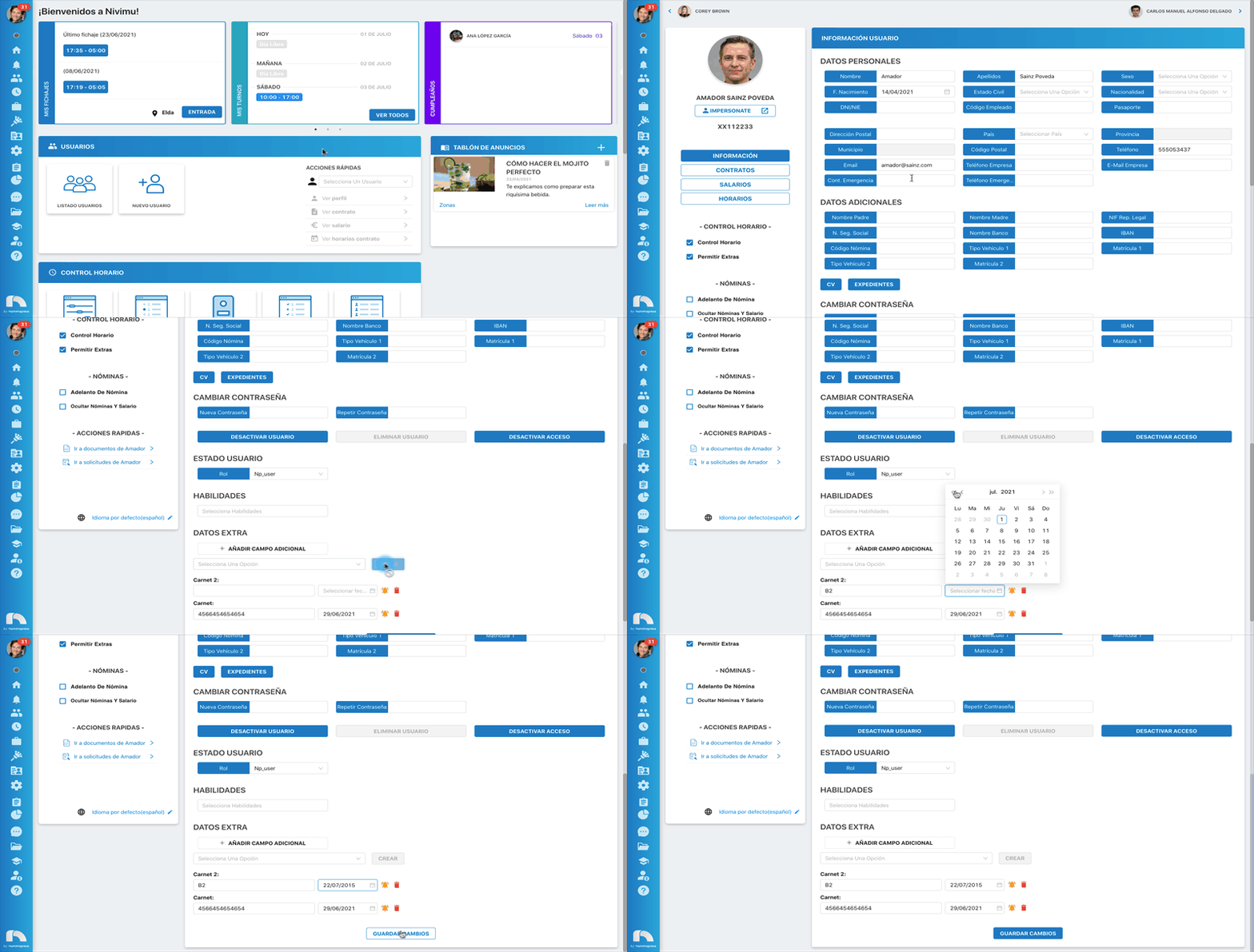
- Open the app menu and under Users, access User List.
- Find the user and click View Profile
- Once you've accessed the profile, click Information.
- In the Extra Data section, choose from the dropdown the extra field you want to create and click "Create".
- Add the value to the new extra field.
- If you chose an extra field with a reminder, a selector appears where you can add the date the established reminder will be based on.
- Finally, click Save changes.
User Extra Fields List
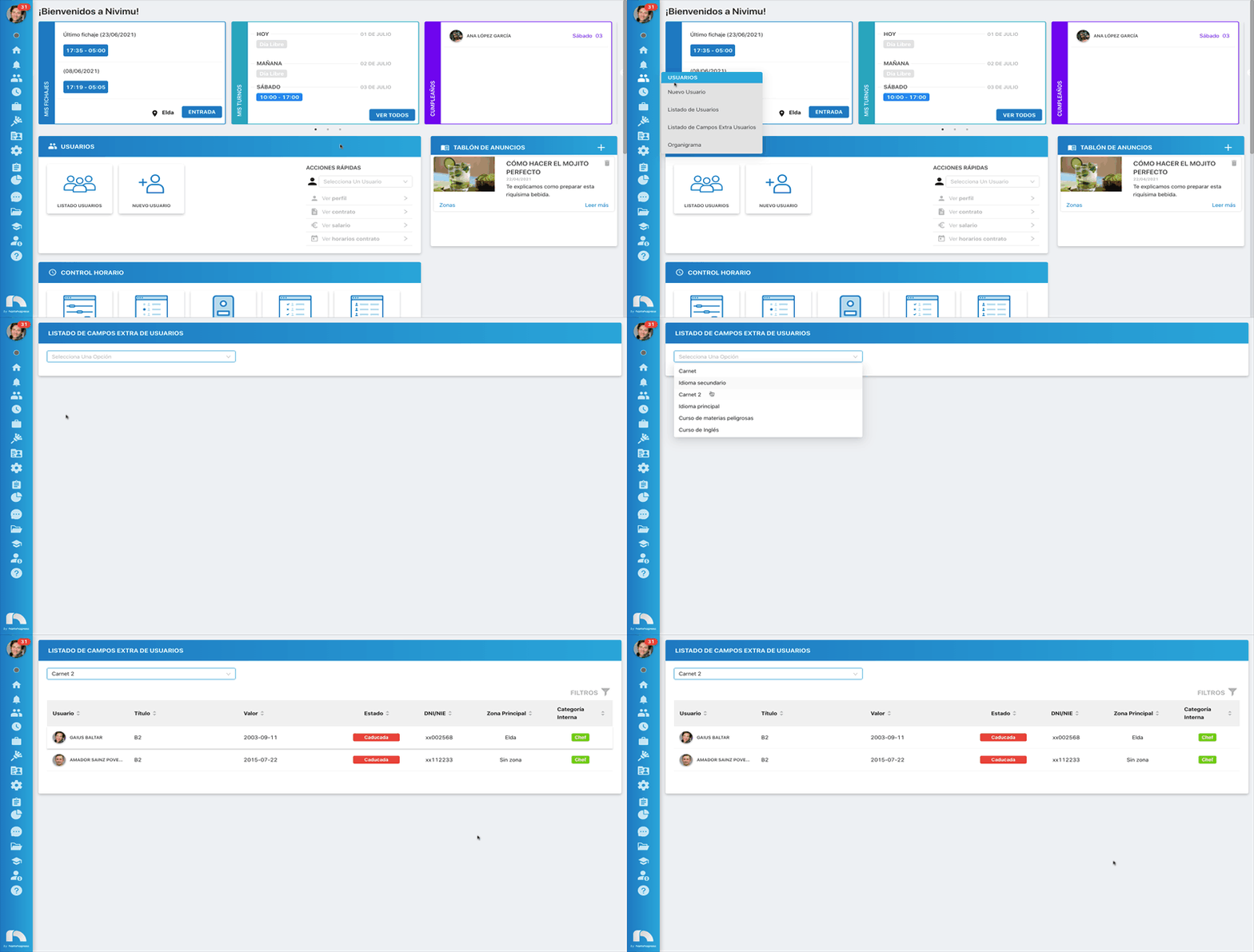
In Extra fields list, see the list of extra fields being generated. To check the extra fields list:
- Open the app menu and under Users, click "Extra fields list".
- Open the dropdown and select the desired extra field type.
- A list appears with all information for users who have that extra field assigned.