Sent Notifications
View all notifications you have sent under Sent.
- Menu → Notifications.
- In Sent, every notification you sent appears with status.
States (sent)
Seen
Marker on the left shows seen/unseen:
 Gray: notification seen by recipient(s).
 Blue: not yet seen.
Signature to open
If Require signature to read was set:
 Orange: not signed; content not viewed.
 Green: signed; content viewed (date/time shown).
Signature on attachments
If Require signature on document was set:
 Orange: document not signed.
 Green: document signed (date/time shown).
Track sent notifications
- Menu → Notifications.
- In Sent, click a notification to see recipients, seen status, required signatures, and attachments.
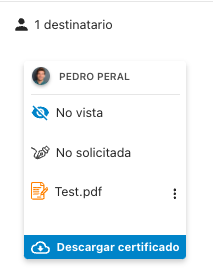
Electronic signature certificate
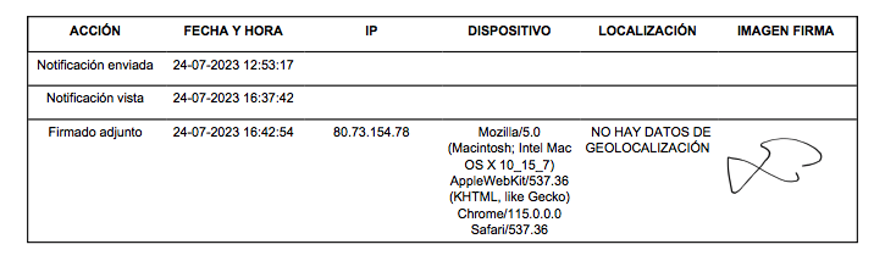
Every sent notification lets you view/download the electronic signature preservation certificate.
HR Nominapress 360 S.L, as a non-qualified Trusted Electronic Services Provider registered with Spain's State Secretariat for Digitalization and AI, ensures documents are signed without leaving the app. The certificate lists all actions related to the notification.
"Sent" includes notifications from this module plus work contracts and published schedules.
To let an admin see notifications sent by the superior admin for a company, enable permission 215 (orange) if you manage permissions. Otherwise, contact Nivimu via email to request it.
Filter sent notifications
- Menu → Notifications → Filters
 .
. - Filter by Recipient, Dates, Title, Type (normal, published shifts, generated contracts).
- Click Reset to clear.
- Click Apply.